To disable the Power-Up, open the board menu on the board where it's enabled, click Power-Ups, search for the Power-Up in question, and click Settings. From there, you'll be able to remove personal settings and disable it.
You can find more details about Power-Ups here: Managing Power-Ups
Notice that removing a Power-Up from a board does not close the subscription (if you have one). To close the subscription, see this guide.
Related questions
Here's how to manage your Power-Ups Bundle subscription (there is no Screenful login. You only need to be logged in to Trello):
1) Open the Power-Up by clicking the Power-Up icon on top of the Trello UI (the icon may look different depening on the Power-Up).
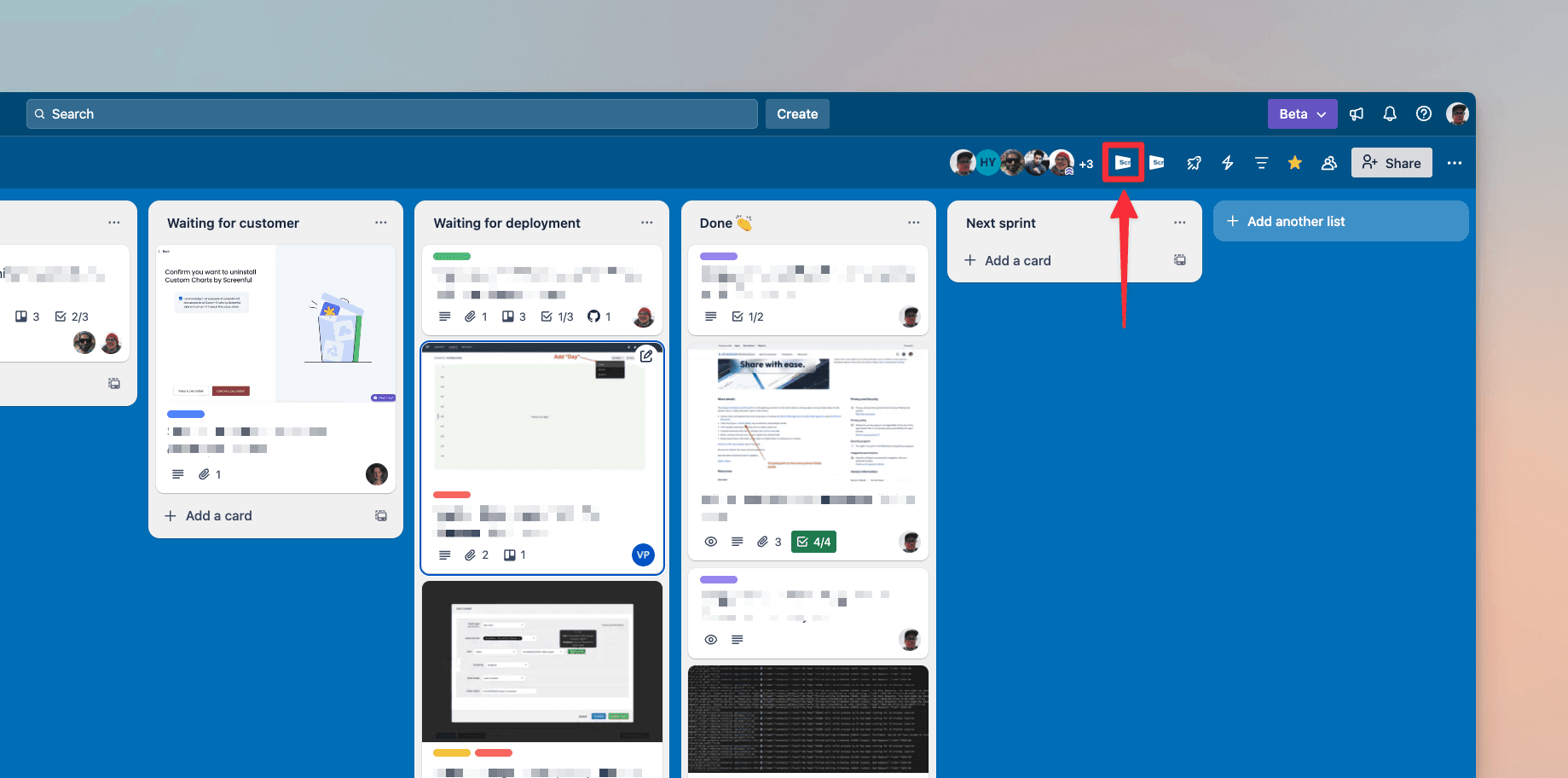
If you don't see the icon on your Trello UI, it is because the Power-Up is not installed on that specific board. Try some other board or add the Power-Up to your board. You can manage the subscription via any of the Power-Ups in the bundle.
Subscription is specific to a Trello workspace so you need to be in the workspace associated with the subscription
2) Navigate to the Billing tab from the menu on the left
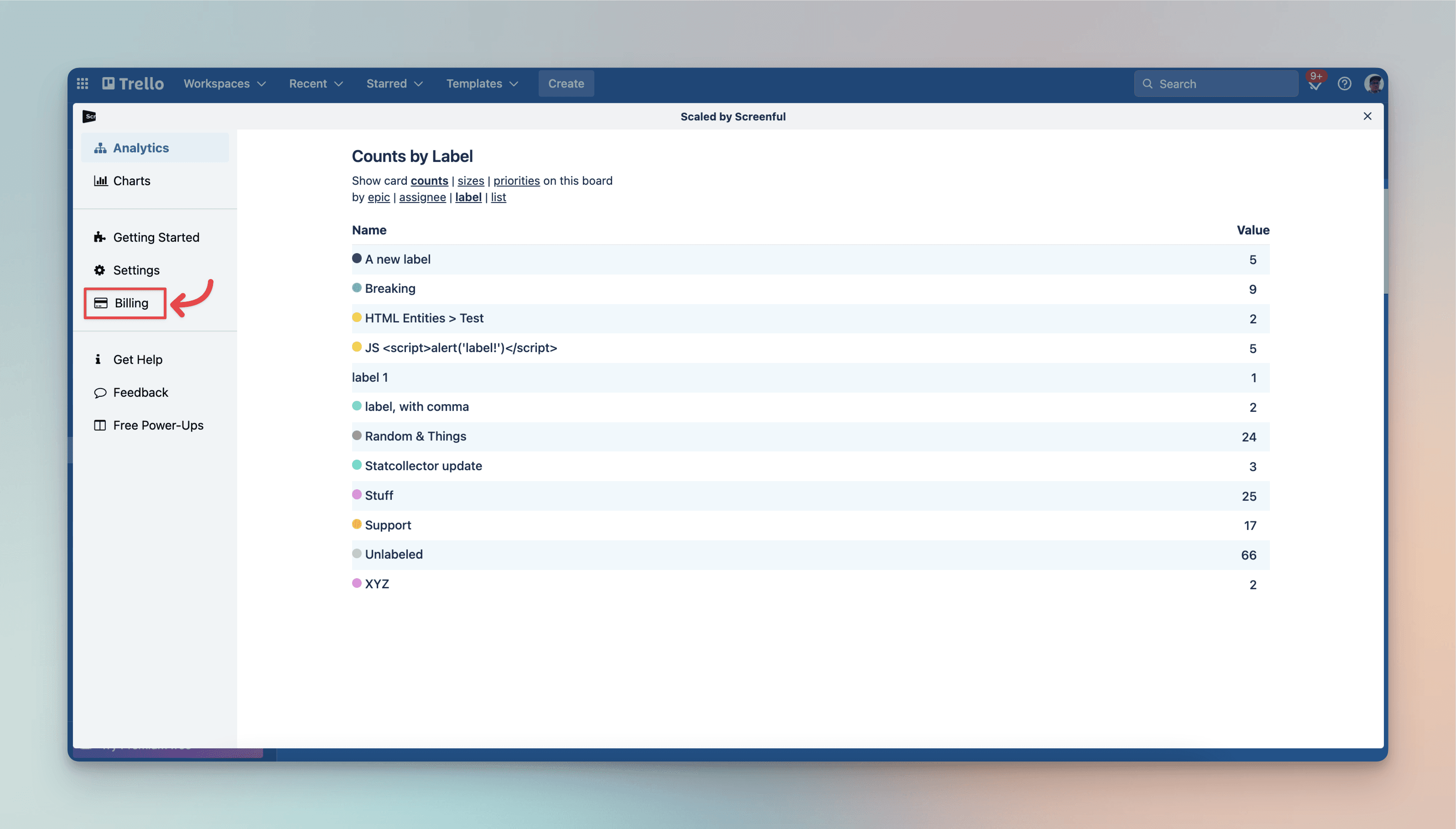
On the Billing page, you can
Update your credit card information
Download receipts
Close the subscription
When you close the subscription, the Power-Up stays functional until the end of the current paid period. Notice that we don't do refunds as per our terms of service (https://screenful.com/terms), unfortunately.
Here's how to manage your Power-Ups Bundle subscription (there is no Screenful login. You only need to be logged in to Trello):
1) Open the Power-Up by clicking the Power-Up icon on top of the Trello UI (the icon may look different depening on the Power-Up).
If you don't see the icon on your Trello UI, it is because the Power-Up is not installed on that specific board. Try some other board or add the Power-Up to your board. You can manage the subscription via any of the Power-Ups in the bundle.
Subscription is specific to a Trello workspace so you need to be in the workspace associated with the subscription
2) Navigate to the Billing tab from the menu on the left
On the Billing page, you can
Update your credit card information
Download receipts
Close the subscription
When you close the subscription, the Power-Up stays functional until the end of the current paid period. Notice that we don't do refunds as per our terms of service (https://screenful.com/terms), unfortunately.
No. Screenful account is needed only when using the Analytics & Reports product. When using Power-Ups, you are authenticated using the Trello login.
No. Screenful account is needed only when using the Analytics & Reports product. When using Power-Ups, you are authenticated using the Trello login.
The receipt of the payment is automatically sent to the email address provided in the subscription form. You can download receipts by clicking Update the Payment info in the Billing page. Learn more.
The receipt of the payment is automatically sent to the email address provided in the subscription form. You can download receipts by clicking Update the Payment info in the Billing page. Learn more.
There is no limit to the number of users. The subscription includes unlimited users. However, notice these limitations:
The subscription is specific to one Trello workspace
There is no limit to the number of users. The subscription includes unlimited users. However, notice these limitations:
The subscription is specific to one Trello workspace
The Power-Up is limited to one workspace so you'd need multiple subscriptions if you want to use it in multiple workspaces.
The Power-Up is limited to one workspace so you'd need multiple subscriptions if you want to use it in multiple workspaces.
The likely reason is that someone on your team disabled the Power-Up on your board. If anyone on your team enables it, it will be visible again for all team members. That’s how Power-Ups work, either everyone sees it, or no one sees it.
The likely reason is that someone on your team disabled the Power-Up on your board. If anyone on your team enables it, it will be visible again for all team members. That’s how Power-Ups work, either everyone sees it, or no one sees it.
Guest users on your Trello board can use the Power-Ups in read-only mode. That means they can see the card sizes, priorities, and dependencies, but they can't modify them. For example, when they click the Set priority on a card, they will see the following message:
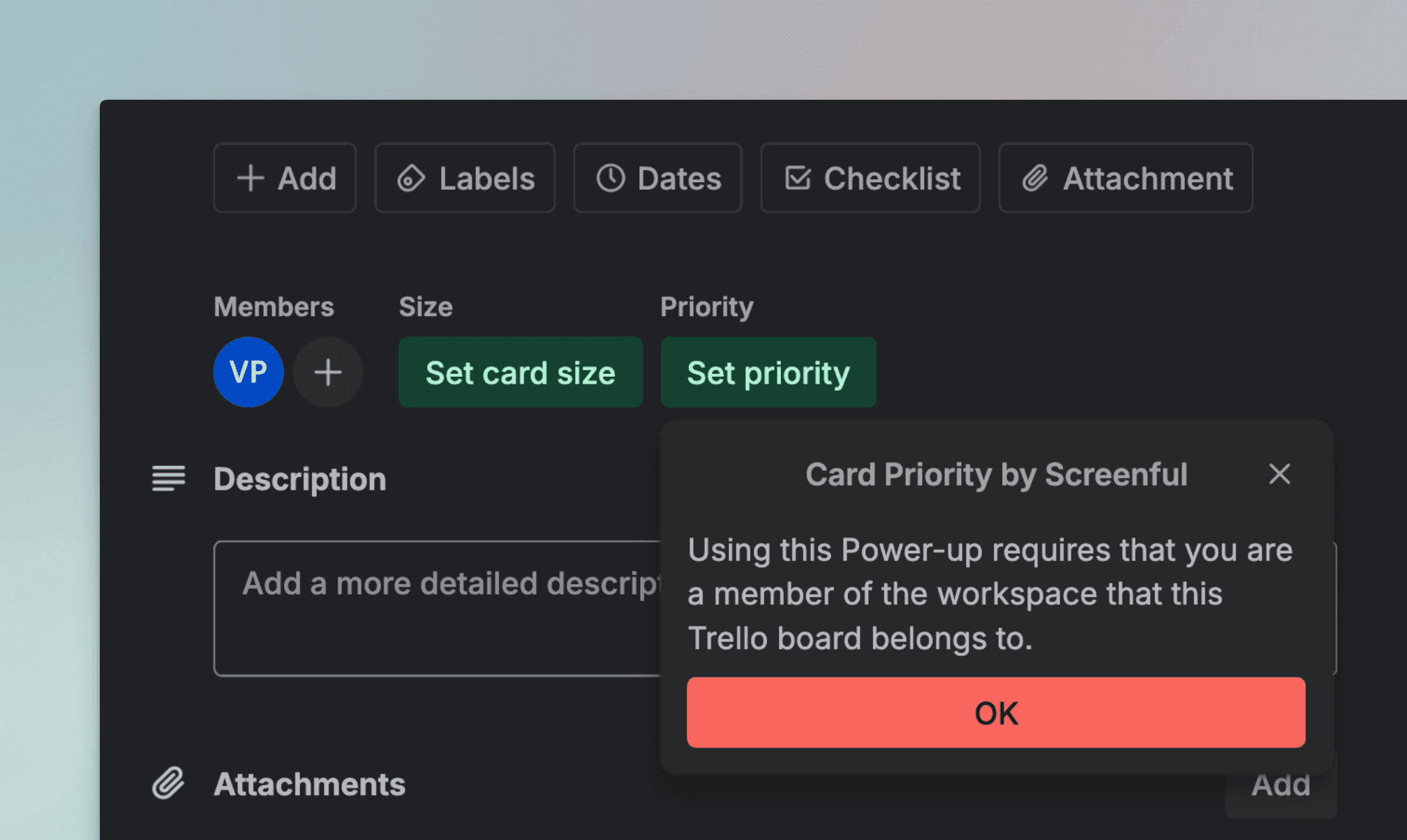
Any person who wants to change the values must be a member of the Trello workspace where the board exists. It's not enough to add a user to your Trello board; you need to add that person to your workspace as well.
Guest users on your Trello board can use the Power-Ups in read-only mode. That means they can see the card sizes, priorities, and dependencies, but they can't modify them. For example, when they click the Set priority on a card, they will see the following message:
Any person who wants to change the values must be a member of the Trello workspace where the board exists. It's not enough to add a user to your Trello board; you need to add that person to your workspace as well.
In order to use the Power-Up on your board, the board must have a workspace associated with it. Creating a workspace is easy, just follow these steps to create one.
In order to use the Power-Up on your board, the board must have a workspace associated with it. Creating a workspace is easy, just follow these steps to create one.
Each user must authorize the Power-Up by clicking the Power-Up name at the top of the Trello UI and completing the auth flow.
Any person who wants to use this power-up must be a member of the Trello workspace where the board exists. It's not enough to add a user to your Trello board, you need to add that person to your workspace as well.
Guest users can use the Power-Up in read-only mode.
Each user must authorize the Power-Up by clicking the Power-Up name at the top of the Trello UI and completing the auth flow.
Any person who wants to use this power-up must be a member of the Trello workspace where the board exists. It's not enough to add a user to your Trello board, you need to add that person to your workspace as well.
Guest users can use the Power-Up in read-only mode.
Auth flow does not work in the desktop app. We are looking for options to have this fixed but meanwhile, the workaround is to use the web app for authorization (after which you can use the Power-Up in the desktop app).
Auth flow does not work in the desktop app. We are looking for options to have this fixed but meanwhile, the workaround is to use the web app for authorization (after which you can use the Power-Up in the desktop app).