When you create a new Organization within GitHub it may not automatically appear within Screenful. You may need to enable access to the new organizaion within the GItHub UI.
Notice also that the OAuth integration is managed per user account rather than per organization. The integration will see all the organizations for that GitHub user.
To add your new GitHub organization, you will need to add access to Screenful for this new organization:
Navigate to Account(top right) > Settings > Applications > Authorized OAuth Apps
Click on Screenful
Find your Organization(s) and click on Grant.
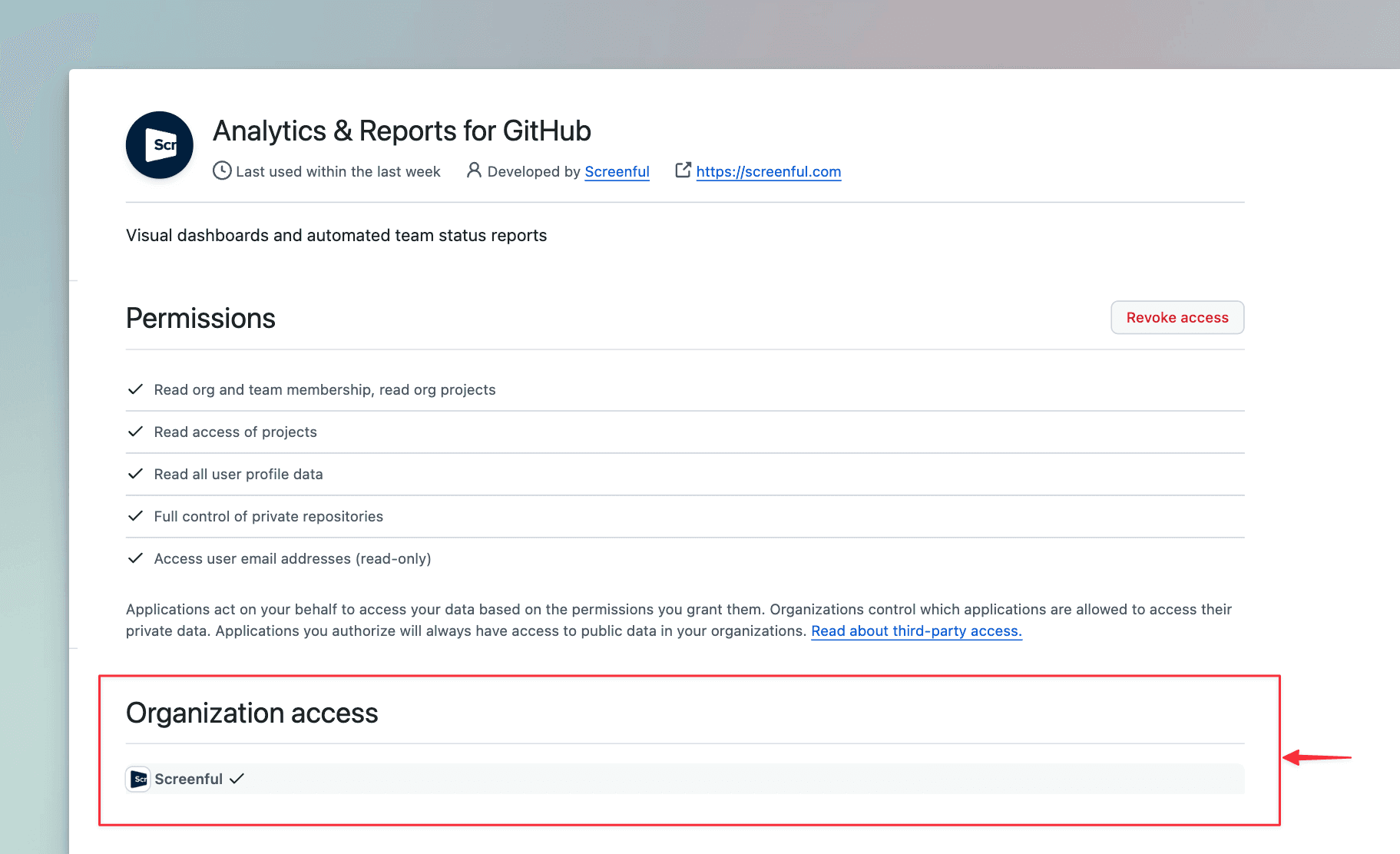
You should now be able to import repositories and projects from this organization!
Related questions
You can pull metrics from repositories that you own or that are in your organisation. If your organisation has applied special restrictions on 3rd party access you need to grant access to the Screenful app first.
You can pull metrics from repositories that you own or that are in your organisation. If your organisation has applied special restrictions on 3rd party access you need to grant access to the Screenful app first.
Go to the Applications settings in GitHub and remove Screenful from the authorised OAuth applications. After that, you can import projects or repositories using a different GitHub account.
Go to the Applications settings in GitHub and remove Screenful from the authorised OAuth applications. After that, you can import projects or repositories using a different GitHub account.
Pull request reviewer means a person, team, or bot that has been requested to review a pull request, regardless of whether the reviewer has taken any action. The pull request review time can be zero in the following cases:
Pull request hasn't been merged
Review took place after the pull request was merged
Review was never requested (in which case the review time is zero because the counting starts from the moment the pull review was requested)
Pull request reviewer means a person, team, or bot that has been requested to review a pull request, regardless of whether the reviewer has taken any action. The pull request review time can be zero in the following cases:
Pull request hasn't been merged
Review took place after the pull request was merged
Review was never requested (in which case the review time is zero because the counting starts from the moment the pull review was requested)
When you add a new custom field to your board, it is imported during the next data sync (the data is synced automatically once per hour). You can trigger sync manually anytime by selecting Data sync options from the main menu. Notice that the new field should also have a value assigned in at least one task.
When you add a new custom field to your board, it is imported during the next data sync (the data is synced automatically once per hour). You can trigger sync manually anytime by selecting Data sync options from the main menu. Notice that the new field should also have a value assigned in at least one task.