Follow the steps below to set up Screenful when using Teamwork.
Start a free trial
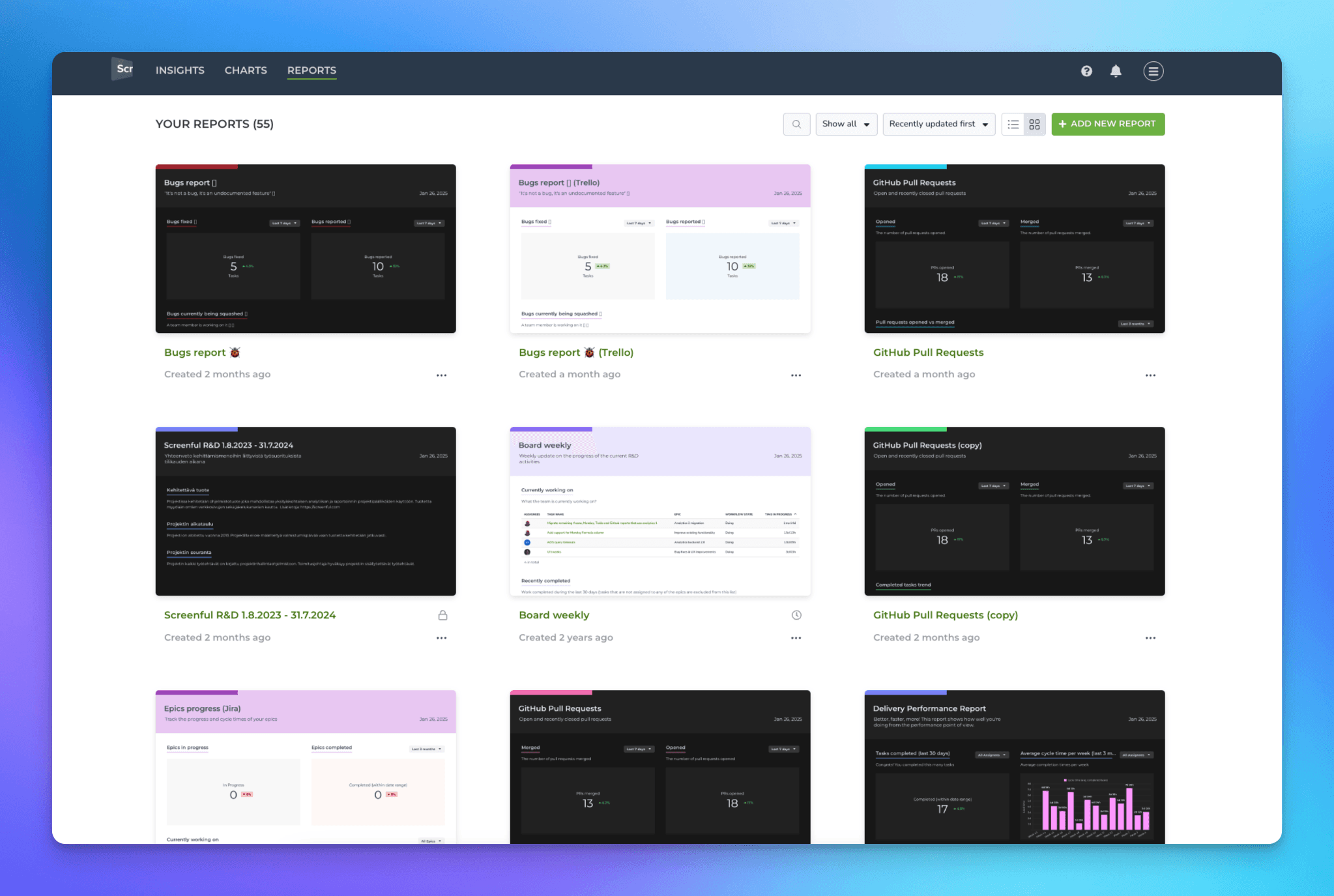
To get started, sign up for a free trial (if you’ve already signed up, log in) Once you have signed up and imported some data sources, you can start creating your charts and reports.
Import your Teamwork data
You’ll need to grant Screenful access to the Teamwork API to get started. After that, you’ll see a list of spaces. Choose one or more project to import into Screenful.
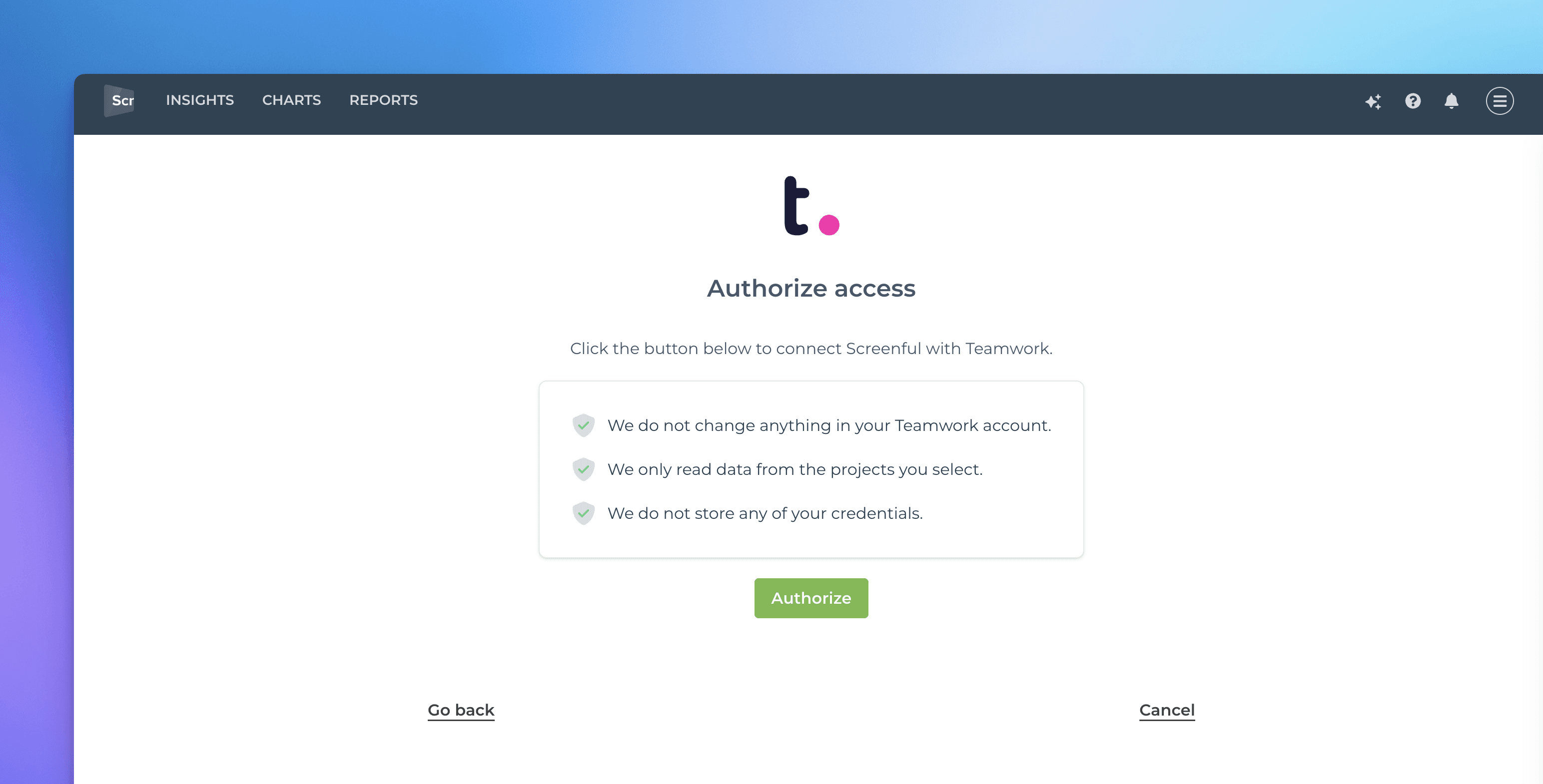
The selected projects are imported as data sources and are synced once per hour. Once the initial import is completed, you can use the data to create custom charts and reports.
Learn more about workflow settings and managing data sources.
Invite other users
All Screenful plans allow unlimited users, but they must create a Screenful account. You can add users by sending them an invitation.
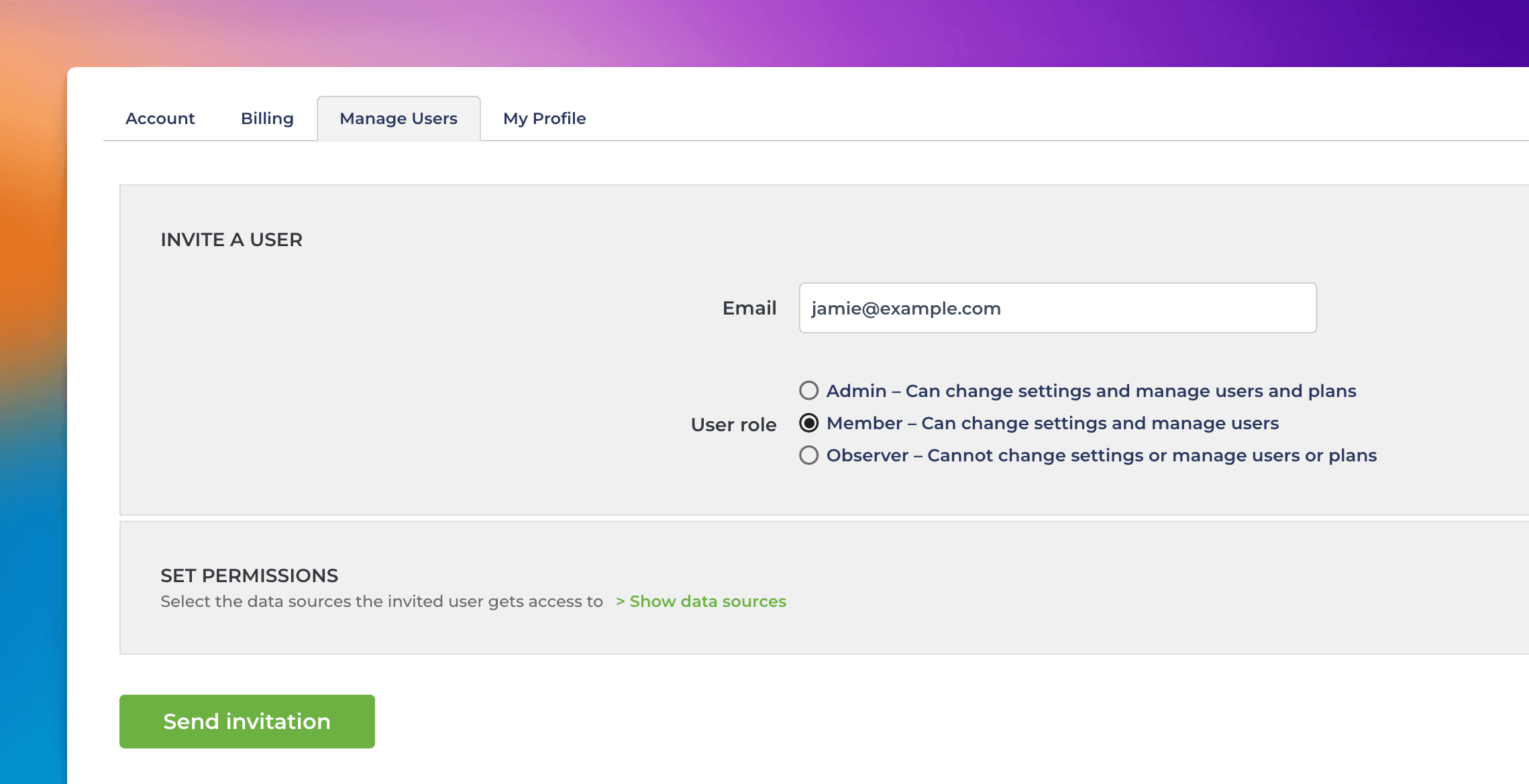
The recipient can create a Screenful account by following the link in the invitation email.
The invited user can have one of these roles:
Admin - Can change settings, manage users and plans & billing
Member - Can change settings and invite new users
Observer - Can only view data, cannot change any settings
Learn more about user access and permissions.
Learn more
Need help with setting up Screenful?
Book a call with our expert. Click here to schedule the onboarding call.
Screenful MCP server is coming soon
Use your Screenful project data inside your favorite AI tools. Join the waitlist.