
Creating reports using ClickUp time spent field
Time tracking lets your team record the time they spend working on tasks. If you have enabled time tracking on any of your ClickUp boards, the Time spent will be automatically imported and made available for Screenful charts.
You can create charts based on time tracking data in the same way you create charts based on task data. You have all the same grouping and filtering options available.
Contents:
Creating a chart using ClickUp time tracking data
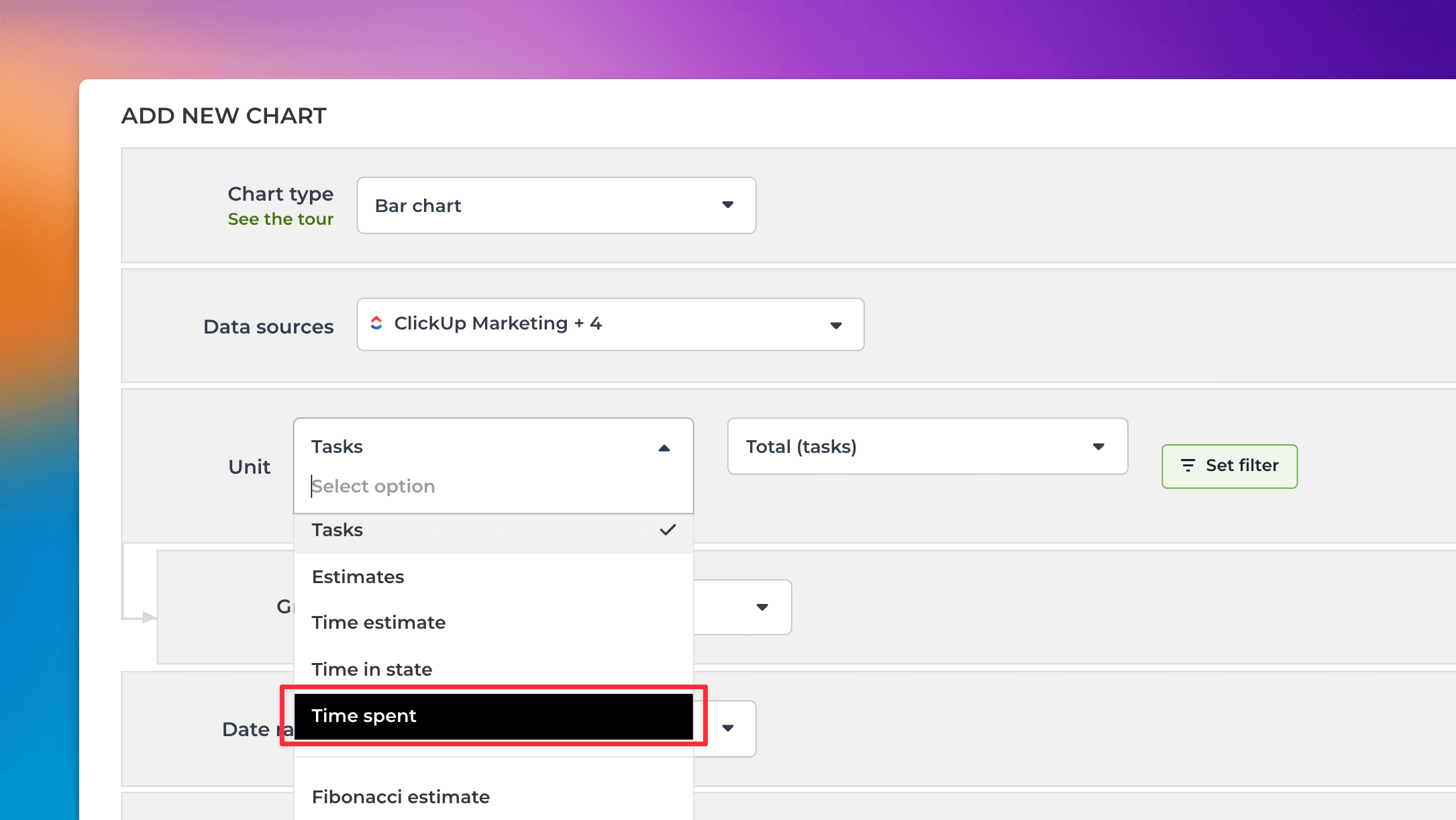
To create a chart using time tracking data, start by clicking Add new chart in the Charts tab. Select Time spent from the Unit menu:
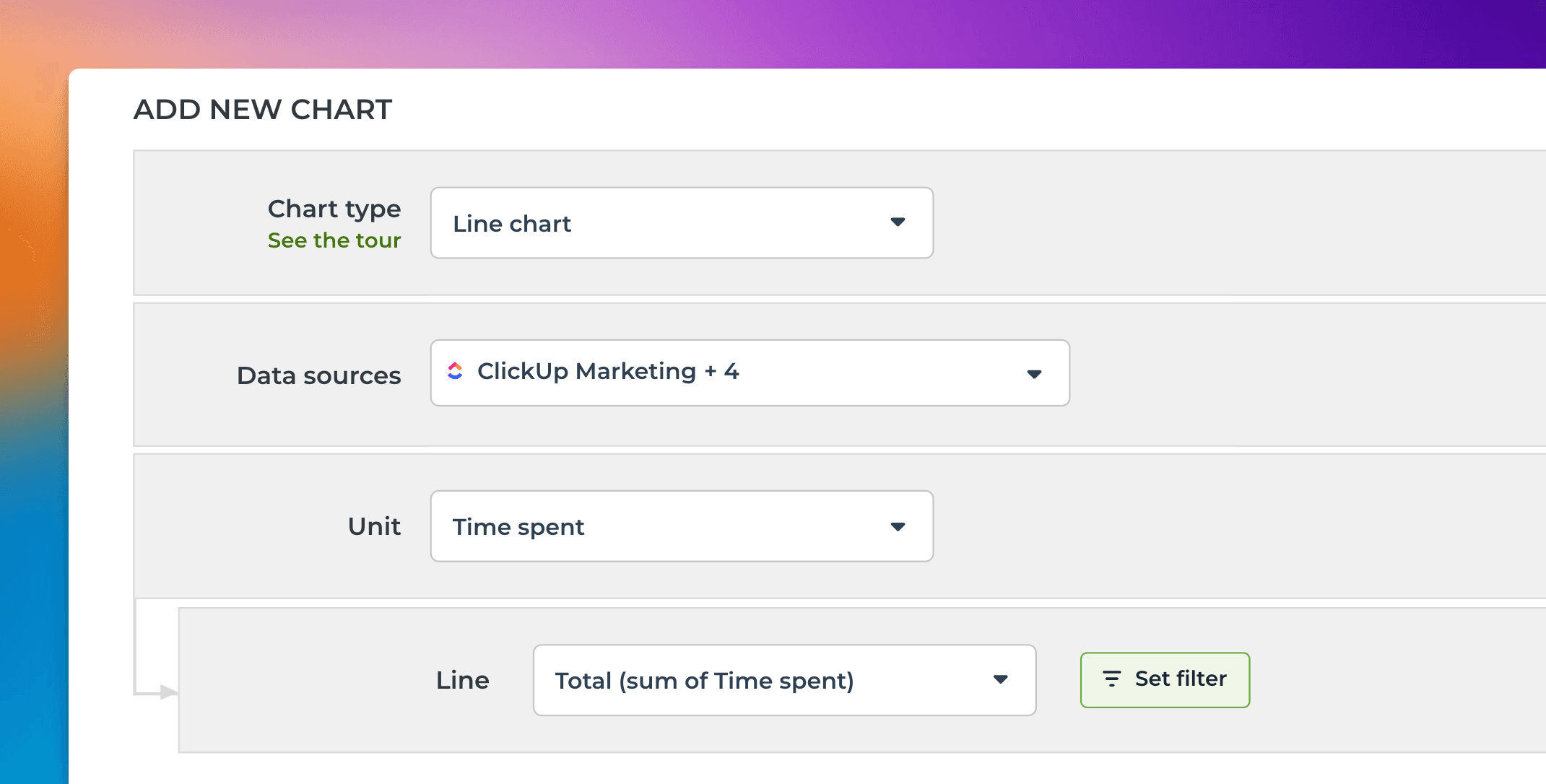
When Time spent is selected as the Unit, the Metric menu contains only one option: Total (sum of Time spent). Here’s an example configuration of a line chart that shows the total amount of hours logged over time:
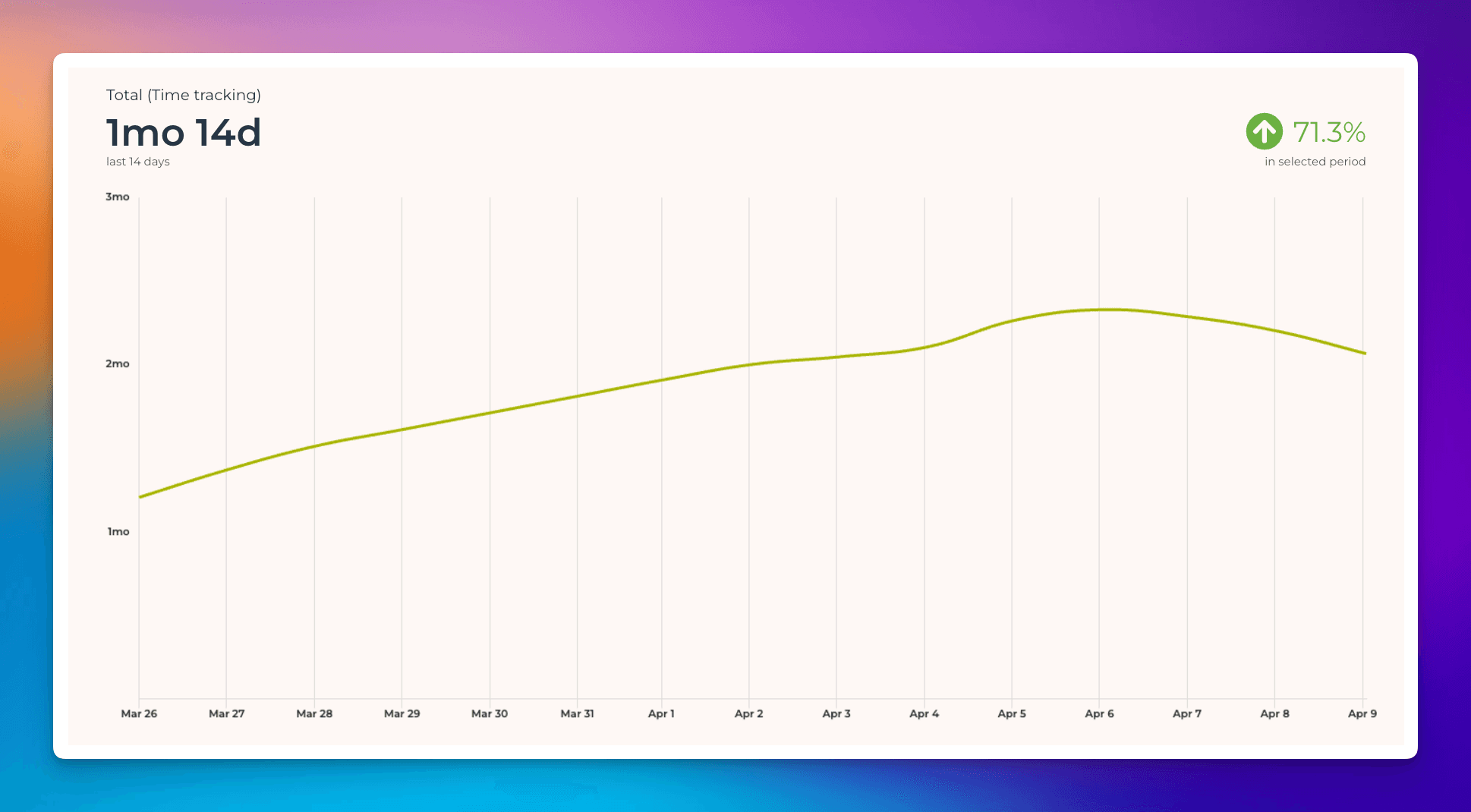
The Date range refers to when the hours were logged. Here’s the resulting chart:
You can create charts from your top-level tasks, subtasks, or both. You can choose between these options by setting a filter (use the filter Item type).
Time logged by individual by task within a date range
You can create time reports by selecting Task list as the chart type. To see how many hours have been logged by a team member by task within a time period, select Time spent (within date range) from the menu:
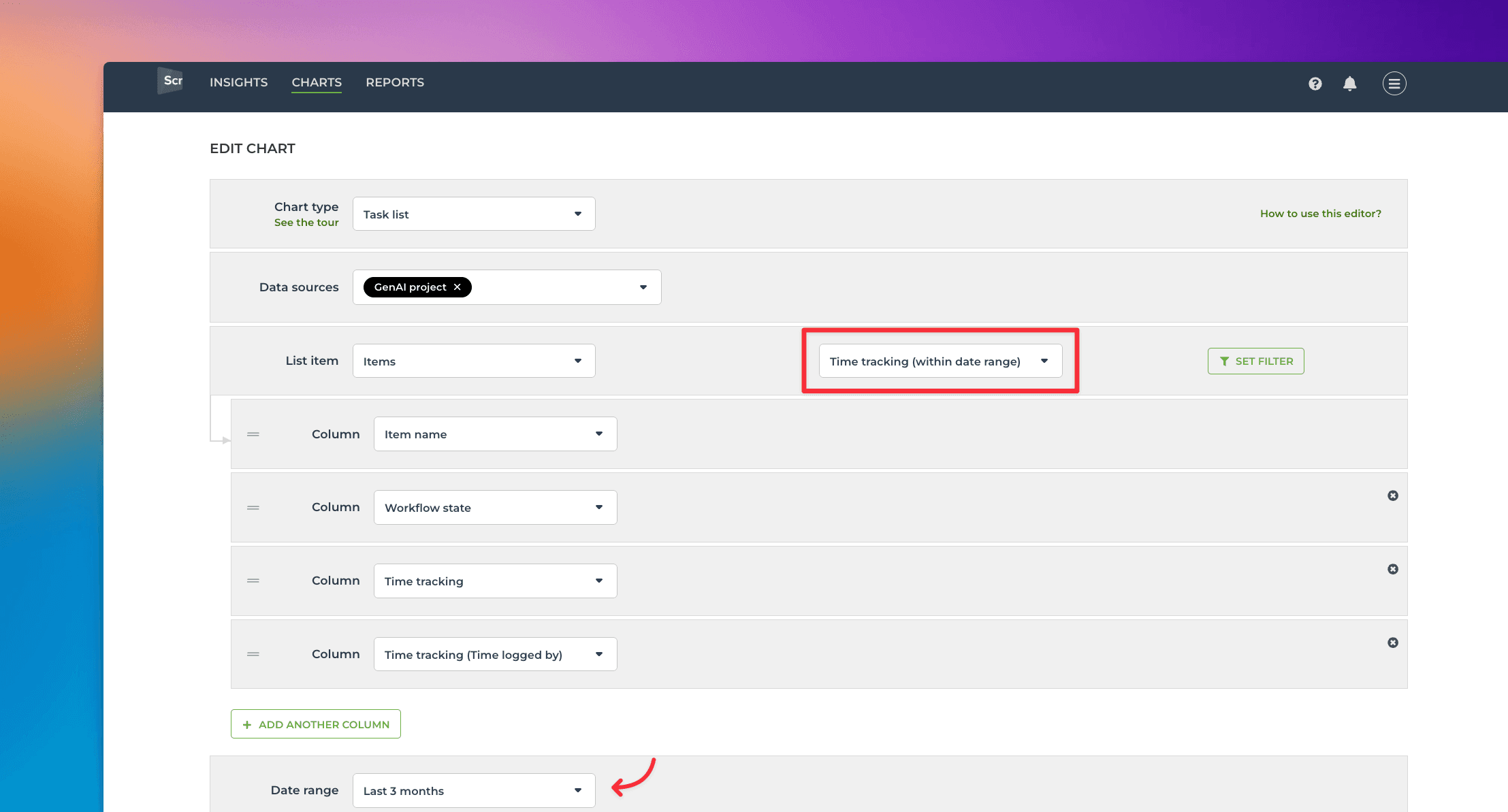
Selecting it reveals a date range menu that allows you to narrow the results to items with time logged within the selected period.
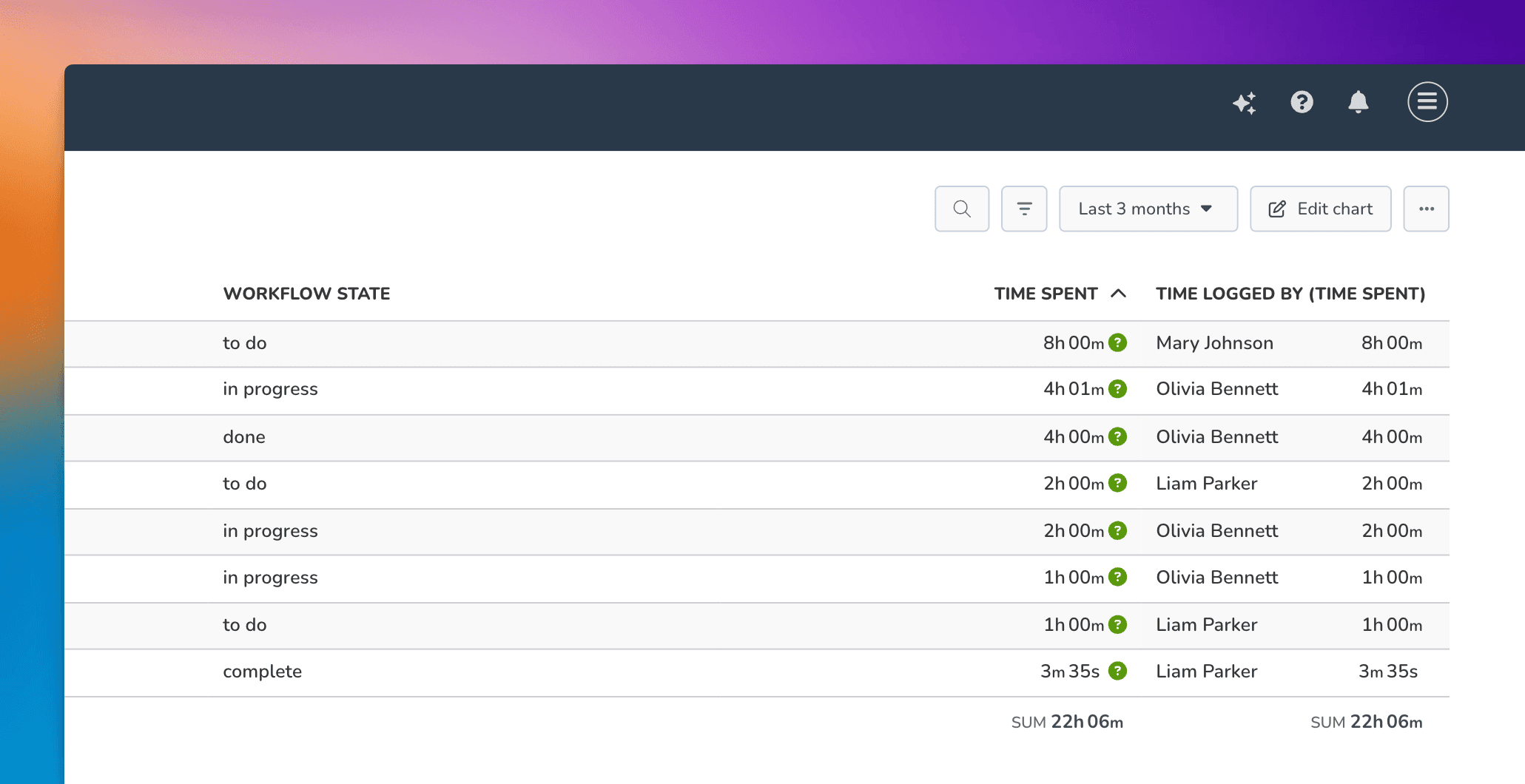
Now the Time spent and Time logged by (Time spent) show the total time logged for tasks within the specified date range. You can use the filter feature to narrow the list to any subset of tasks.
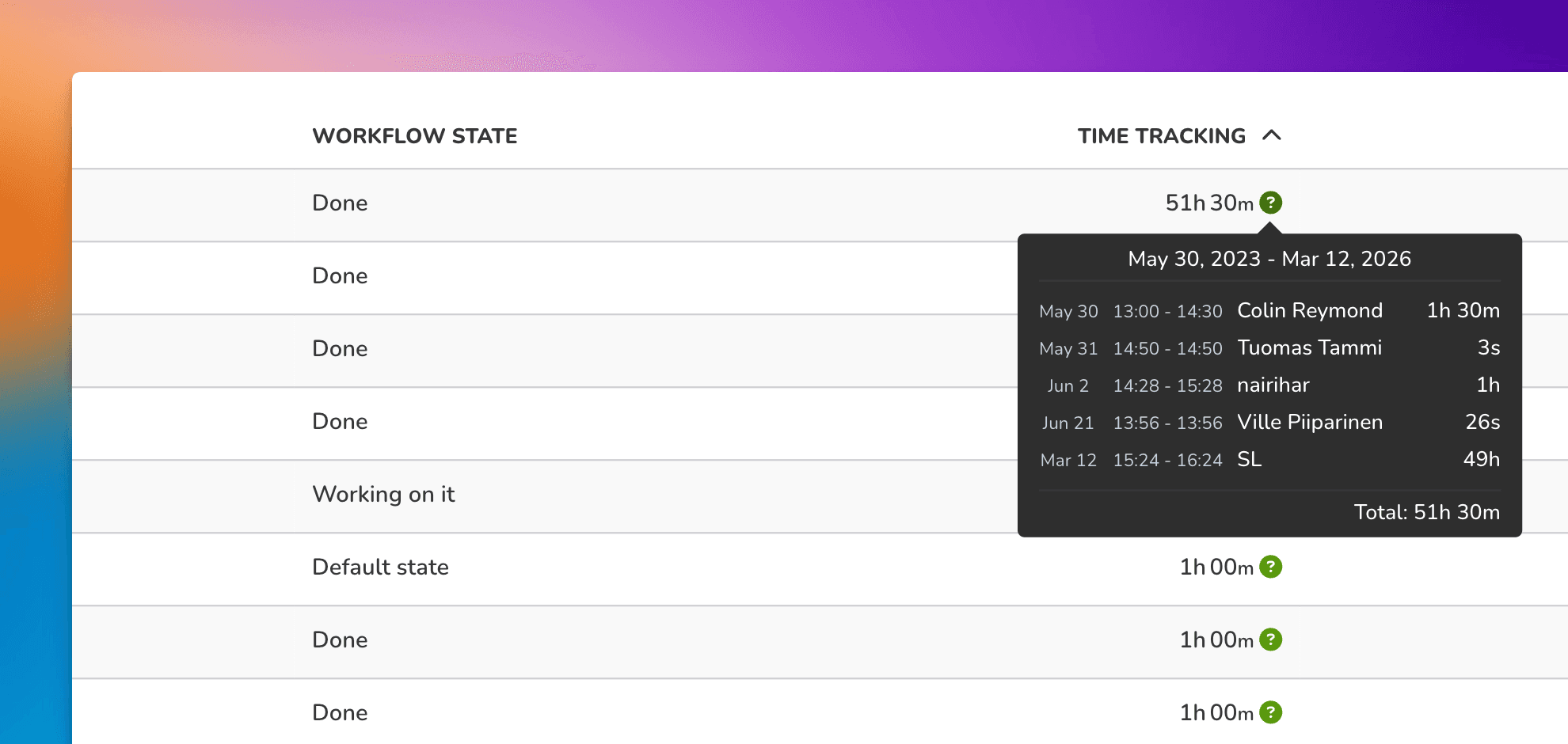
Hovering the mouse over the question mark reveals the individual time entries:
Setting a quick filter for for a chart
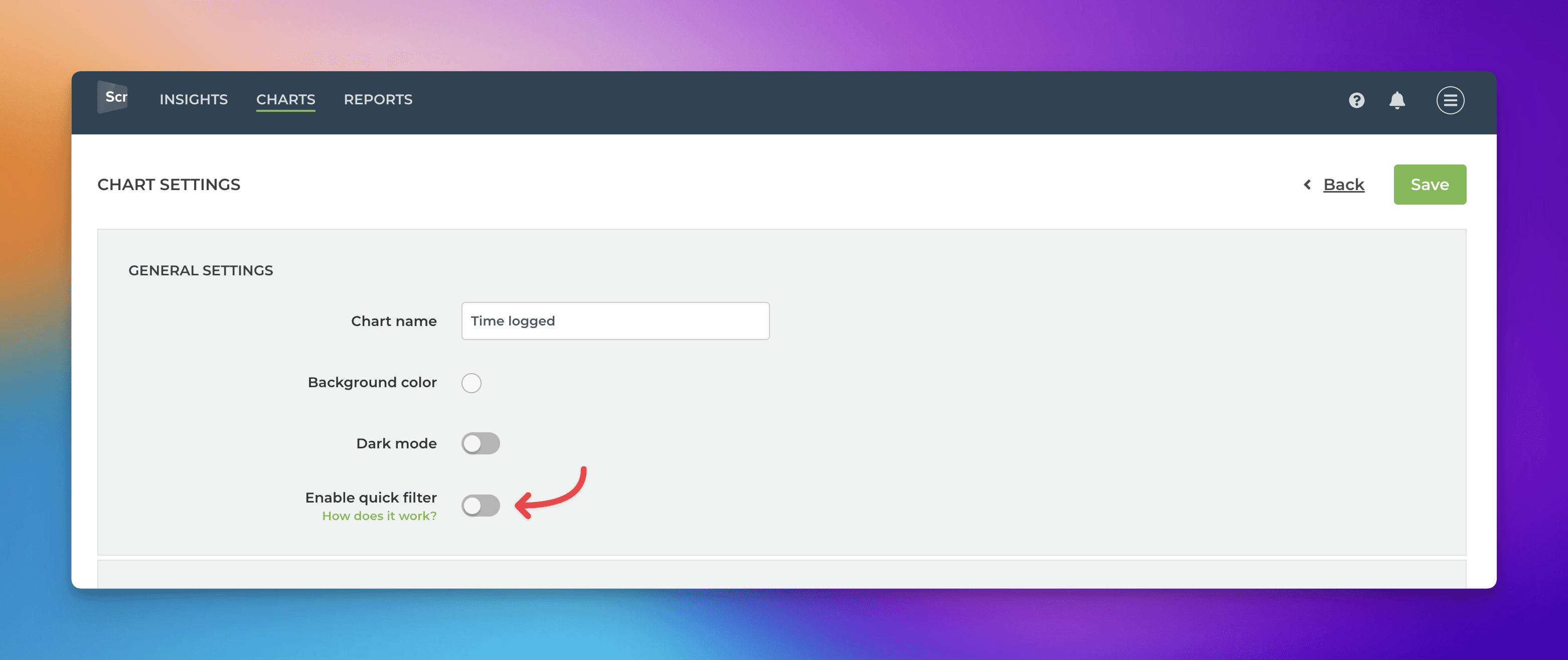
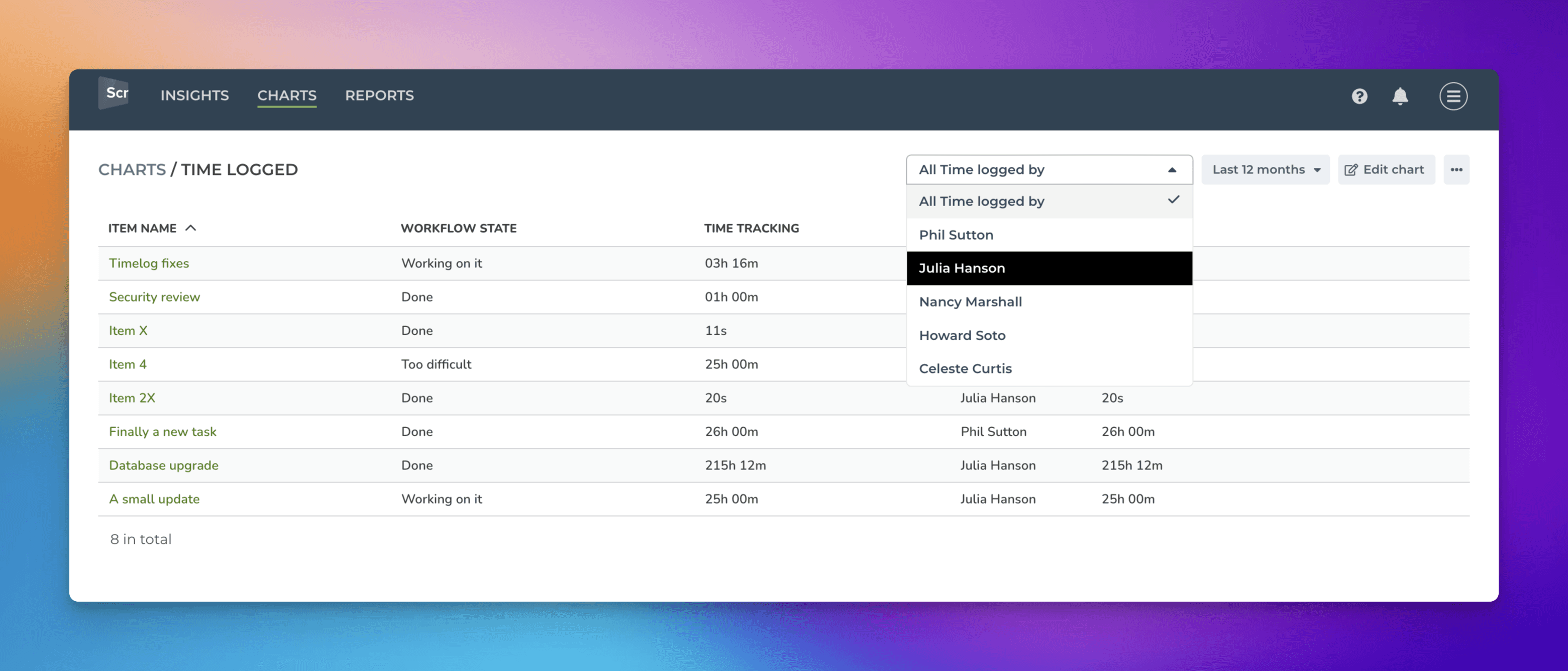
In the chart settings, you can configure a quick filter that will be shown at the top of the chart. If you set a quick filter for Time logged by, you can filter the report to see each individual's timesheet.
In the chart settings, use the toggle to enable the quick filter:
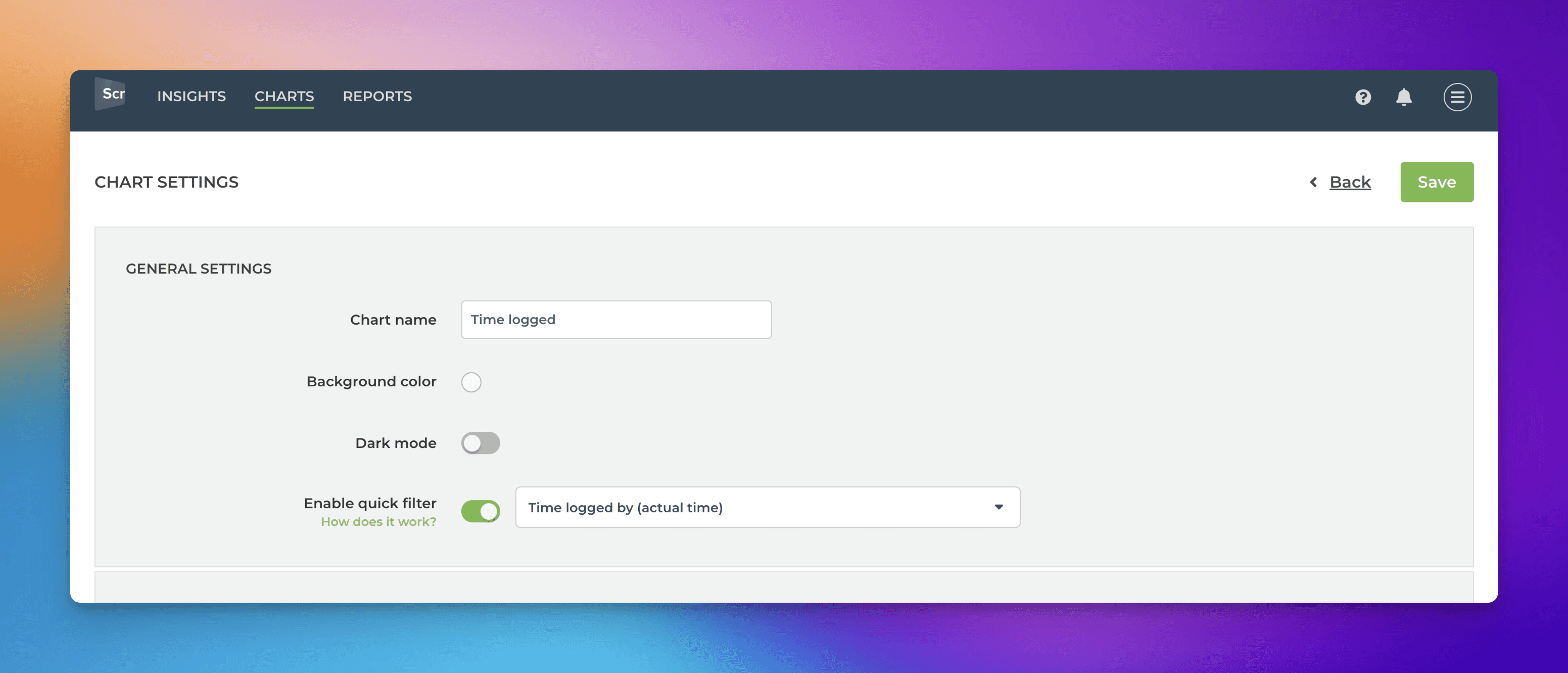
Clicking the toggle reveals the filter options. These are the same options as when setting a filter in the chart editor. Select Time logged by from the list:
Once a quick filter is enabled, you can filter the content by any individual by picking a name from the menu:
Grouping and filtering by time logged by
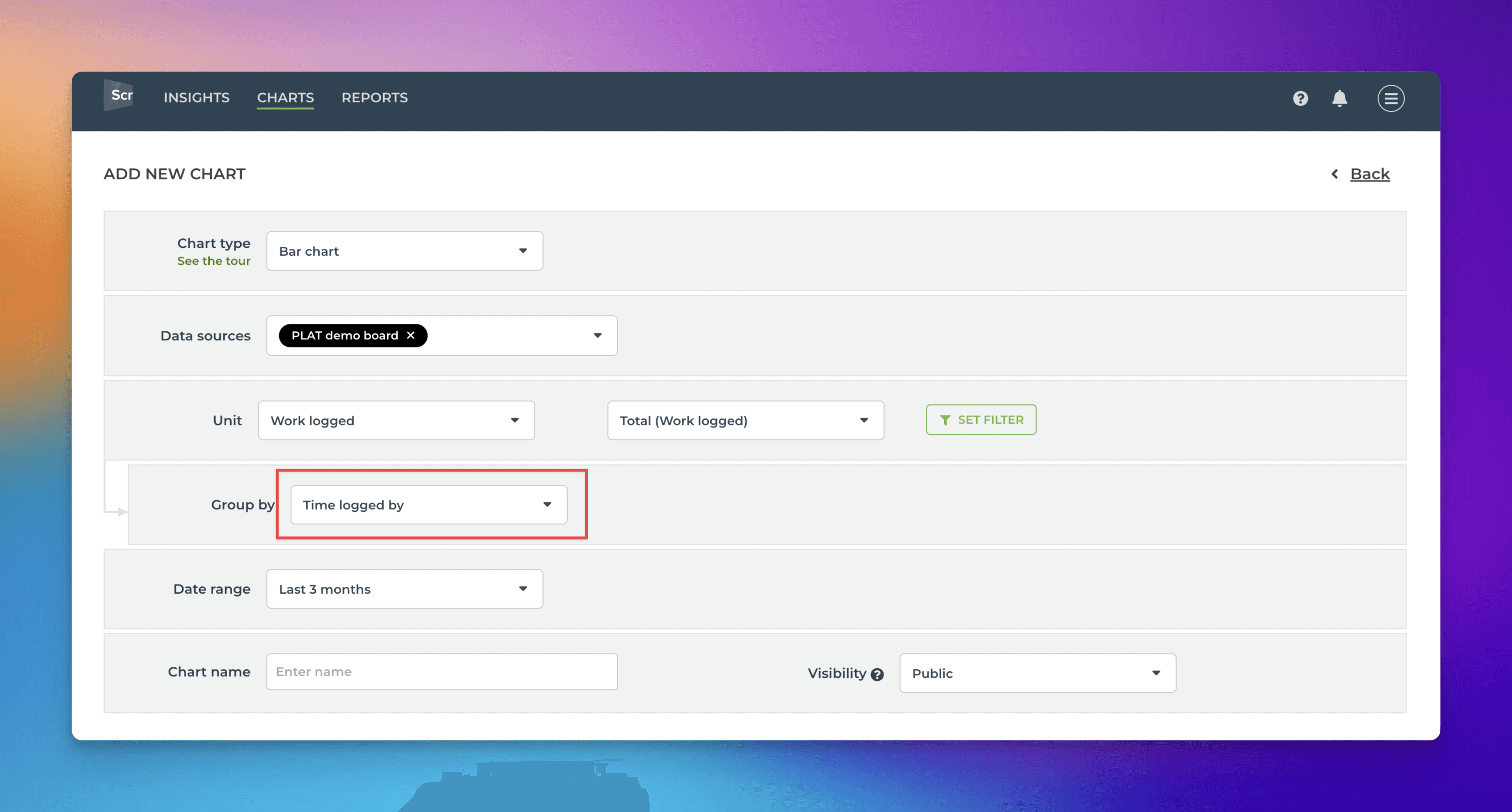
When Time spent is selected as a unit, a special metric called Time logged by allows grouping and filtering based on who logged the hours. Here’s an example chart configuration showing the total amount of hours logged per individual:
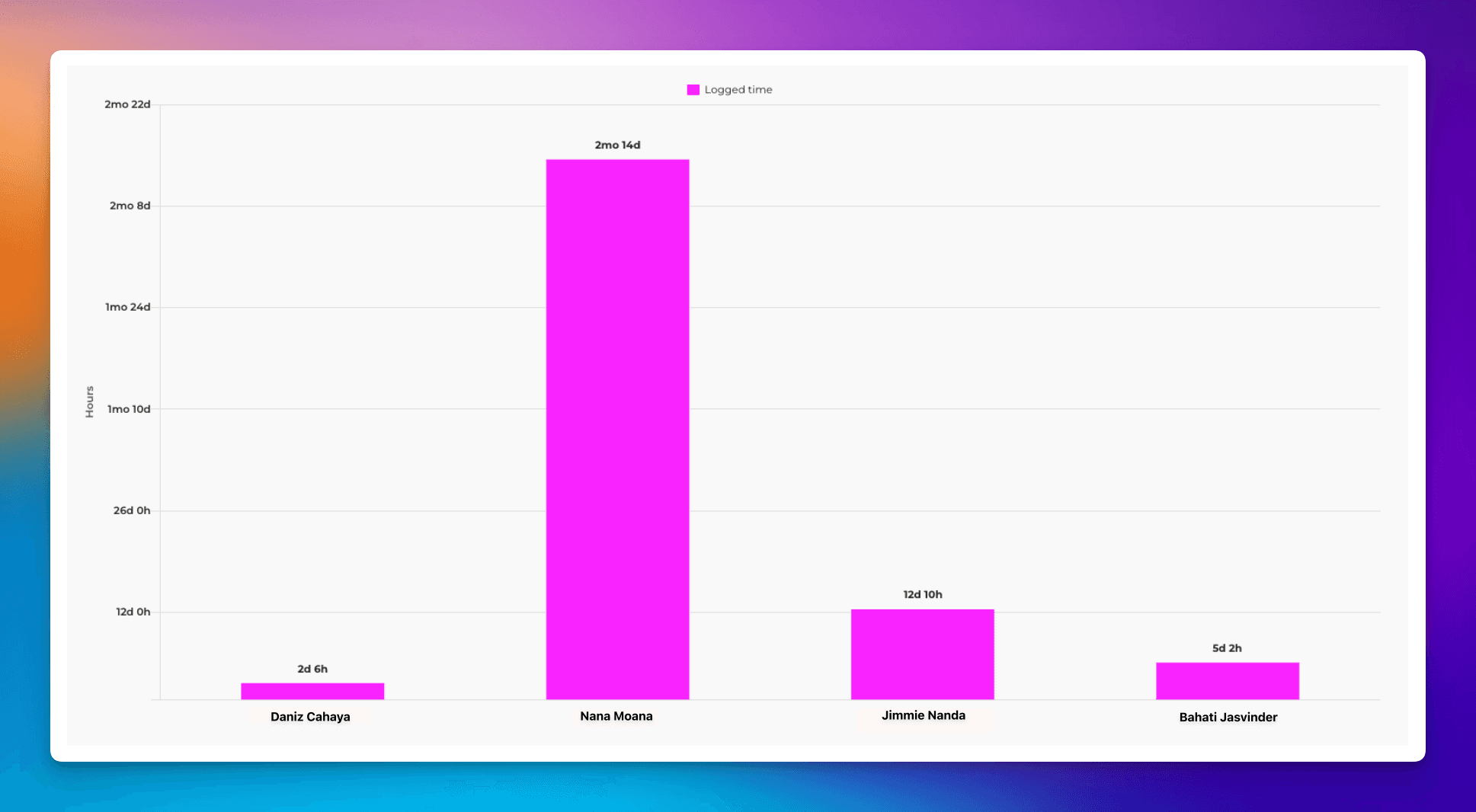
Selecting Time logged by as the grouping option results in a chart as below. It shows how many hours were logged by each individual during the specified date range.
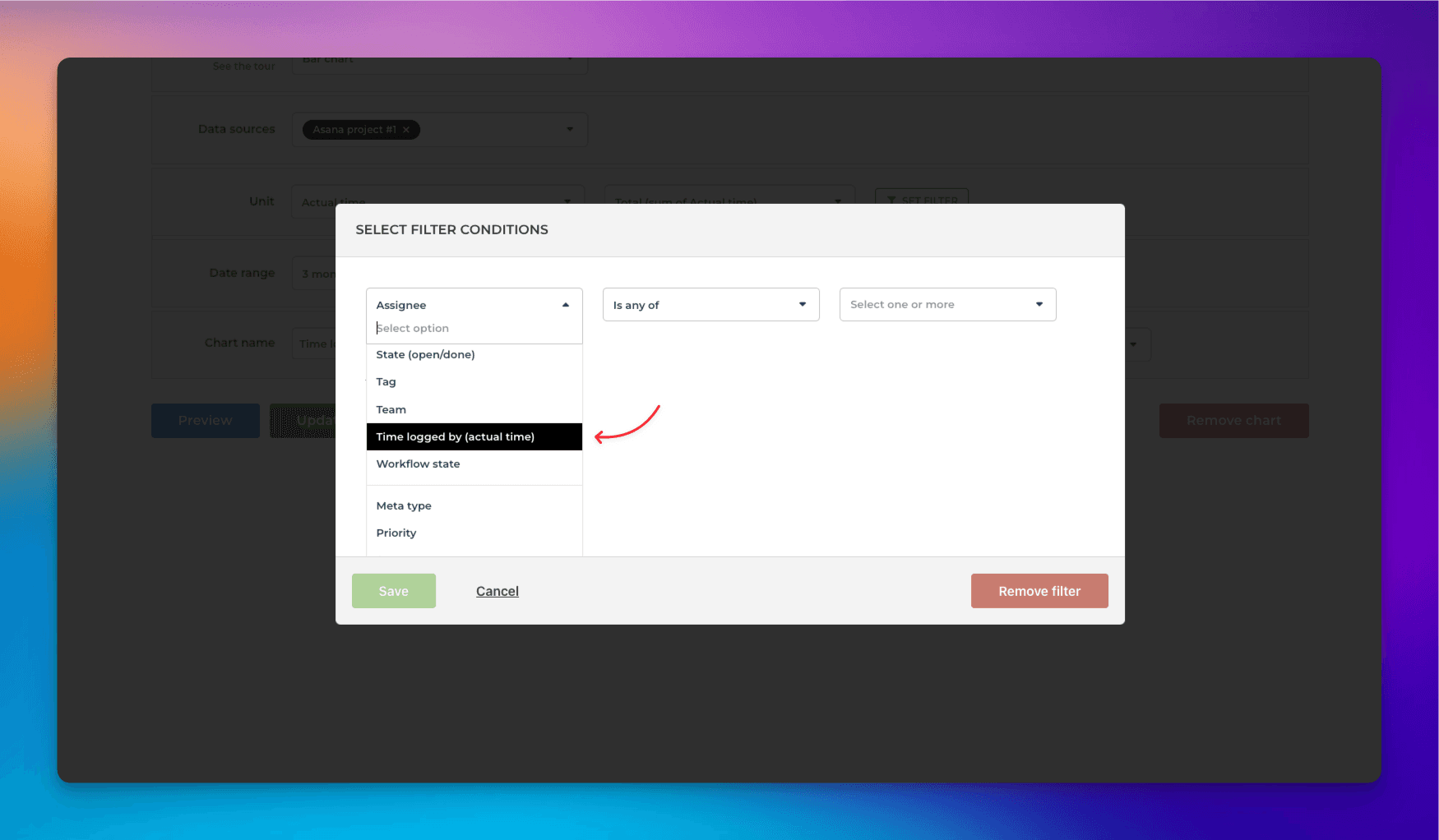
You can also filter the chart based on this property. In the filter window, you can find the Time logged by option.
When you select individuals, the chart is filtered accordingly.
Create a time-tracking report from template
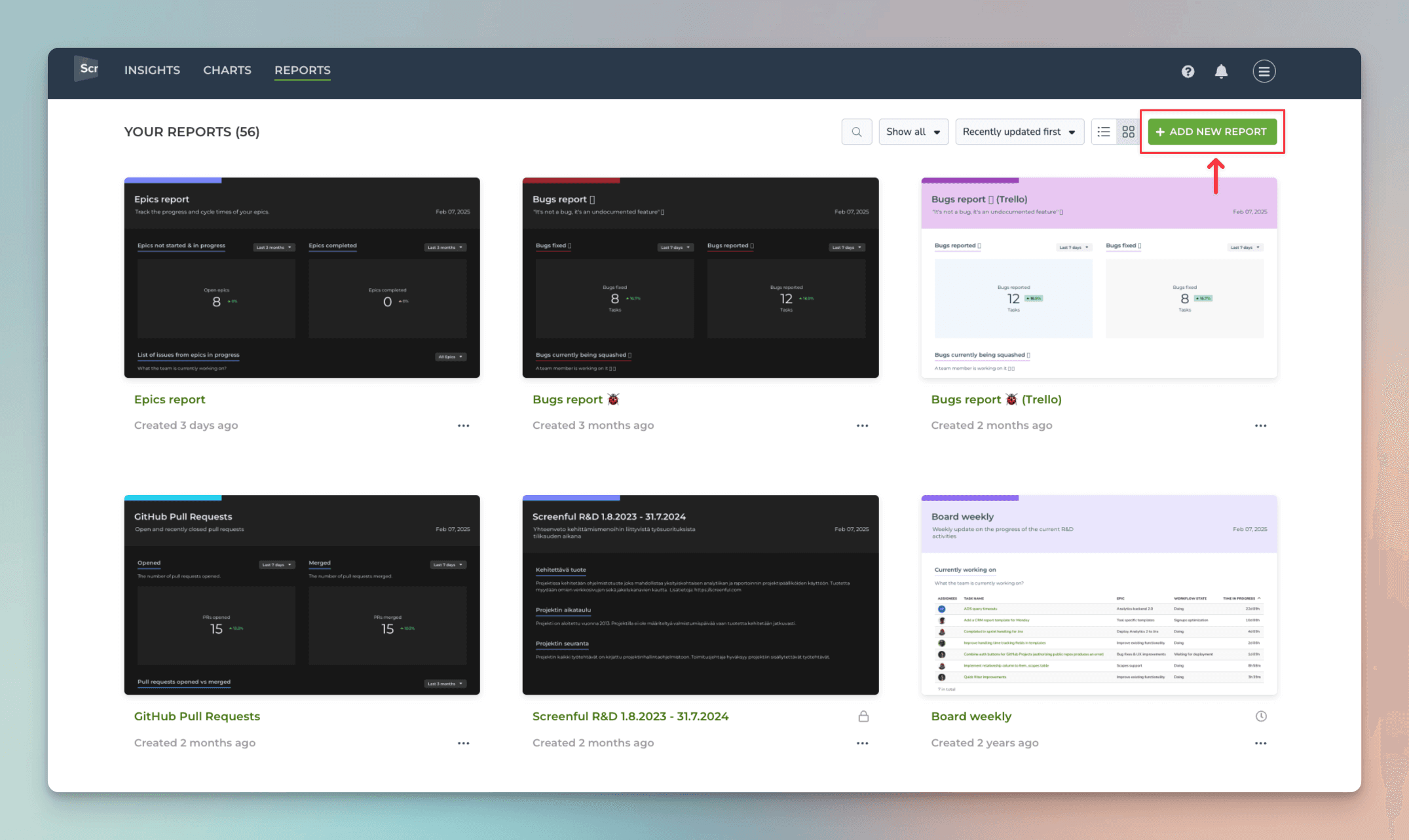
You can create a time-tracking report by using a report template. The report contains the charts introduced in this post. Go to the Reports tab and click Add new report:
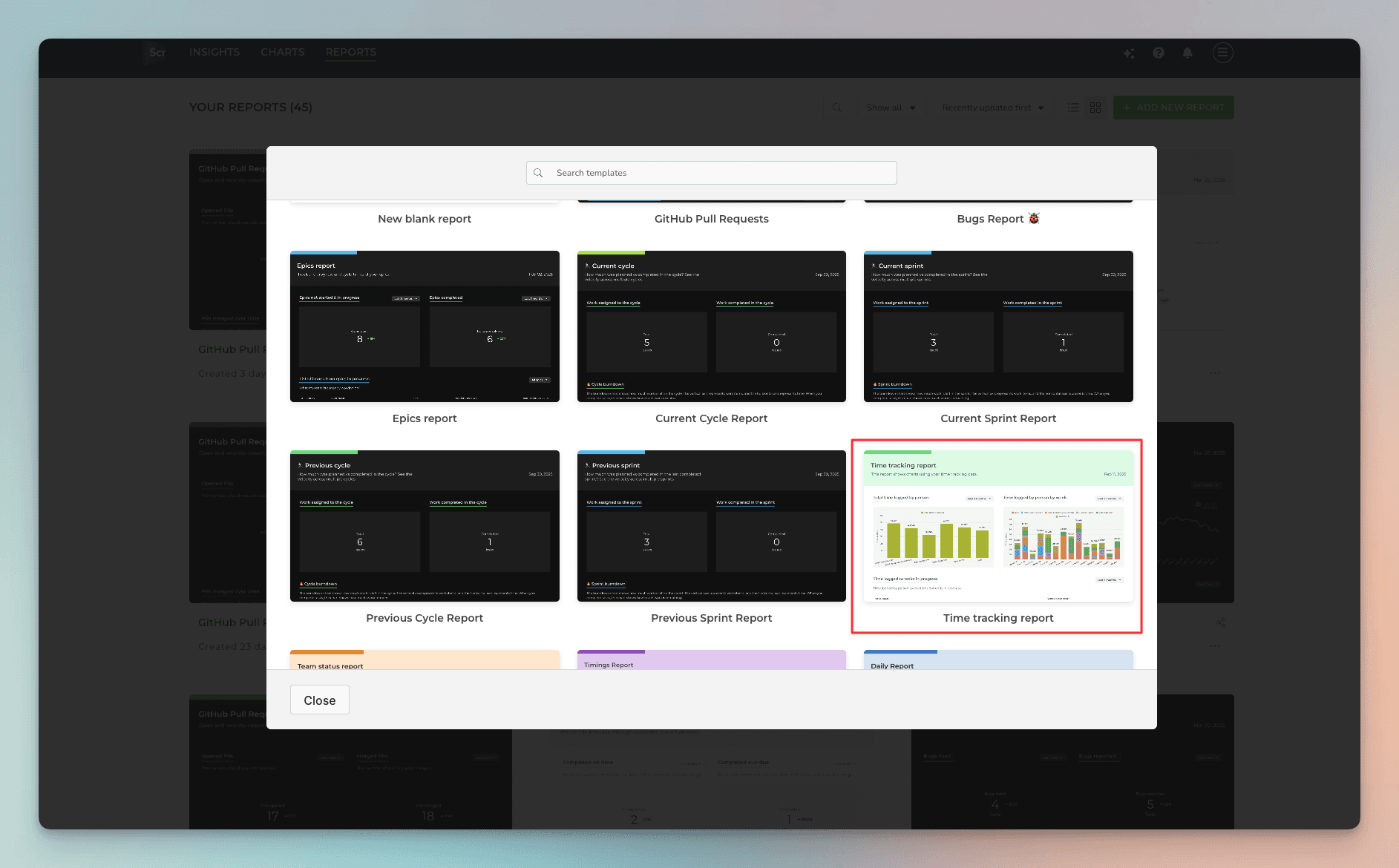
A modal opens, showing the available templates. Select Time tracking report:
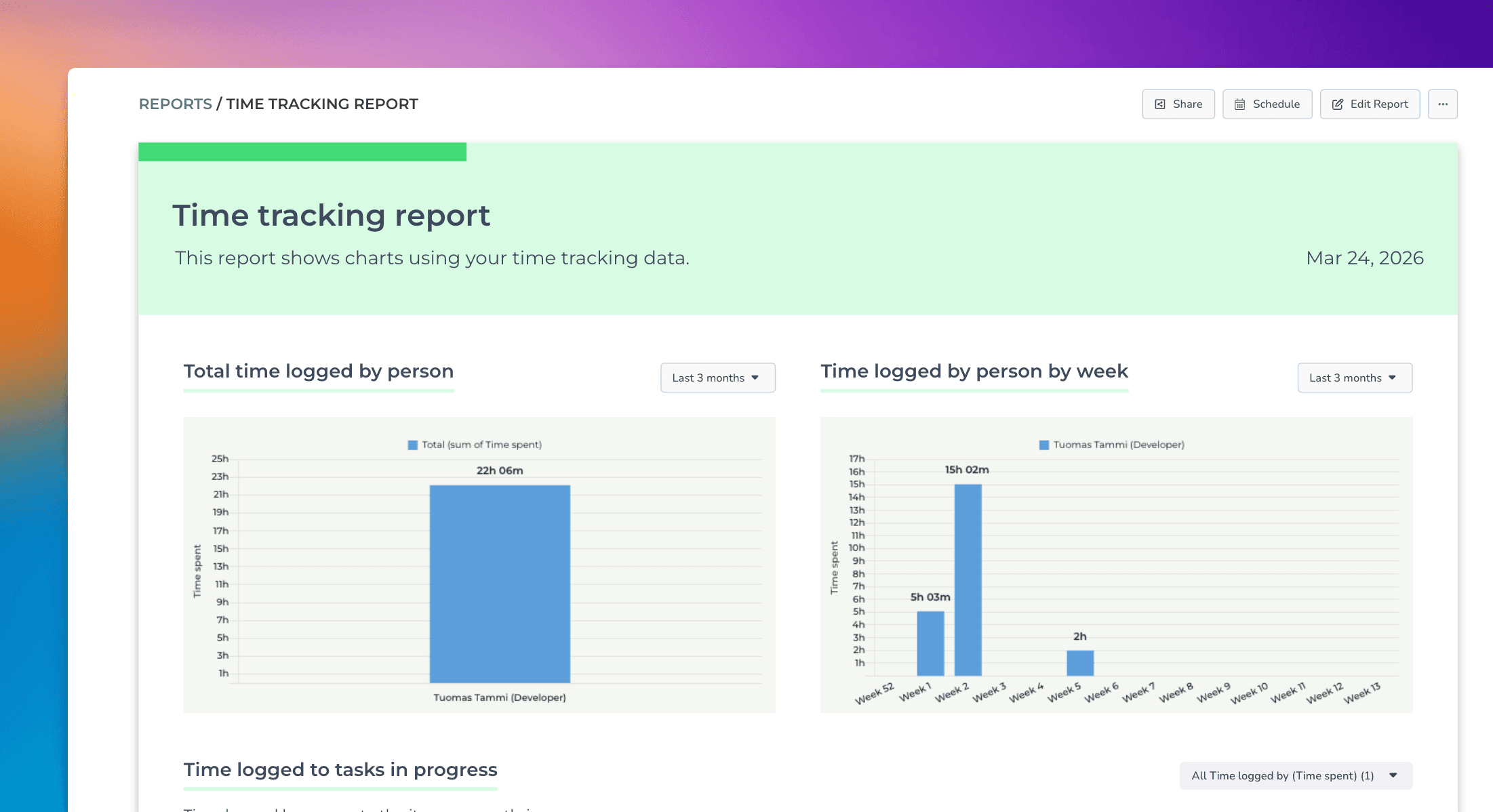
A report is created containing time tracking data from the selected ClickUp spaces:
Screenful enables user-friendly analytics and reporting of your ClickUp data. You can create complete reports with just a few clicks.
About Screenful
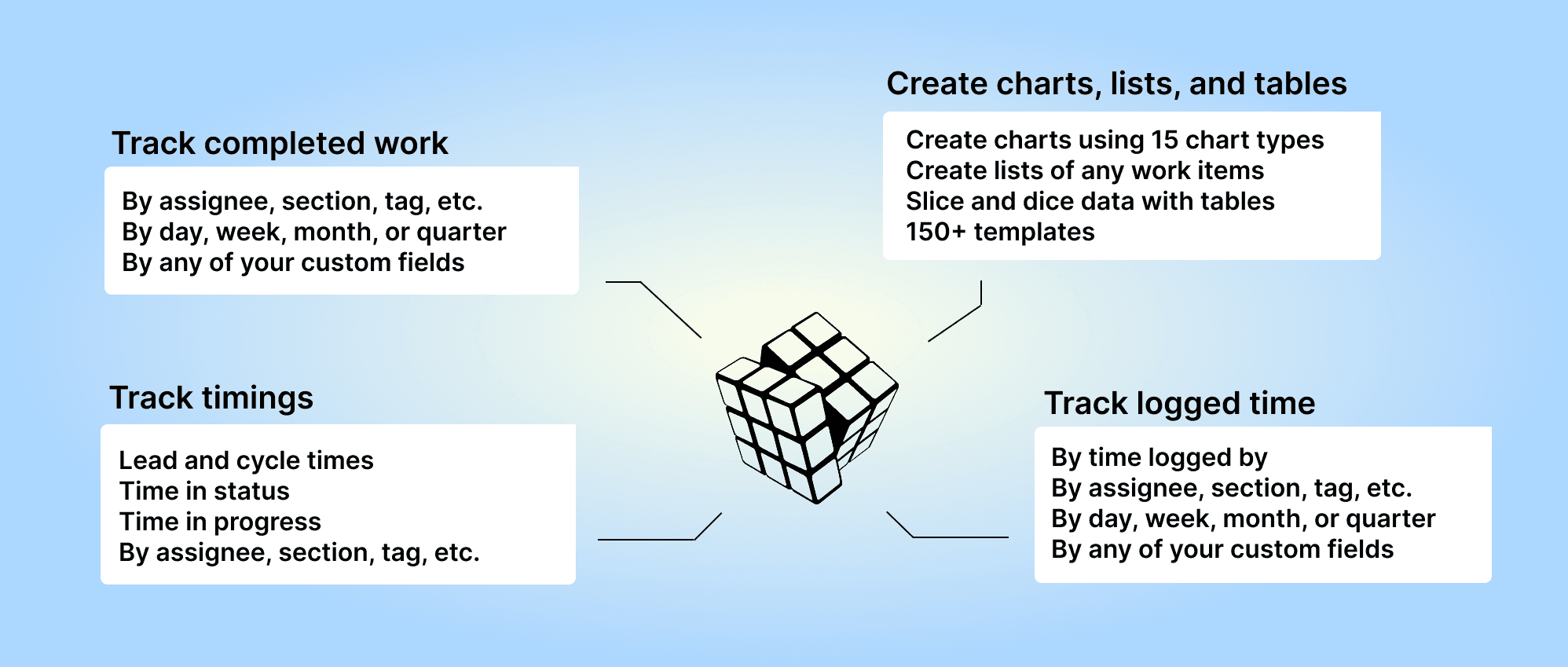
Screenful provides multidimensional analytics of the data in ClickUp. You can slice & dice your data with 15 different chart types, and click through to drill into details.
Let us know if you have questions or feedback by contacting hello@screenful.com. To stay on the loop, read our blog, or follow us on LinkedIn.

Screenful MCP server is coming soon
Use your Screenful project data inside your favorite AI tools. Join the waitlist.