The workflow settings specify when the work is started on a ClickUp task and when it's completed.
Guide contents:
Map your ClickUp workflow
When importing a ClickUp space as a data source, your workflow is automatically mapped to one of the following: Not started, In progress, or Done. This information is used when calculating the Timing metrics.
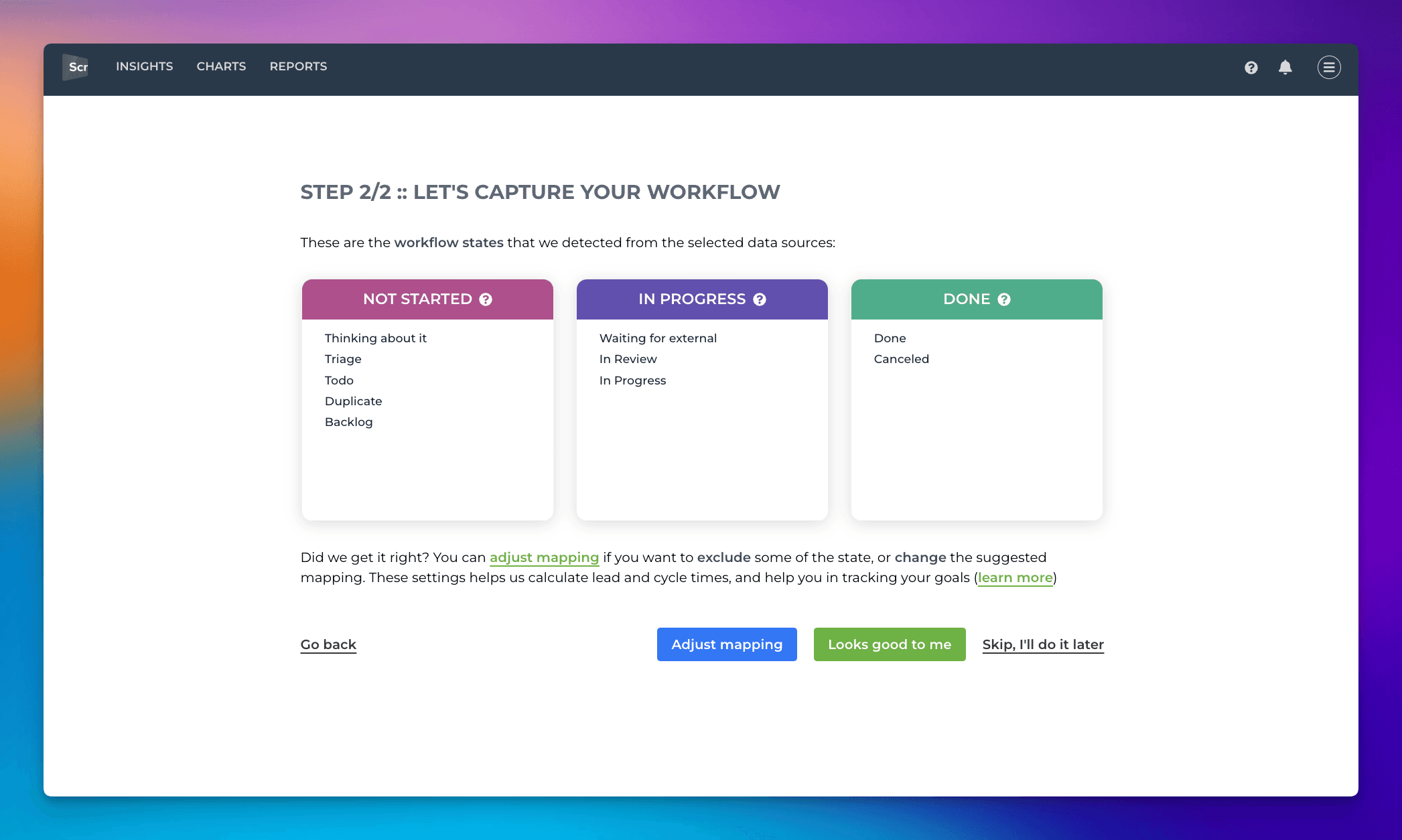
The workflow statuses can be defined on either the space, folder, or list level. Screenful will detect it automatically and suggest the mapping.
If the suggested mapping looks correct, you can accept it by clicking Looks good to me. To make changes, click Adjust mapping. The boxes become editable, and you can drag & drop items between them.
Not started = Work to be done
In progress = Work started but not completed
Done = Completed work
Consider your work done only when tasks are fully done, so map your testing/review/waiting states to In progress rather than Done. That provides you with a better picture of your cycle times, including all the reviews that need to be done before a task is complete.
Accessing the workflow settings
If you need to make changes afterward, you can access the workflow settings by selecting Data Mapping from the main menu:
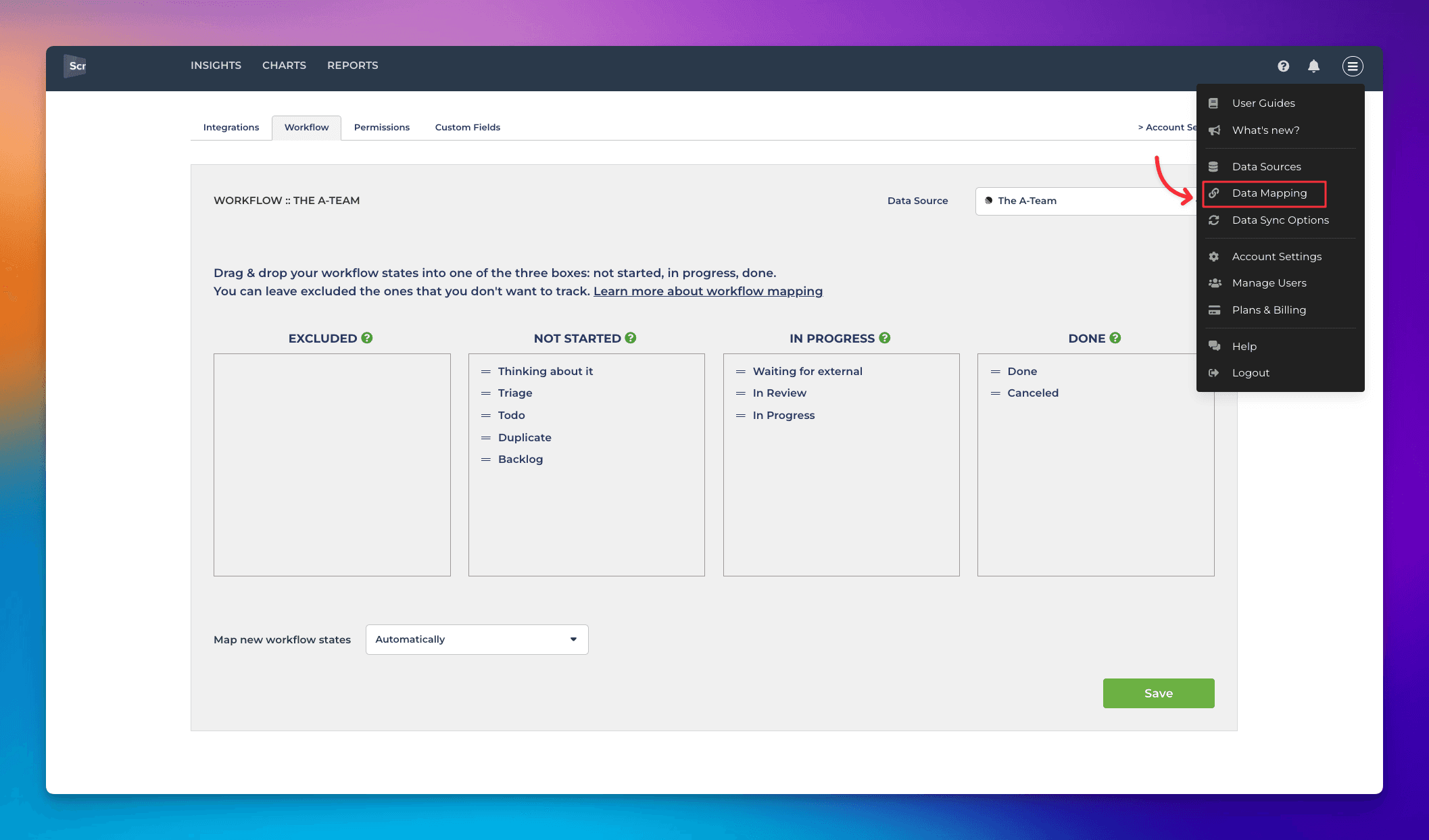
If new workflow states are added on the ClickUp side, they are automatically mapped to either Not started, In progress, or Done. Alternatively, you can force the mapping of new states by selecting one of the other options from the menu.
Learn more
Need help with setting up Screenful?
Book a call with our expert. Click here to schedule the onboarding call.
Screenful MCP server is coming soon
Use your Screenful project data inside your favorite AI tools. Join the waitlist.