Setup Screenful for GitLab

Setup Screenful for GitLab

Setup Screenful for GitLab

This is your guide to advanced analytics for GitLab. See the Tour page for the available charts and visualizations.

This is your guide to advanced analytics for GitLab. See the Tour page for the available charts and visualizations.

This is your guide to advanced analytics for GitLab. See the Tour page for the available charts and visualizations.

Start a free trial

Follow the steps below to setup Screenful for GitLab.

If you are setting up Screenful with a self-hosted GitLab instance, you should make GitLab API accessible for the Screenful connector

Start a free trial

Follow the steps below to setup Screenful for GitLab.

If you are setting up Screenful with a self-hosted GitLab instance, you should make GitLab API accessible for the Screenful connector

Import project boards as data sources

Once you have authorized Screenful to access the GitLab API, you are shown a list of boards. Select one or more boards from the list to be imported to Screenful.

When importing a GitLab board as a data source, your board columns are automatically mapped to either Not started, In progress, or Done. This information is used when calculating the Timing metrics.
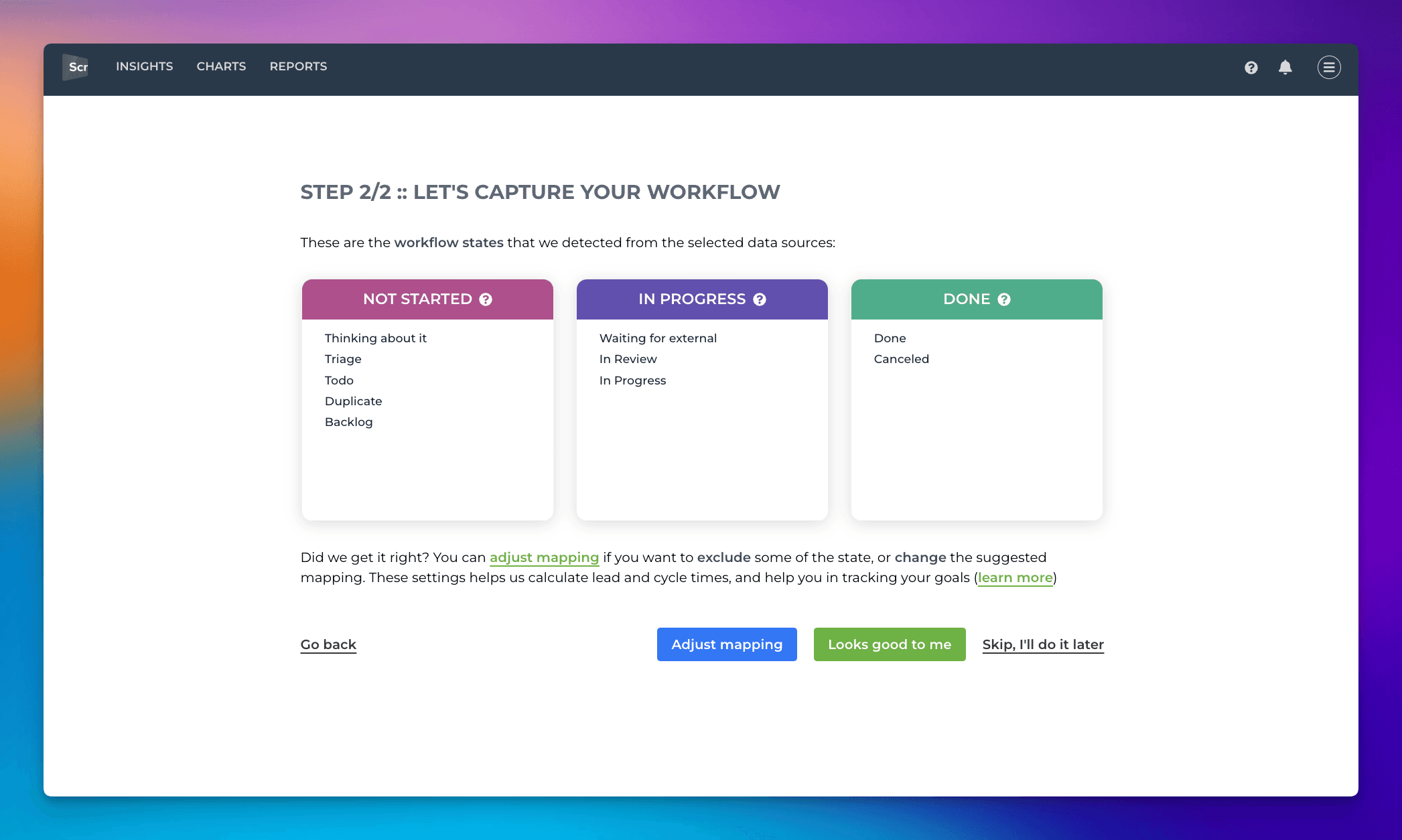
Capture workflow settings
  • Not started = Work to be done

  • In progress = Work started but not completed

  • Done = Completed work

If the suggested mapping looks correct, you can accept it by clicking Looks good to me. To make changes, click Adjust mapping. The boxes become editable, and you can drag & drop items between them. Learn more about workflow mapping.

Import project boards as data sources

Once you have authorized Screenful to access the GitLab API, you are shown a list of boards. Select one or more boards from the list to be imported to Screenful.

When importing a GitLab board as a data source, your board columns are automatically mapped to either Not started, In progress, or Done. This information is used when calculating the Timing metrics.

Capture workflow settings
  • Not started = Work to be done

  • In progress = Work started but not completed

  • Done = Completed work

If the suggested mapping looks correct, you can accept it by clicking Looks good to me. To make changes, click Adjust mapping. The boxes become editable, and you can drag & drop items between them. Learn more about workflow mapping.

Invite other users

All Screenful plans allow unlimited users, but they must create a Screenful account. You can add users by sending them an invitation.
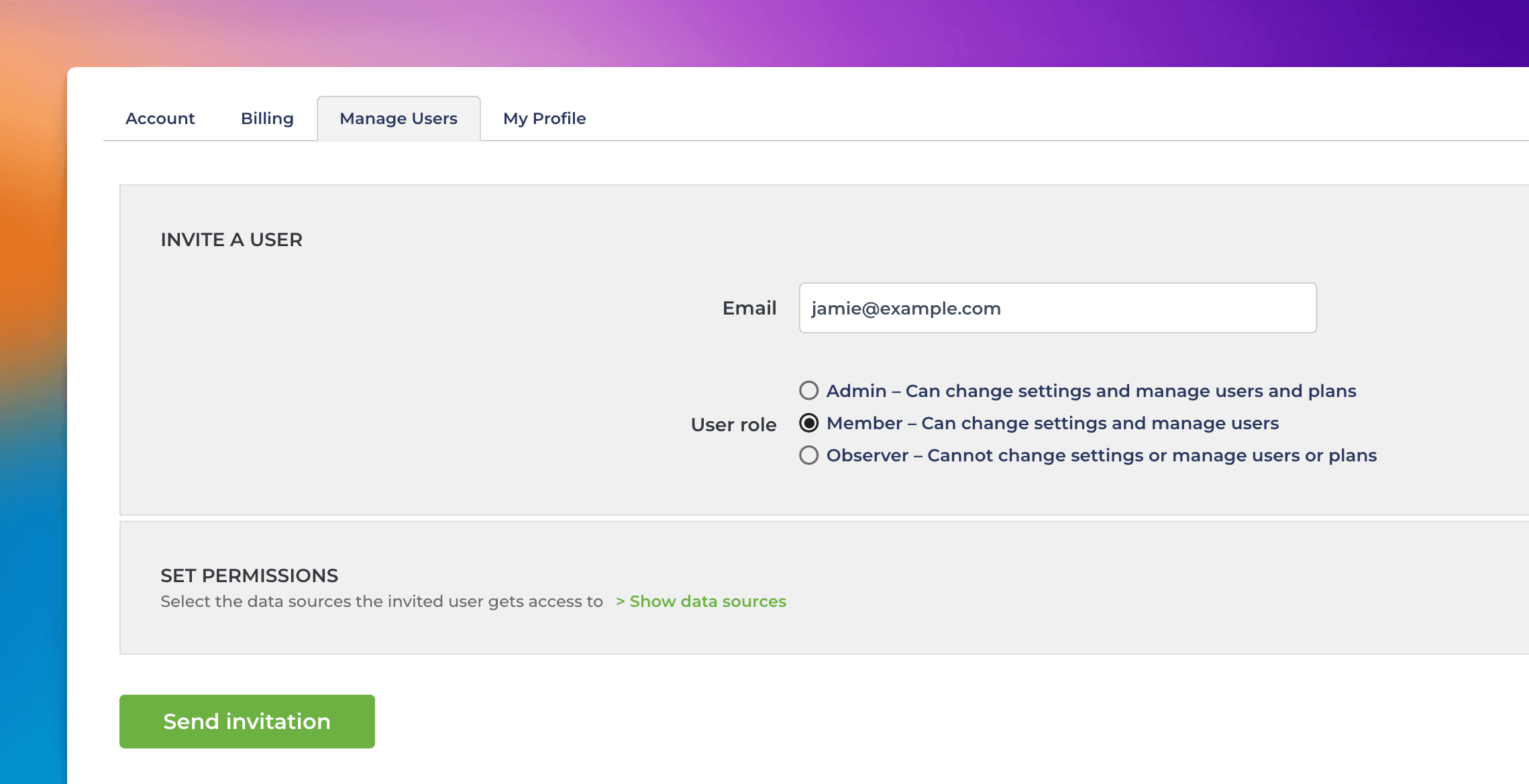
The recipient can create a Screenful account by following the link in the invitation email.

The invited user can have one of these roles:

Admin - Can change settings, manage users and plans & billing
Member
- Can change settings and invite new users
Observer - Can only view data, cannot change any settings

Learn more about user access and permissions.

Invite other users

All Screenful plans allow unlimited users, but they must create a Screenful account. You can add users by sending them an invitation.

The recipient can create a Screenful account by following the link in the invitation email.

The invited user can have one of these roles:

Admin - Can change settings, manage users and plans & billing
Member
- Can change settings and invite new users
Observer - Can only view data, cannot change any settings

Learn more about user access and permissions.

Need help with onboarding?

Need help with setting up your charts and reports? Book a free onboarding call with our expert.

▶ Click here to schedule the onboarding call


Need help with onboarding?

Need help with setting up your charts and reports? Book a free onboarding call with our expert.

▶ Click here to schedule the onboarding call