You can use the Table chart for tracking which of your boards have had activity within the specified number of days. If none of the tasks within that board had any update action (change in any field), the activity of that board is zero.
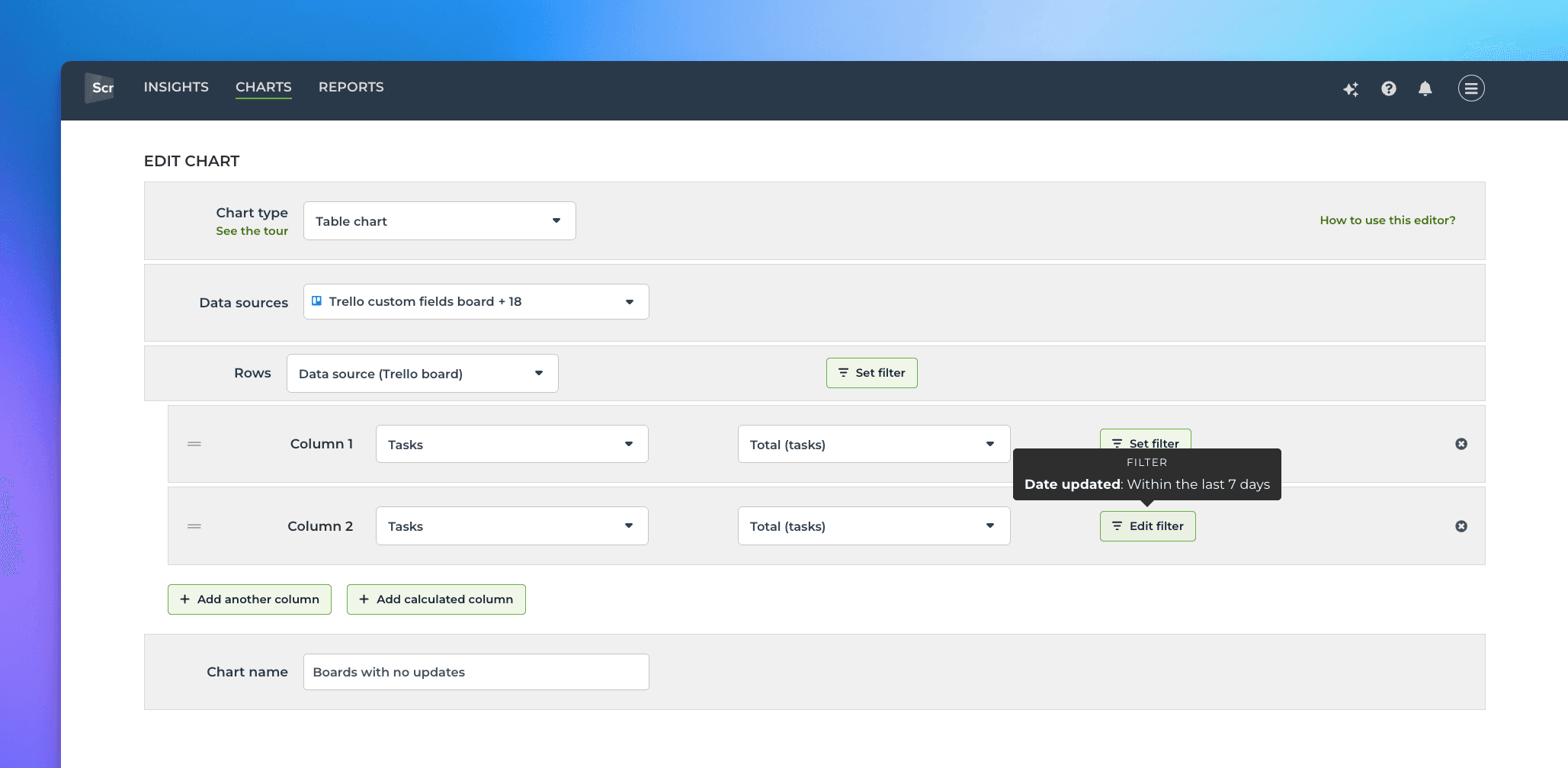
Go to the Charts tab and click Add new chart. Configure the chart as follows:
Select Table chart as the chart type
Set Data source as rows
Click Add another column
Set a filter for the second column (which you just added): Date updated within the last 7 days
You should end up with a configuration like this:
Give a name to the chart and save it.
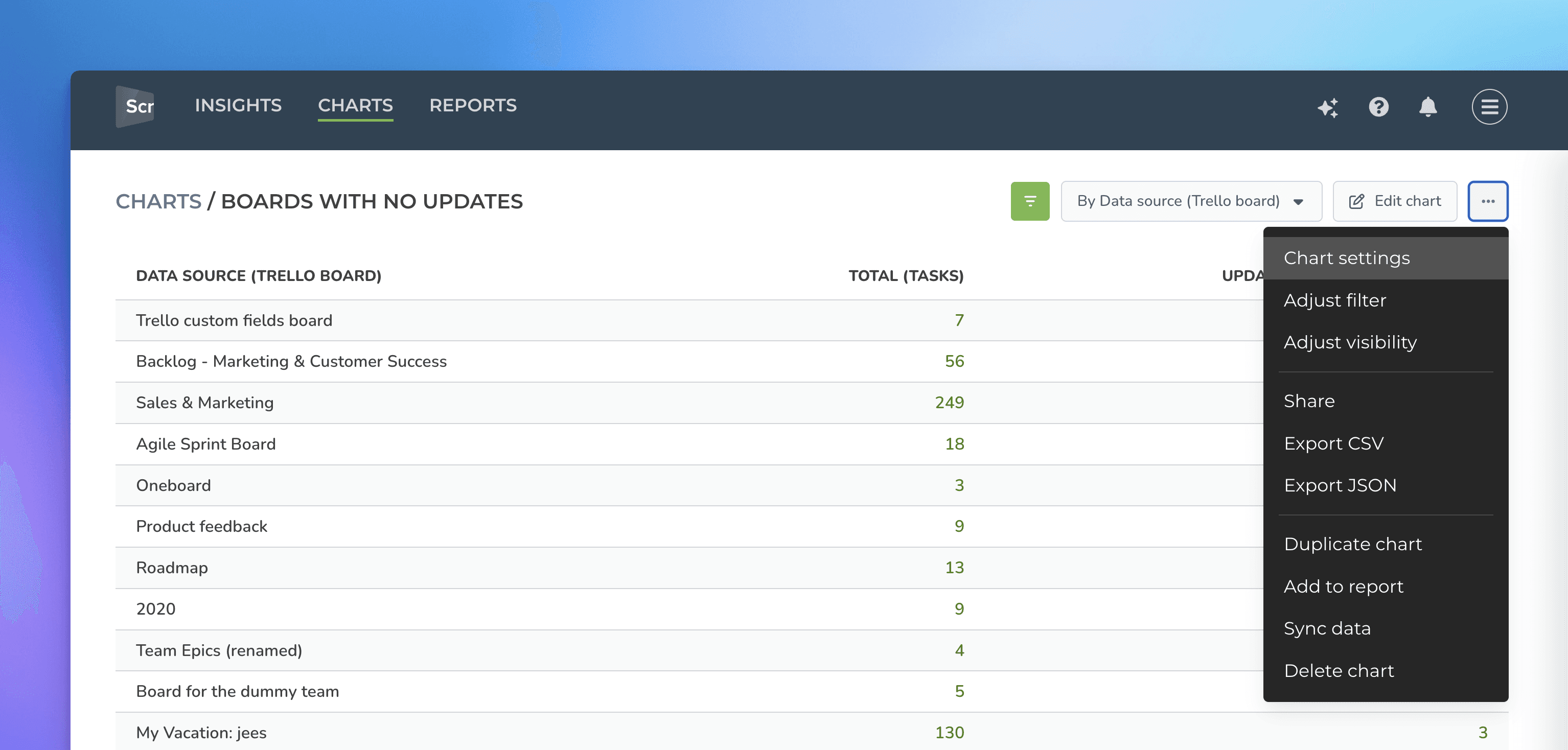
Next, go to the chart settings (behind the three dots menu).
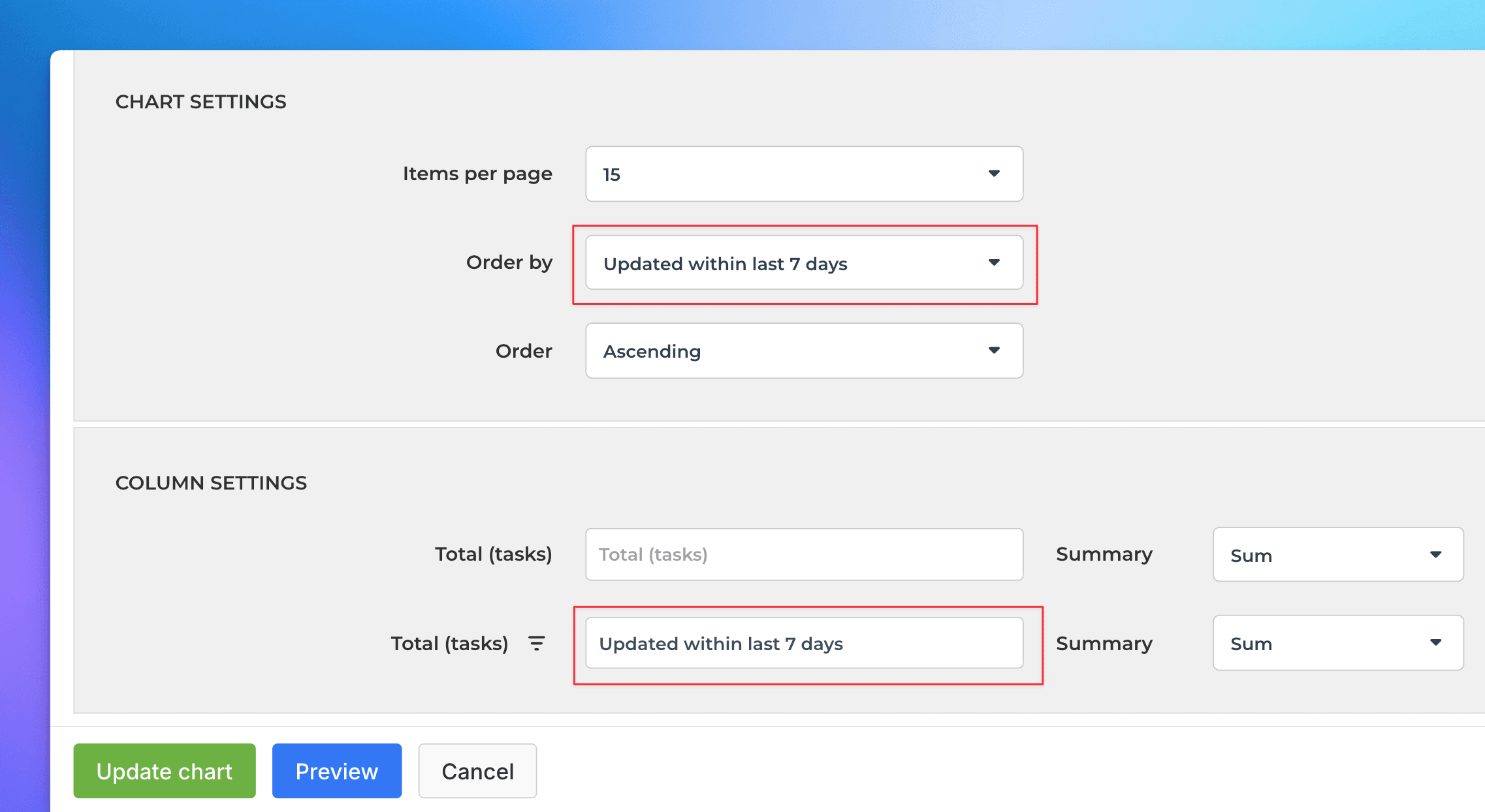
In the settings, rename the second column to Updated within last 7 days and set Order by to use your Updated within last 7 days column:
Now you have a table that lists all your data sources. For each data source, it shows the total number of tasks and how many were updated within the last 7 days (or whatever number you set).
Here's the final chart:
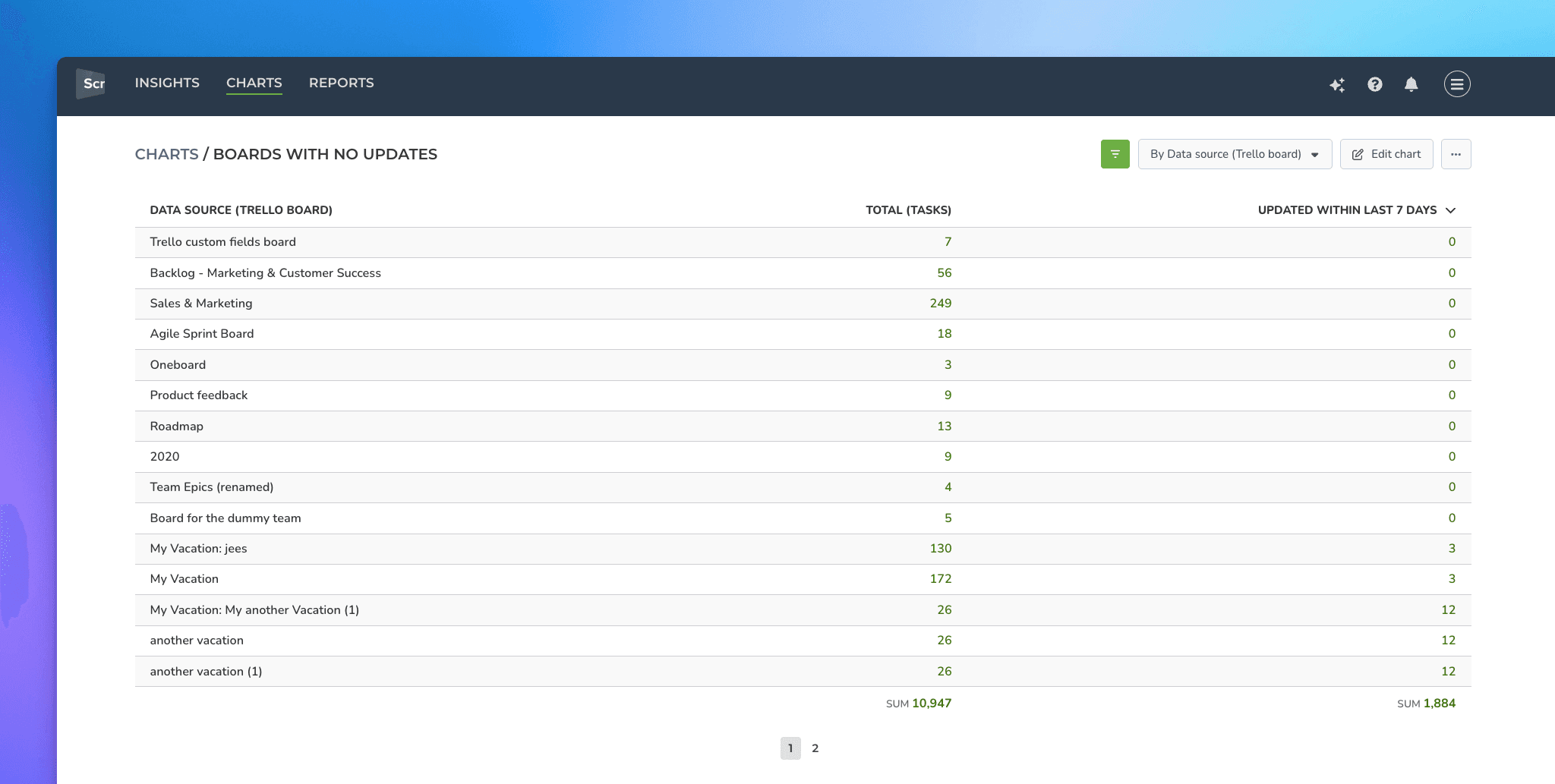
The boards with no updates within the last 7 days are shown at the top.
Learn more
Need help with setting up Screenful?
Book a call with our expert. Click here to schedule the onboarding call.
Screenful MCP server is coming soon
Use your Screenful project data inside your favorite AI tools. Join the waitlist.