Select items for a chart

Select items for a chart

Select items for a chart

This guide shows how to select items for a chart. The selection can be based on any of the fields on your board, including Sections, Date fields, or Custom fields.

This guide shows how to select items for a chart. The selection can be based on any of the fields on your board, including Sections, Date fields, or Custom fields.

This guide shows how to select items for a chart. The selection can be based on any of the fields on your board, including Sections, Date fields, or Custom fields.

Select items based on Sections

By default, Sections are used as a source of your workflow. When you import an Asana project to Screenful, the sections in your board are mapped to Not started, In progress, and Done. That allows Screenful to understand your data better and calculate metrics automatically.
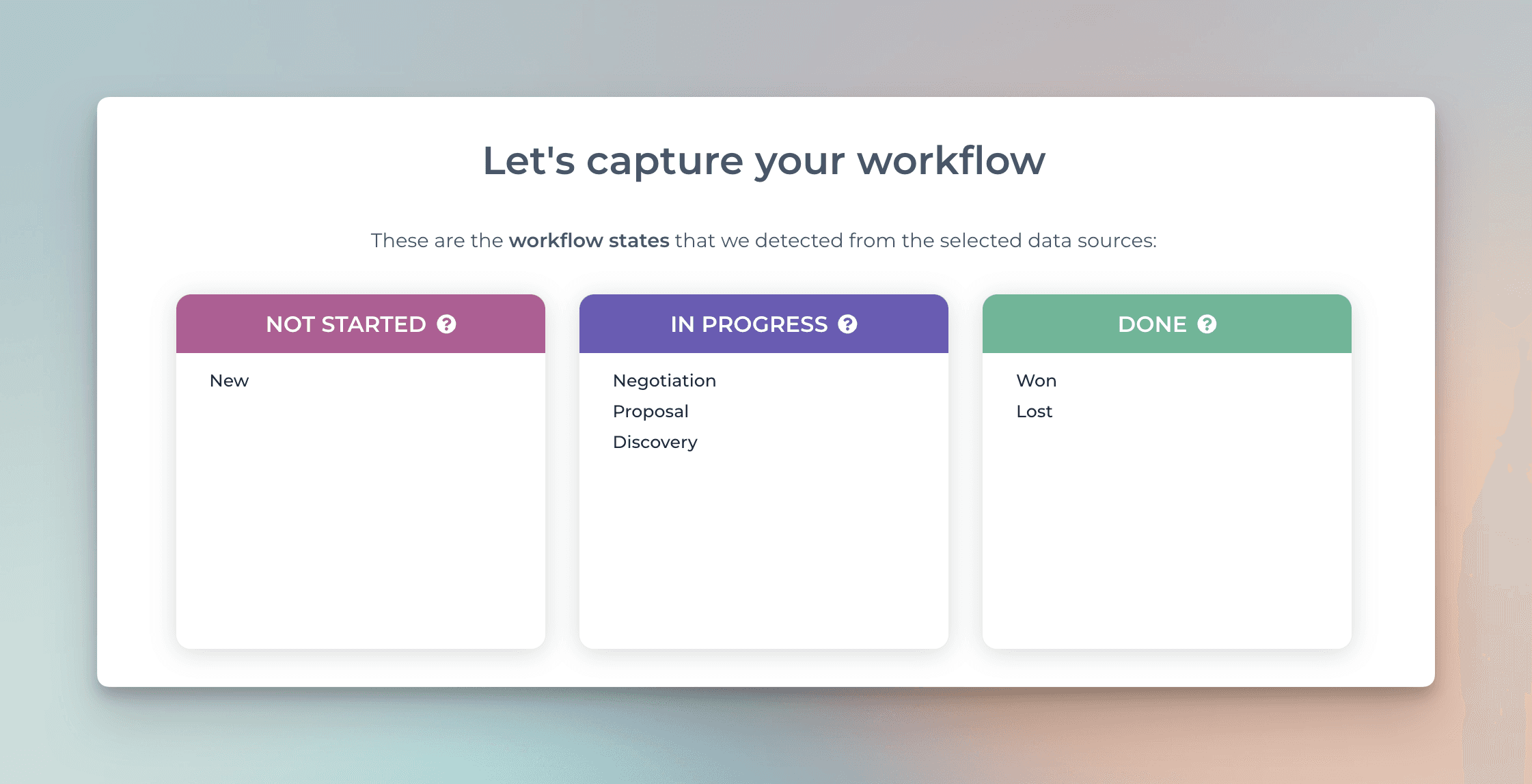
These settings are used when you select items based on their Not started", "In progress", or "Completed" status. These are useful shortcuts to set a correct filter when you are not interested in the individual statuses within these boxes. It also allows aggregating data across multiple Asana projects or portfolios into one chart, even when their workflows are different.
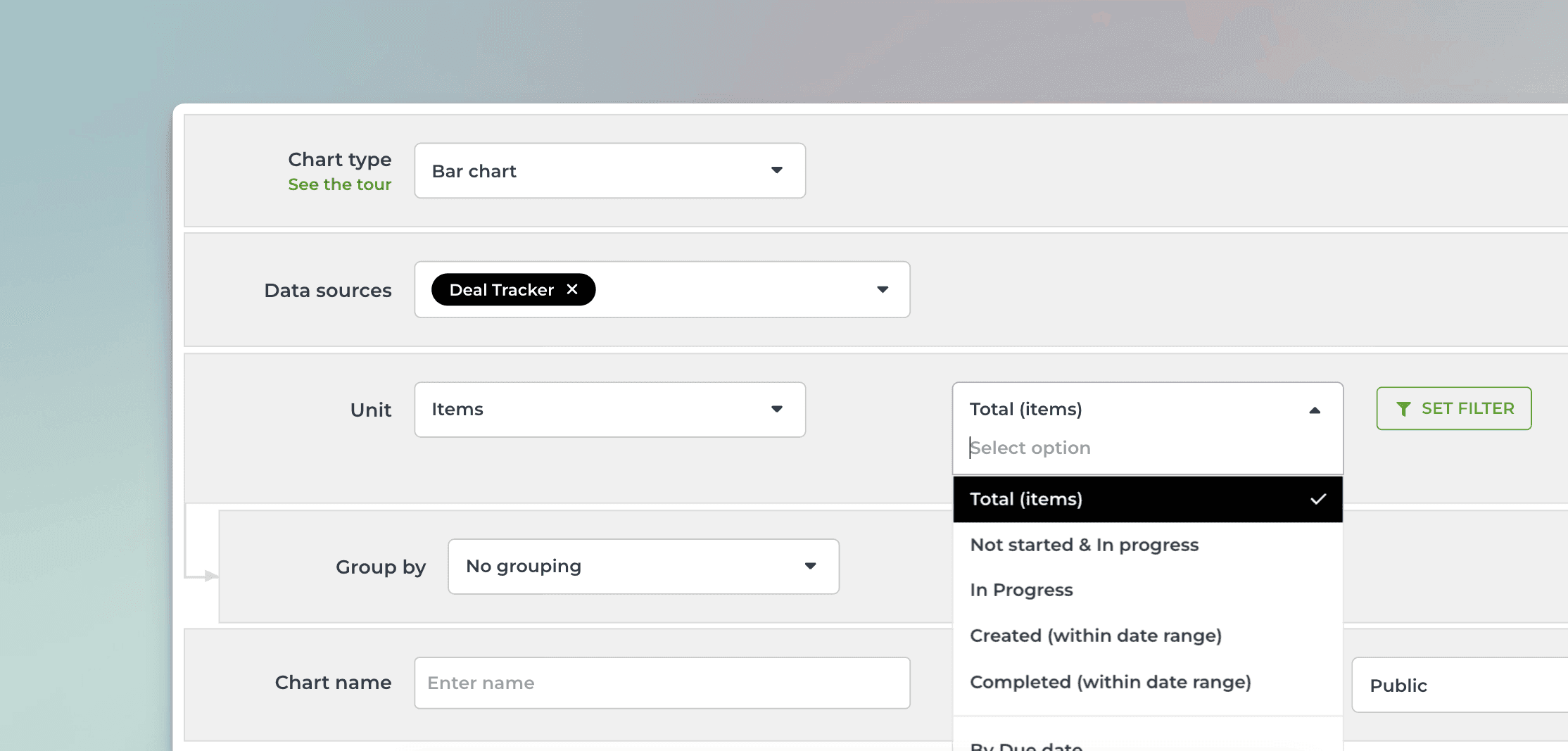
The options in the menu filter the items as follows:

  • Total (tasks) -> Include all tasks

  • Not started & In progress -> Include tasks that are in the stages mapped to Not started or In progress

  • In progress -> Include tasks that are in the stages mapped to In progress

  • Created -> Include all tasks created within a date range, regardless of workflow state

  • Completed -> Include all tasks checked as done, or moved to a section mapped to Done

The content in the Insights section is generated according to the workflow settings.

Select items based on Sections

By default, Sections are used as a source of your workflow. When you import an Asana project to Screenful, the sections in your board are mapped to Not started, In progress, and Done. That allows Screenful to understand your data better and calculate metrics automatically.

These settings are used when you select items based on their Not started", "In progress", or "Completed" status. These are useful shortcuts to set a correct filter when you are not interested in the individual statuses within these boxes. It also allows aggregating data across multiple Asana projects or portfolios into one chart, even when their workflows are different.

The options in the menu filter the items as follows:

  • Total (tasks) -> Include all tasks

  • Not started & In progress -> Include tasks that are in the stages mapped to Not started or In progress

  • In progress -> Include tasks that are in the stages mapped to In progress

  • Created -> Include all tasks created within a date range, regardless of workflow state

  • Completed -> Include all tasks checked as done, or moved to a section mapped to Done

The content in the Insights section is generated according to the workflow settings.

Select items based on Date fields

You can track work based on any of your custom Date fields.. When you create a chart, you can pick a date field instead of a workflow state as the primary filter. Let's assume you have a field Close date on your board. When you select by Close date, the chart will include tasks that have the close date within the selected date range:
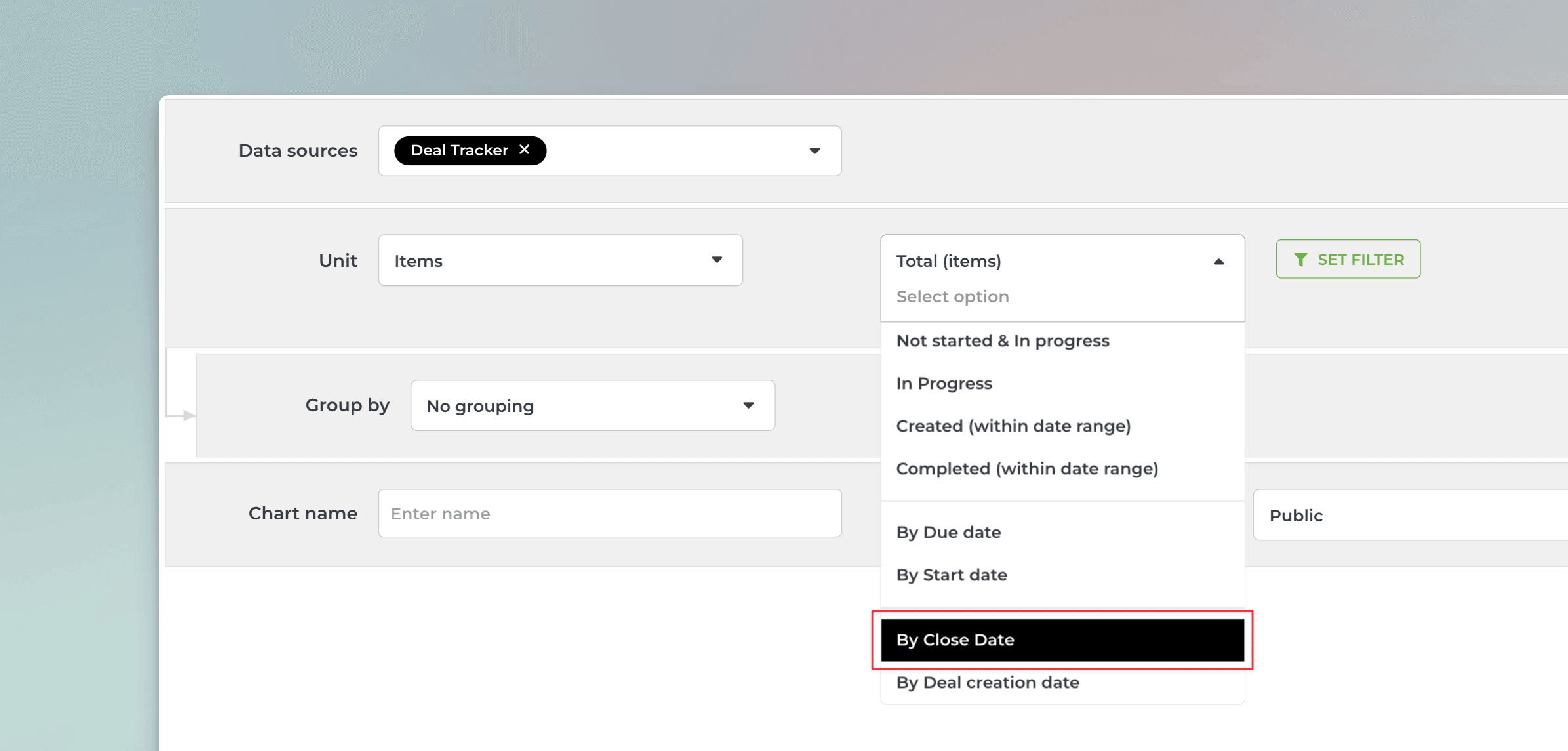
That will work the same way as if you had selected Completed (within date range), except that it will only look at the value in the selected date field. If the date is within the date range, it is included, regardless of the workflow state of that task.

Select items based on Date fields

You can track work based on any of your custom Date fields.. When you create a chart, you can pick a date field instead of a workflow state as the primary filter. Let's assume you have a field Close date on your board. When you select by Close date, the chart will include tasks that have the close date within the selected date range:

That will work the same way as if you had selected Completed (within date range), except that it will only look at the value in the selected date field. If the date is within the date range, it is included, regardless of the workflow state of that task.

Select items based on a custom field

You can also select a custom field to be the source of your workflow. In this example, a custom field called Status is used for tracking the status of a task.

Change "Set workflow using" to desired field

In the workflow settings, you can select any of your dropdown custom fields to represent the steps of your workflow. Once you select a custom field from the menu, the timing metrics will be based on the selected custom field instead of board sections or columns.

Select items based on a custom field

You can also select a custom field to be the source of your workflow. In this example, a custom field called Status is used for tracking the status of a task.

Change "Set workflow using" to desired field

In the workflow settings, you can select any of your dropdown custom fields to represent the steps of your workflow. Once you select a custom field from the menu, the timing metrics will be based on the selected custom field instead of board sections or columns.

Select items based on Time tracking field (Actual time)

You can select tasks for a chart based on when the time was logged. If you have logged hours to the Actual time field, you can pick that from the menu:
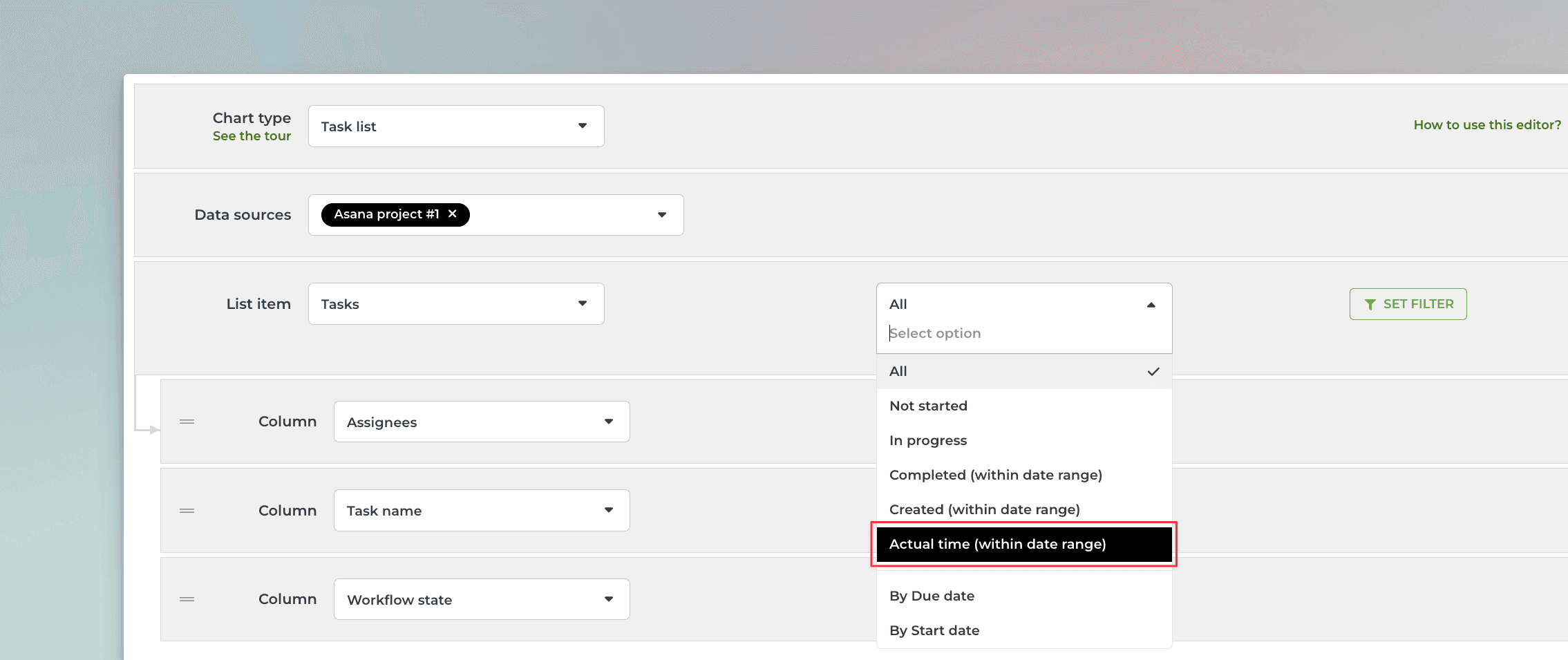
When you select Actual time from the menu, a date range menu appears:
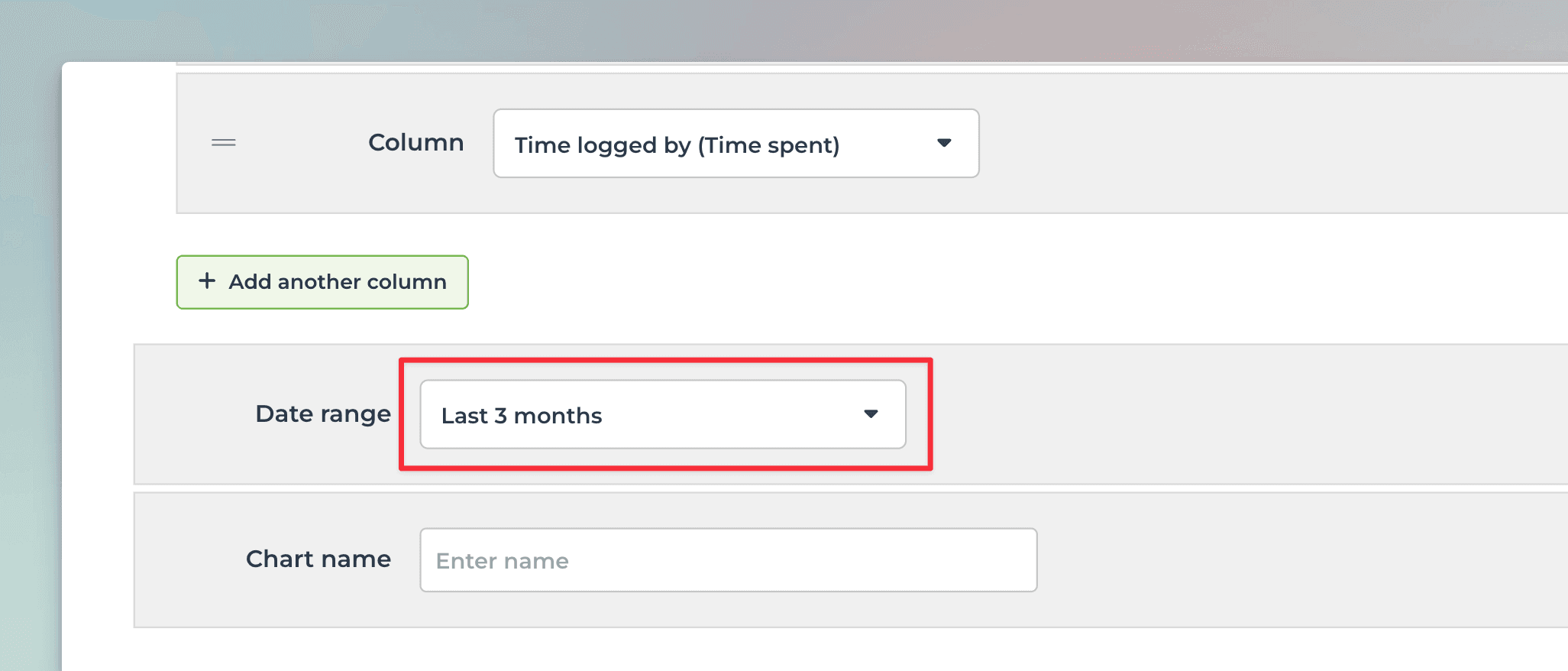
The Date range refers to when the hours were logged. The tasks included in the chart are the ones that have time tracking entries within the selected date range.

Select items based on Time tracking field (Actual time)

You can select tasks for a chart based on when the time was logged. If you have logged hours to the Actual time field, you can pick that from the menu:

When you select Actual time from the menu, a date range menu appears:

The Date range refers to when the hours were logged. The tasks included in the chart are the ones that have time tracking entries within the selected date range.

Select items based on other fields

You can create charts based on any of the standard or custom fields of tasks. In the chart editor, simply select Total (items):

Then narrow it down to any subset by setting a filter. First, click the filter button next to the menu:
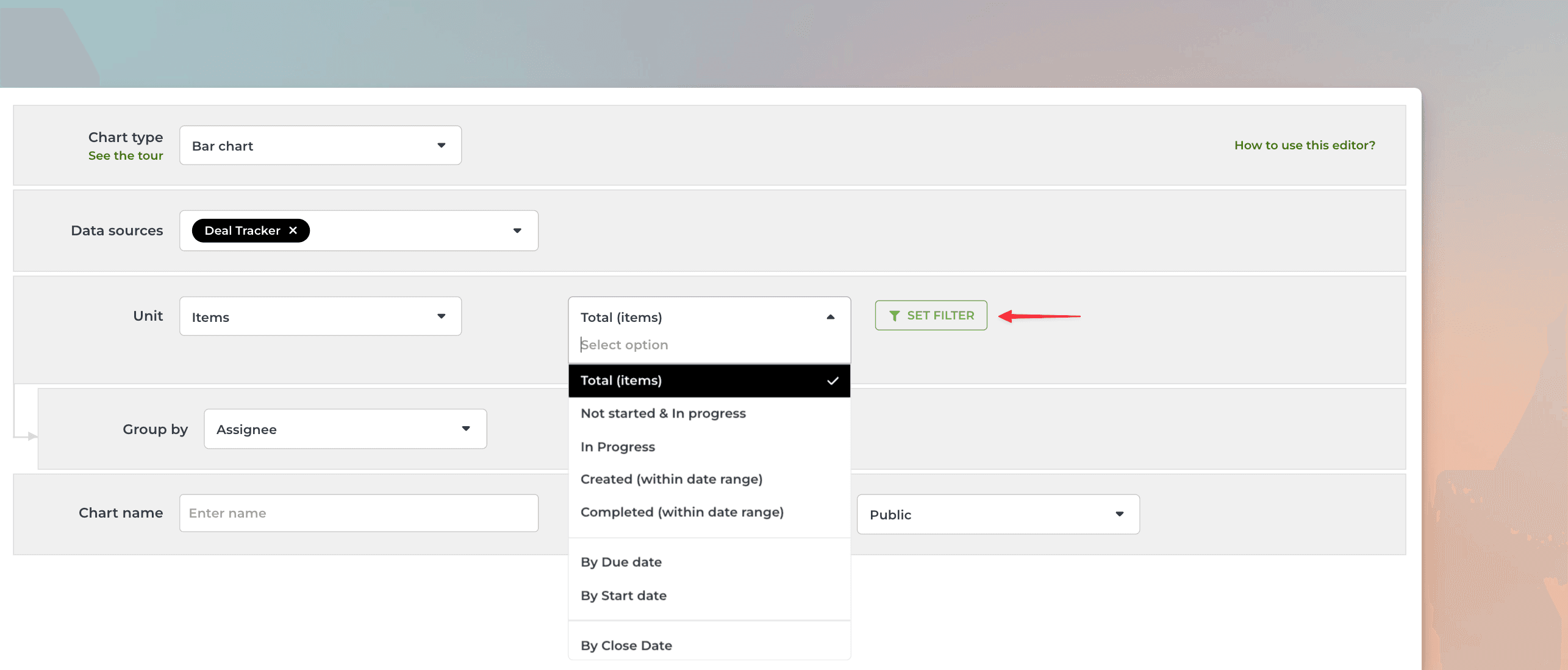
Then select the property you want to filter the data by:

The filter menu contains the properties that are available for filtering. You can learn more from the filtering guide.

Select items based on other fields

You can create charts based on any of the standard or custom fields of tasks. In the chart editor, simply select Total (items):

Then narrow it down to any subset by setting a filter. First, click the filter button next to the menu:

Then select the property you want to filter the data by:

The filter menu contains the properties that are available for filtering. You can learn more from the filtering guide.

Book a free onboarding call

Need help with setting up your charts and reports? Don't find a metric you are looking for? Book a call with our expert. We'd love to help you supercharge your reporting!

Click here to schedule the onboarding call.

Book a free onboarding call

Need help with setting up your charts and reports? Don't find a metric you are looking for? Book a call with our expert. We'd love to help you supercharge your reporting!

Click here to schedule the onboarding call.