Related questions
It depends on whether you're importing GitHub repositories or GitHub Projects.
When you import GitHub repositories, one data source can contain multiple repositories. You can select the repositories to include in the data source by selecting them at the time of import.
When you import GitHub Projects, a data source is one GitHub Project.
The difference between these is that when importing a GitHub Project, you can use project metadata, such as statuses, iterations, and custom fields, in your reports, which are not available when importing repositories.
You can import data sources from all the tools we support in the same Screenful account. Learn more about managing data sources.
It depends on whether you're importing GitHub repositories or GitHub Projects.
When you import GitHub repositories, one data source can contain multiple repositories. You can select the repositories to include in the data source by selecting them at the time of import.
When you import GitHub Projects, a data source is one GitHub Project.
The difference between these is that when importing a GitHub Project, you can use project metadata, such as statuses, iterations, and custom fields, in your reports, which are not available when importing repositories.
You can import data sources from all the tools we support in the same Screenful account. Learn more about managing data sources.
When you import a data source, all data is imported and made available for reporting. You can narrow the data to any subset by setting a filter. For example, you can filter out issues or pull request by using 'Type' filter.
When you import a data source, all data is imported and made available for reporting. You can narrow the data to any subset by setting a filter. For example, you can filter out issues or pull request by using 'Type' filter.
You can track pull request review times by adding Pull request review time as a column in a Task list. The summary on the bottom shows the sum, average, or median time to review a pull request. You can learn more from this guide.
You can track pull request review times by adding Pull request review time as a column in a Task list. The summary on the bottom shows the sum, average, or median time to review a pull request. You can learn more from this guide.
Currently, we don't support tracking Github commits. Let us know if you'd like to see us supporting them in our analytics.
Currently, we don't support tracking Github commits. Let us know if you'd like to see us supporting them in our analytics.
The Analytics & Reports GitHub App requires read-only access to issues, members, metadata, organization administration, organization projects, pull requests, and repository projects.
The Analytics & Reports GitHub App requires read-only access to issues, members, metadata, organization administration, organization projects, pull requests, and repository projects.
The Analytics & Reports OAuth app requires these OAuth scopes:
"read:org"
"repo" or "public_repo" (depending on whether user selects "authorise public repos only" or "authorize public and private repos”
An OAuth token will share the permissions of the user that authorized the application. That means, if your account authorizes the application and has 'write' permission to a repository, the token will also have 'write' permission to that repository. This is how OAuth tokens work in the GitHub platform.
From a security point of view, we recommend using the GitHub app instead of the OAuth app.
The Analytics & Reports OAuth app requires these OAuth scopes:
"read:org"
"repo" or "public_repo" (depending on whether user selects "authorise public repos only" or "authorize public and private repos”
An OAuth token will share the permissions of the user that authorized the application. That means, if your account authorizes the application and has 'write' permission to a repository, the token will also have 'write' permission to that repository. This is how OAuth tokens work in the GitHub platform.
From a security point of view, we recommend using the GitHub app instead of the OAuth app.
Yes. When installing the GitHub app, you can select which repositories are available to the app.
After you create and register a GitHub App, you can change permissions, transfer ownership, and delete the app within the GitHub UI. You can see a list of installed apps at Settings → GitHub apps.
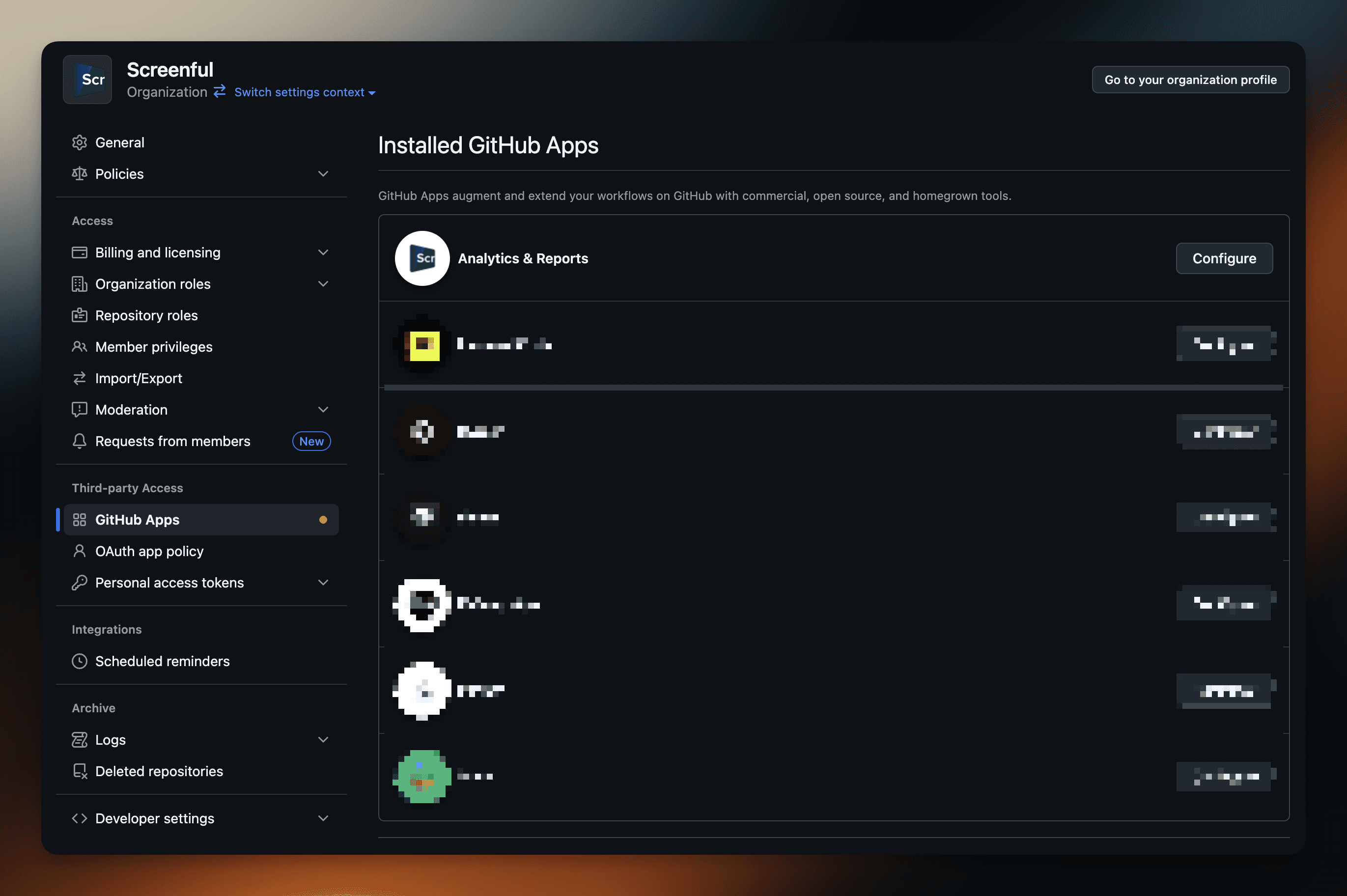
Clicking Configure opens a page that allows you to adjust the repository access.
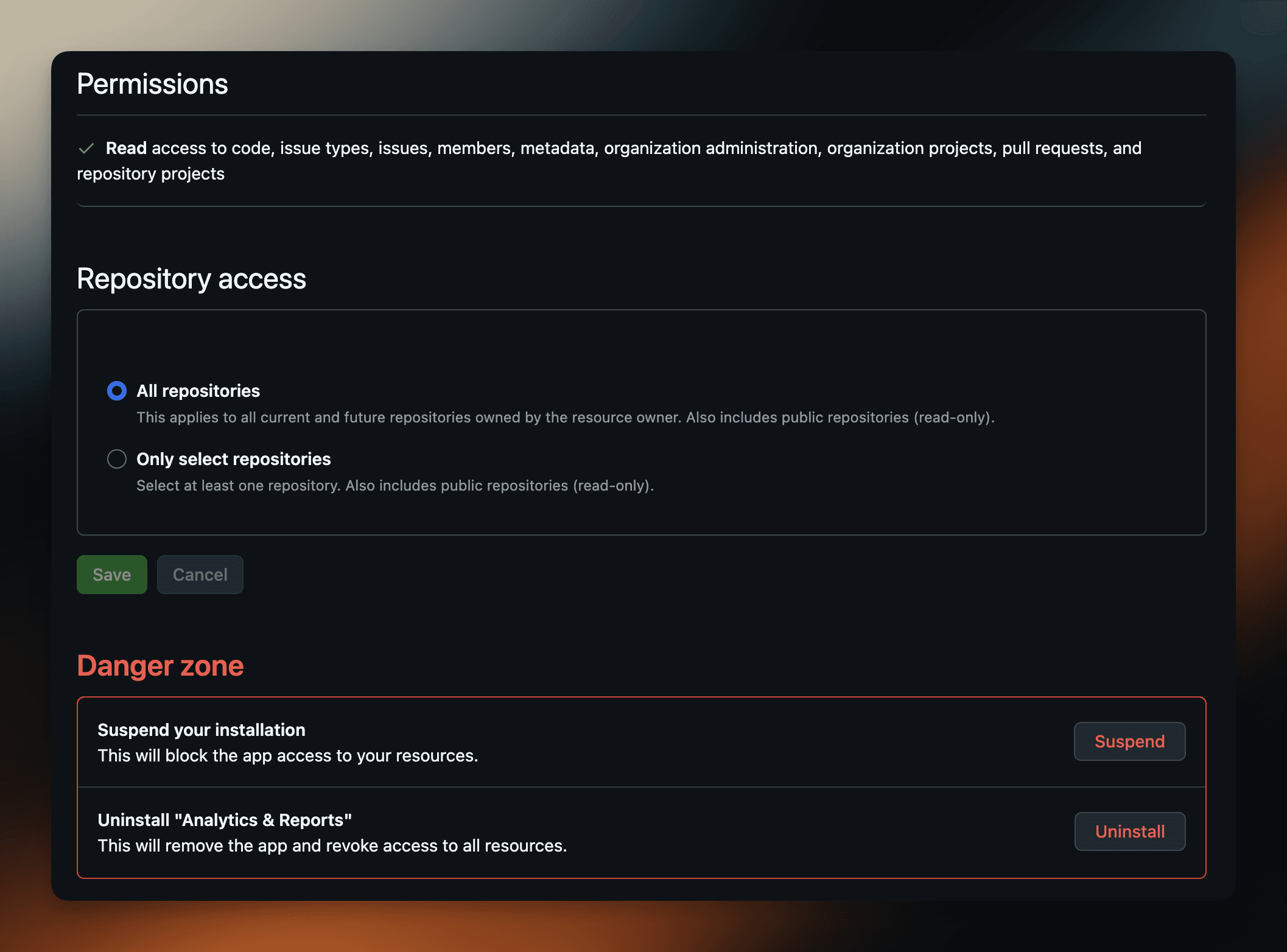
In the Permission page, you can select either All repositories or Only select repositories. Selecting the latter one allows you to specify which repositories the app has access to.
Yes. When installing the GitHub app, you can select which repositories are available to the app.
After you create and register a GitHub App, you can change permissions, transfer ownership, and delete the app within the GitHub UI. You can see a list of installed apps at Settings → GitHub apps.
Clicking Configure opens a page that allows you to adjust the repository access.
In the Permission page, you can select either All repositories or Only select repositories. Selecting the latter one allows you to specify which repositories the app has access to.
It depends on whether you have installed the Marketplace (OAuth) app or the GitHub app.
GitHub app: Yes, if the organisation admin installed the app, created the Screenful account, and invited you to it.
OAuth: No, someone who has access to the organisation has to authorise data sources.
It depends on whether you have installed the Marketplace (OAuth) app or the GitHub app.
GitHub app: Yes, if the organisation admin installed the app, created the Screenful account, and invited you to it.
OAuth: No, someone who has access to the organisation has to authorise data sources.
Is access to imported GitHub data controlled only by Screenful or does my own GitHub permissions also affect what I can see inside Screenful?
GitHub permissions only affect your ability to create data sources. You can create data sources only from the projects and repositories you have access to in GitHub.
Screenful visibility settings define which charts and reports you’re able to view within Screenful.
GitHub permissions only affect your ability to create data sources. You can create data sources only from the projects and repositories you have access to in GitHub.
Screenful visibility settings define which charts and reports you’re able to view within Screenful.
You can’t switch an existing Screenful account from OAuth to GitHub App. To use the GitHub App, you need to create a new Screenful account.
You can’t switch an existing Screenful account from OAuth to GitHub App. To use the GitHub App, you need to create a new Screenful account.
When importing project boards, you can specify your workflow based on the columns on the board which you can configure in the workflow settings. You can learn more from the Lead Time FAQ.
When importing repositories, the timing metrics are calculated as follows:
Lead time starts when an issue is created
Cycle time starts when the issue is assigned to a person, or when pull request is opened
Lead & cycle time is stopped when the issue is closed, or the pull request merged
When importing project boards, you can specify your workflow based on the columns on the board which you can configure in the workflow settings. You can learn more from the Lead Time FAQ.
When importing repositories, the timing metrics are calculated as follows:
Lead time starts when an issue is created
Cycle time starts when the issue is assigned to a person, or when pull request is opened
Lead & cycle time is stopped when the issue is closed, or the pull request merged
You can pull metrics from repositories that you own or that are in your organisation. If your organisation has applied special restrictions on 3rd party access you need to grant access to the Screenful app first.
You can pull metrics from repositories that you own or that are in your organisation. If your organisation has applied special restrictions on 3rd party access you need to grant access to the Screenful app first.
When you create a new Organization within GitHub it may not automatically appear within Screenful. You may need to enable access to the new organizaion within the GItHub UI.
Notice also that the OAuth integration is managed per user account rather than per organization. The integration will see all the organizations for that GitHub user.
To add your new GitHub organization, you will need to add access to Screenful for this new organization:
Navigate to Account(top right) > Settings > Applications > Authorized OAuth Apps
Click on Screenful
Find your Organization(s) and click on Grant.
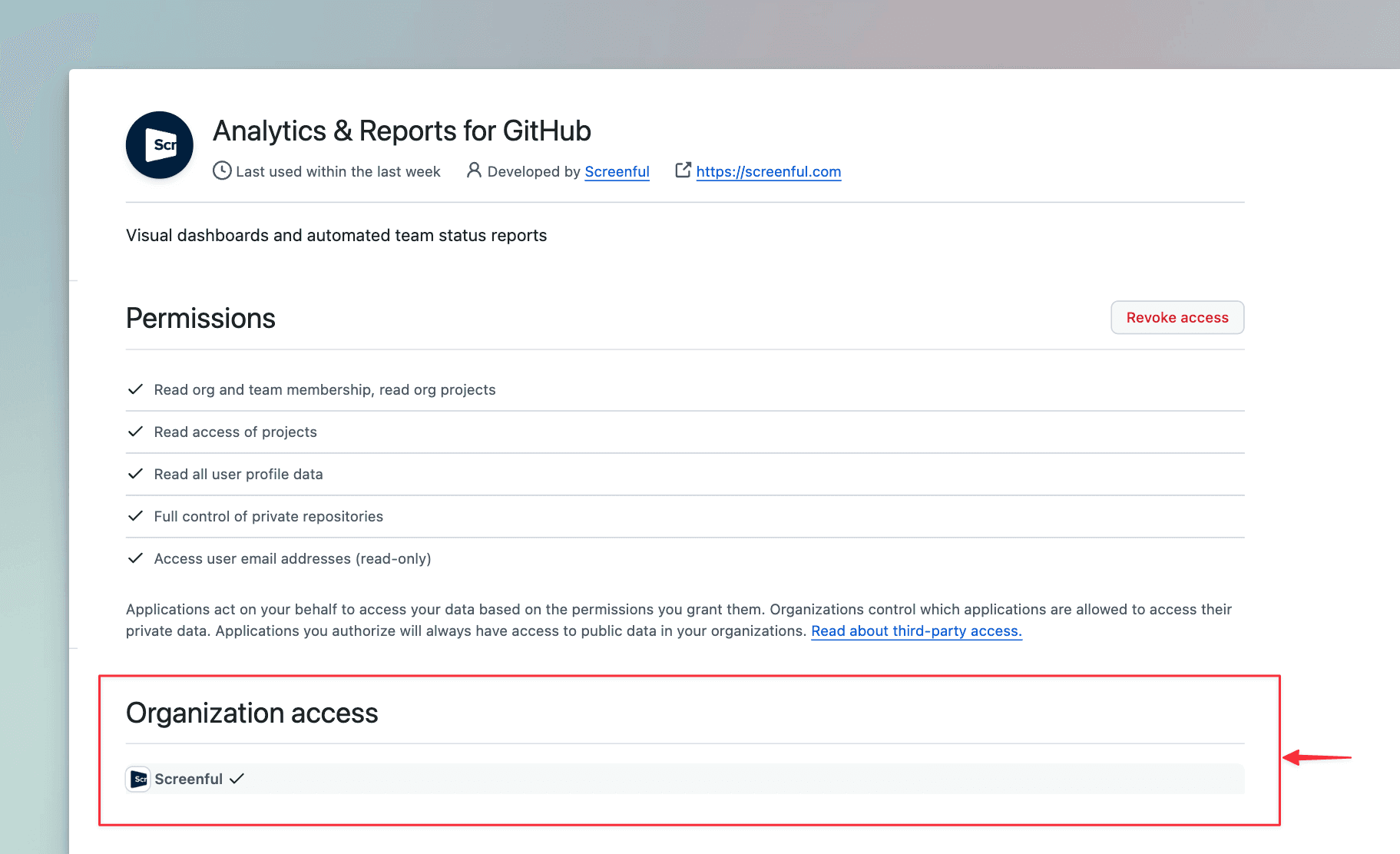
You should now be able to import repositories and projects from this organization!
When you create a new Organization within GitHub it may not automatically appear within Screenful. You may need to enable access to the new organizaion within the GItHub UI.
Notice also that the OAuth integration is managed per user account rather than per organization. The integration will see all the organizations for that GitHub user.
To add your new GitHub organization, you will need to add access to Screenful for this new organization:
Navigate to Account(top right) > Settings > Applications > Authorized OAuth Apps
Click on Screenful
Find your Organization(s) and click on Grant.
You should now be able to import repositories and projects from this organization!
Go to the Applications settings in GitHub and remove Screenful from the authorised OAuth applications. After that, you can import projects or repositories using a different GitHub account.
Go to the Applications settings in GitHub and remove Screenful from the authorised OAuth applications. After that, you can import projects or repositories using a different GitHub account.
Pull request reviewer means a person, team, or bot that has been requested to review a pull request, regardless of whether the reviewer has taken any action. The pull request review time can be zero in the following cases:
Pull request hasn't been merged
Review took place after the pull request was merged
Review was never requested (in which case the review time is zero because the counting starts from the moment the pull review was requested)
Pull request reviewer means a person, team, or bot that has been requested to review a pull request, regardless of whether the reviewer has taken any action. The pull request review time can be zero in the following cases:
Pull request hasn't been merged
Review took place after the pull request was merged
Review was never requested (in which case the review time is zero because the counting starts from the moment the pull review was requested)
When you add a new custom field to your board, it is imported during the next data sync (the data is synced automatically once per hour). You can trigger sync manually anytime by selecting Data sync options from the main menu. Notice that the new field should also have a value assigned in at least one task.
When you add a new custom field to your board, it is imported during the next data sync (the data is synced automatically once per hour). You can trigger sync manually anytime by selecting Data sync options from the main menu. Notice that the new field should also have a value assigned in at least one task.