Dec 30, 2025
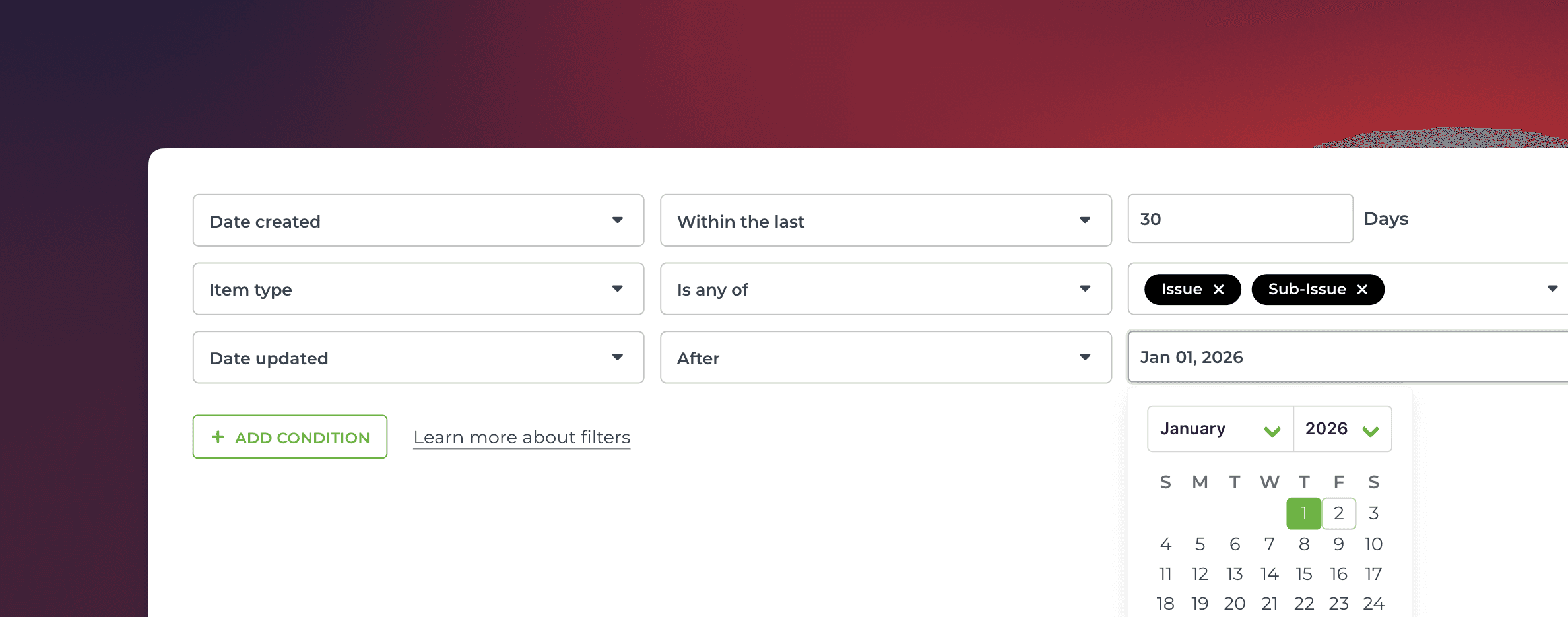
In this last release of the year, we want to showcase the recent improvements to our filters, enabled by our new analytics engine. You can now filter by any of your number fields, date fields, or text fields. You can also filter by item name with exact or partial match.
Read on to learn more about the new filtering capabilities!
Contents:
Filtering by number fields
You can filter charts by any of your number fields. You can find them in the filter options, and you can do comparisons such as is greater than or is less than:

You can also filter by exact match using is equal to or is not equal to:

You can also filter by which items have a value or do not have a value by selecting is empty or is not empty:
Filtering by keywords
You can filter by partial text match using contains or doesn't contain. You can type the phrase in the filter window. It will be matched against the selected field, such as label:

Selecting Label Contains "Bug", filters all the items that have the characters "Bug" as part of the label name. That would include labels susch as "Bug production" and "Bug staging".
Filtering by task name
You can filter by the name of the item (issue/task/story, etc.) by selecting Item name from the filter menu.

You can enter the full name of the item, or use a substring of the name to include or exclude specific items from the set.
Filtering by date fields
You can filter a chart by any of your date fields. When you select a date field in the filter, you can select within the last, not within the last, within the next or not within the next and enter the number of days:

In the above example, the filter will include items items with Date created within the last 10 days.
Alternatively, you can select before or after, and use the date picker to select the date:
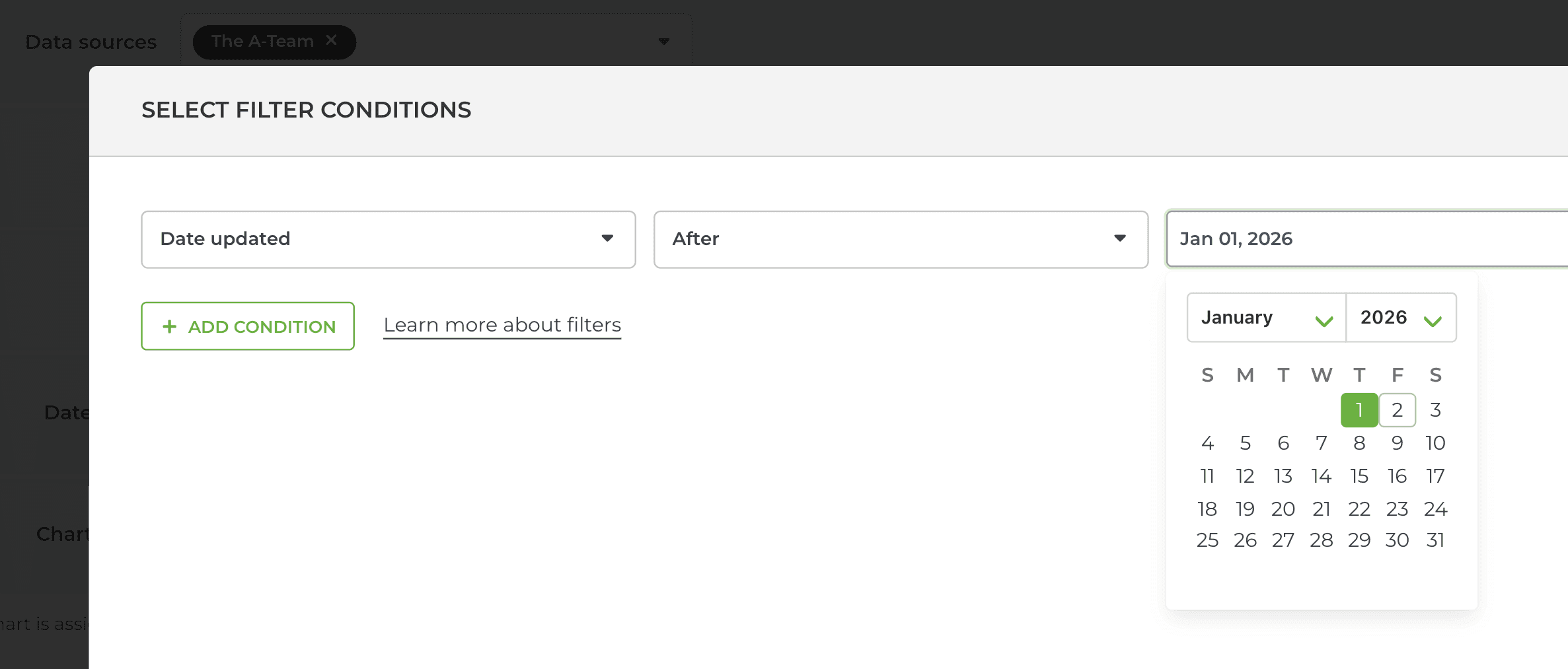
That will select all items with Date updated after the selected date. You use any of your date fields in the filter, including any of your custom date fields.
Applying AND/OR logic in filters
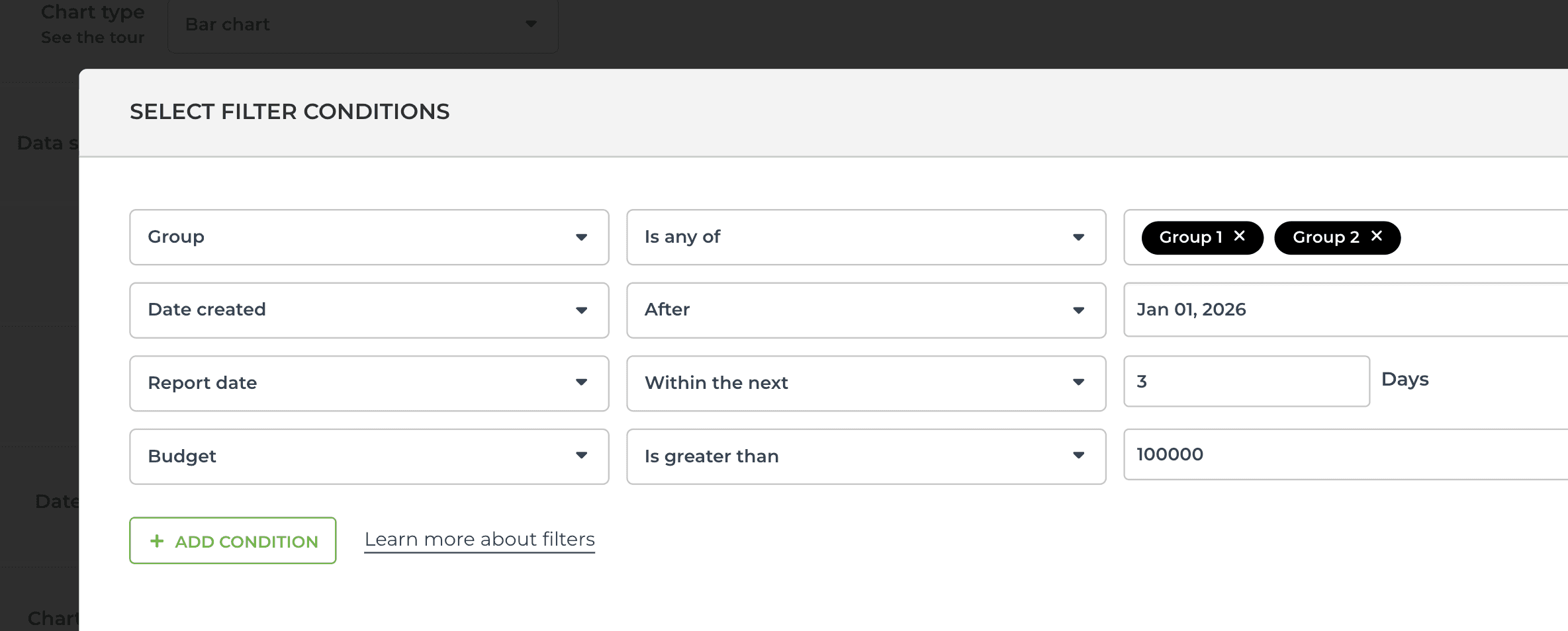
The filter logic depends on how you construct the filter conditions. When you select multiple is any of options from a single menu, they follow the OR logic:
“Show me items that match this or that (or both).”
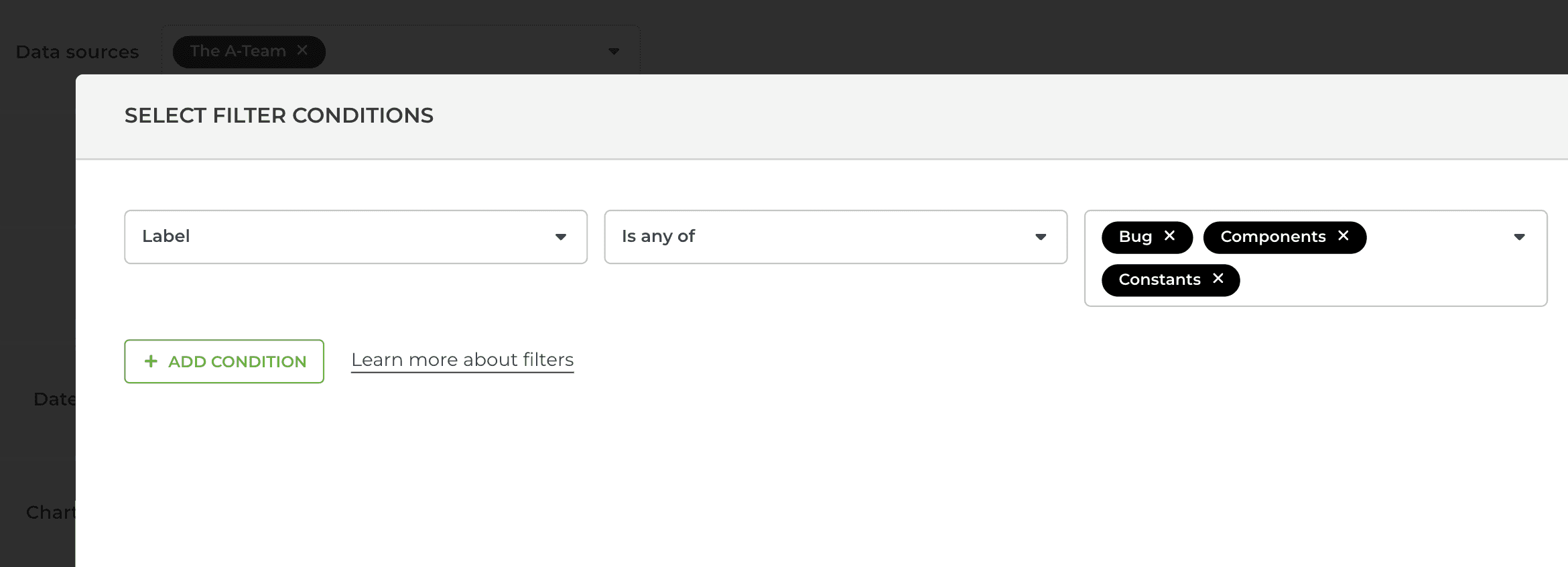
In this case, the filter matches any item that has at least one of the selected options. In terms of logic, they are OR conditions, as it is sufficient if the resulting item contains only one of them.
You can also select multiple options by picking them in separate menus. In terms of logic, they are AND conditions since the resulting items must contain all of them.
“Show me items that match this and that.”
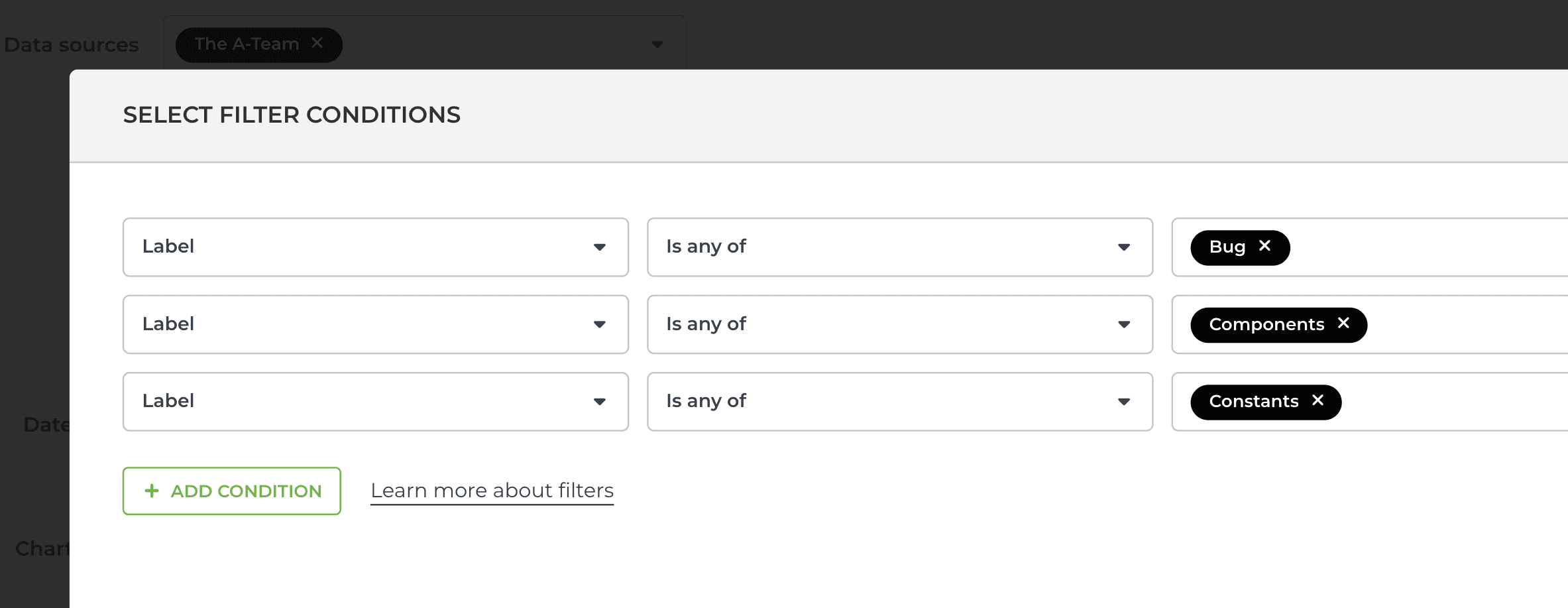
You can combine both in the same filter. Here’s an example of a more complex filter including both AND and OR conditions:
Advanced filters are available for all our integrations (Jira, Trello, monday.com, Asana, Linear, GitHub, GitLab). Here's the complete filtering guide that teaches you how to use filters like a pro!
That’s it for this release. As always, we’d love to hear from you. Please do not hesitate to contact us anytime if you have questions or feedback.
To give it a try with your own data, sign up for a free 14-day trial
Also, check out recent product updates and follow us on Twitter or Facebook.