Don't like the default appearance of a chart? We've got you covered since you can configure almost any visual aspect of a chart such as colors, labels, and date and number formats. These adjustments can be found under the Chart settings.
Guide contents:
How to find the chart settings?
You can access the chart settings by clicking the three dots menu and selecting Chart settings:

You'll also find the same option in the chart context menu:

Renaming the text labels
When you create a custom chart, you only need to provide the name of the chart. All other labels are automatically generated based on the units and metrics selected for the chart. However, you don’t have to stick with the auto-generated names as you can rename them.
To rename the text labels, click Chart settings behind the three dots menu, and scroll to the bottom of the page:

In the Display names section, you’ll see a list of units and metrics selected for the chart. You'll see the given name in the input field on the right. By default, it is the name of selected unit or metric, but you can rename it to represent your data best. In this example, Tasks is renamed to Tickets, and Completed (within date range) is renamed to Work completed.
Here’s the chart with the updated names:

Configuring the quick menus
In the chart settings, you can configure a quick filter that will be shown on top of the chart. It allows adjusting the chart's content without accessing the chart editor.
In the chart settings, use the toggle to enable the quick filter:
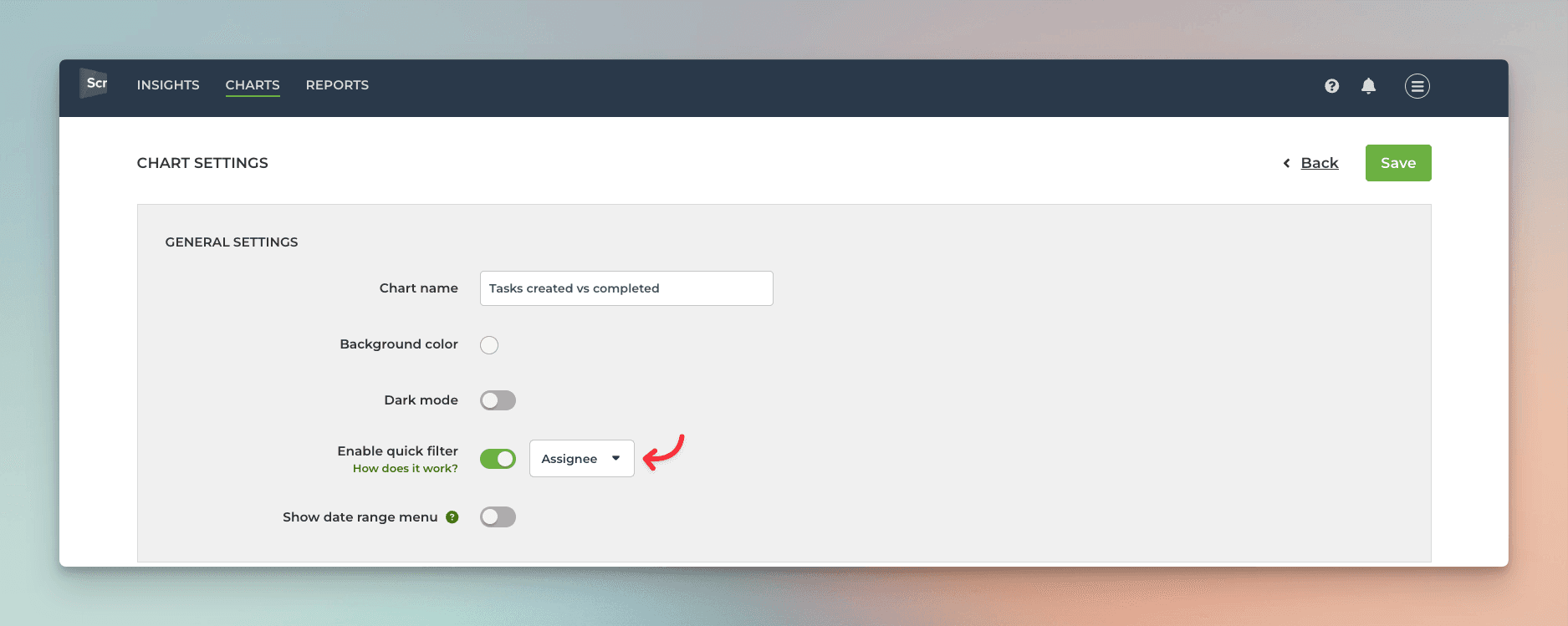
Clicking the toggle reveals the filter options. For example, selecting Assignee from the menu creates a quick filter for the assignee shown above the chart:
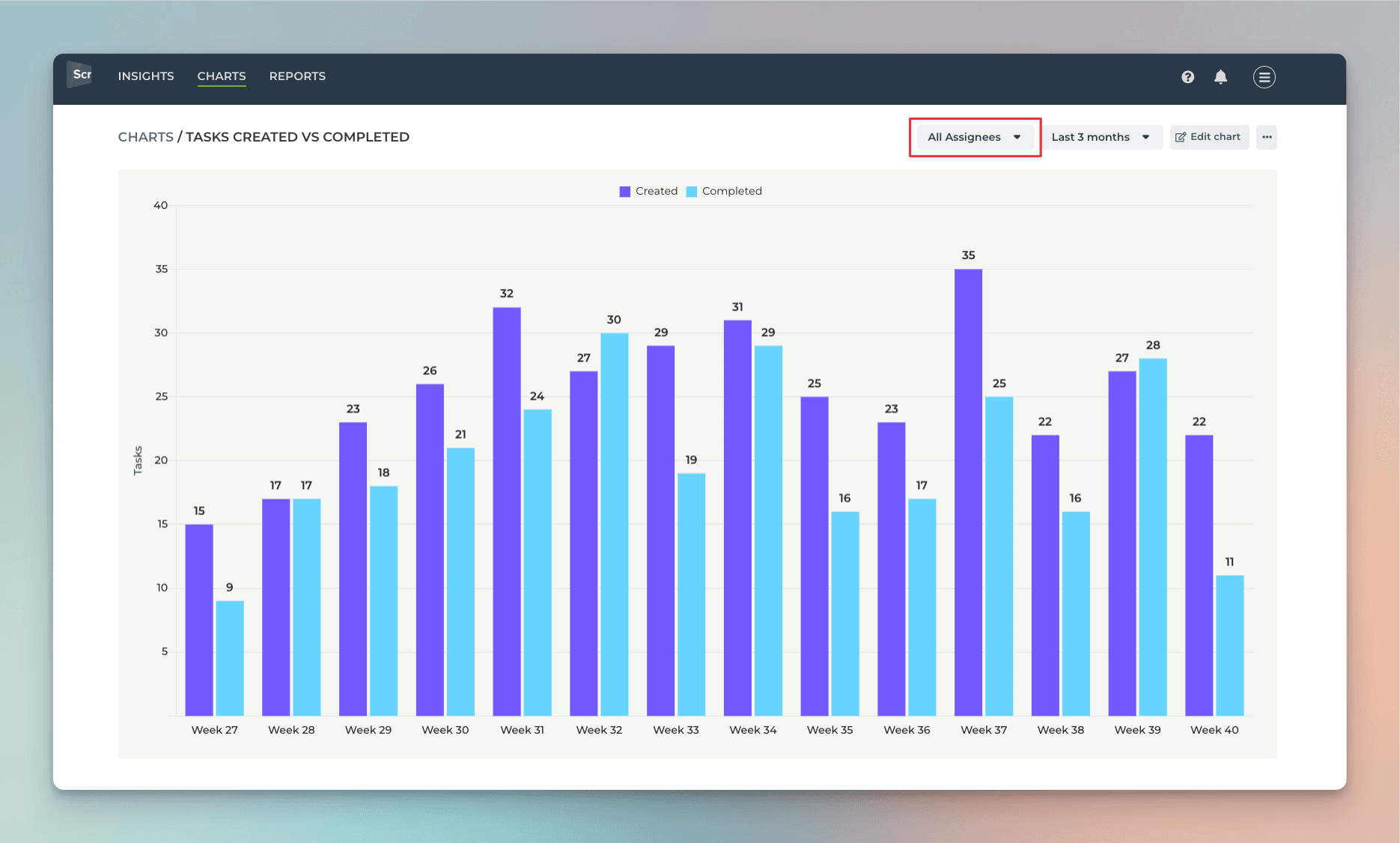
When you select and assignee from the menu, the chart content is filtered accordingly. It allows quick comparisons between labels, iterations, departments, customers, or any other property you have in your data.
You can also display a date range menu at the top of the chart. Use the toggle to enable the date range menu:

Once enabled, the user can adjust the date range without having to go to the editor:

When you enable a quick filter or a date range menu, it will be present when the chart is shared with a public share link, embedded in a website, or added to a report.
Configuring date formats, number formats, and currencies
Different countries have different standard formats for numbers and dates. Under the Account settings, you can configure the date and number format to match your local standards.
The Date Format menu contains the most common date formats:

When you pick a date format, the selected format will be applied to all the charts in the account. The Number Format menu contains the most common number formats:

When you choose a number format, it will be applied to all the charts in the account.
You can specify a currency under the Chart settings if your data represents monetary values:

When a currency is selected, the associated currency symbol is shown in front of the numbers. Here’s an example line chart with the currency set to US Dollar ($) to represent the amount in USD. Both the number at the top left and the tooltip display the selected currency symbol.

The currency setting is a chart-specific feature. In the chart settings, you can specify which metrics are currencies. If your numbers represent a currency, you can make it more explicit by displaying it as the currency. The default for a numeric field is Number i.e. just a plain number, not a currency.
Adjusting the rolling window size in the line charts
When displaying data as a line chart, a sliding window is used to smooth away the daily fluctuations so that you can see the trend from the noise. The rolling window size is configurable in the chart settings:

If you select 1 day rolling window, each point in the horizontal axis displays the number of items (e.g., tasks created or tasks completed) per day. With 7 day rolling window, each point in the horizontal axis displays the sum (or average, depending on what metrics were selected) over the previous seven day period.
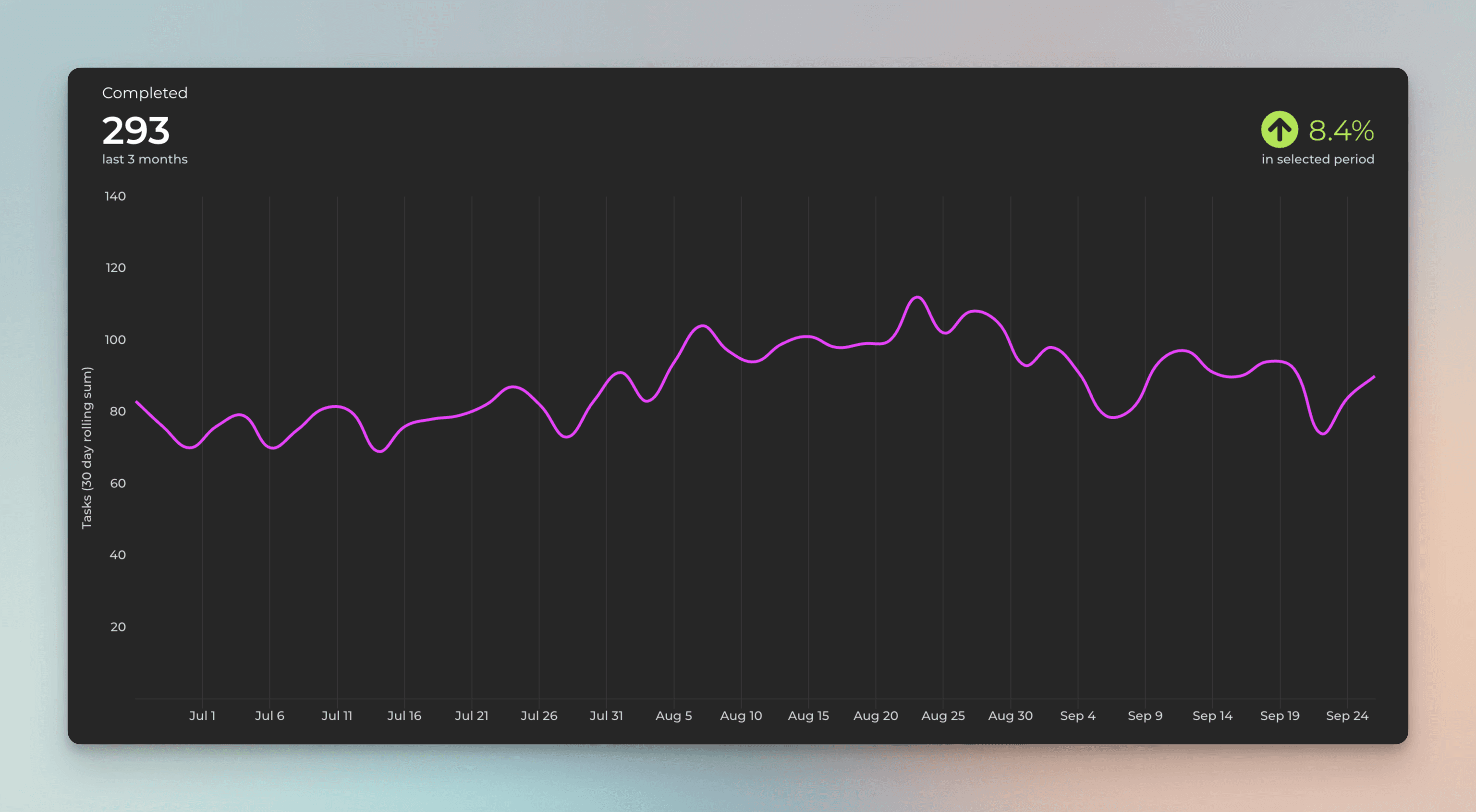
Here’s an example chart with 30 days rolling window. When you hover the mouse over the chart, the tooltip shows the values for the previous 30 days period.

The longer the rolling window, the less variation there is in values, creating a smoother trend line. With smaller window sizes, you can see more details, but the overall trend may get distorted by the daily fluctuations.
Configuring summaries in tables and lists
The Table chart aggregates the task data into sums, averages, and other statistics. Each row in a table chart is a segment such as label, epic, assignee, or a project. The Task list chart allows for creating lists. Each row in the Task list is an item (task, ticket, issue). You can select any item properties to be shown in the columns. Both of these chart types come with a configurable summary row.
By default, the Task list chart does not include a summary. To enable the summary row, visit Chart settings (behind the three dots menu) and use the toggle Show summary row to enable the summary row for the chart:

In the Chart settings, you can configure the type of summary for each column to be either sum, average, or median. If you select None, no summary is displayed.
The summary menus are shown for each column that contains numerical or timing data.

Once you have saved the settings, the chart starts displaying a summary row at the bottom:
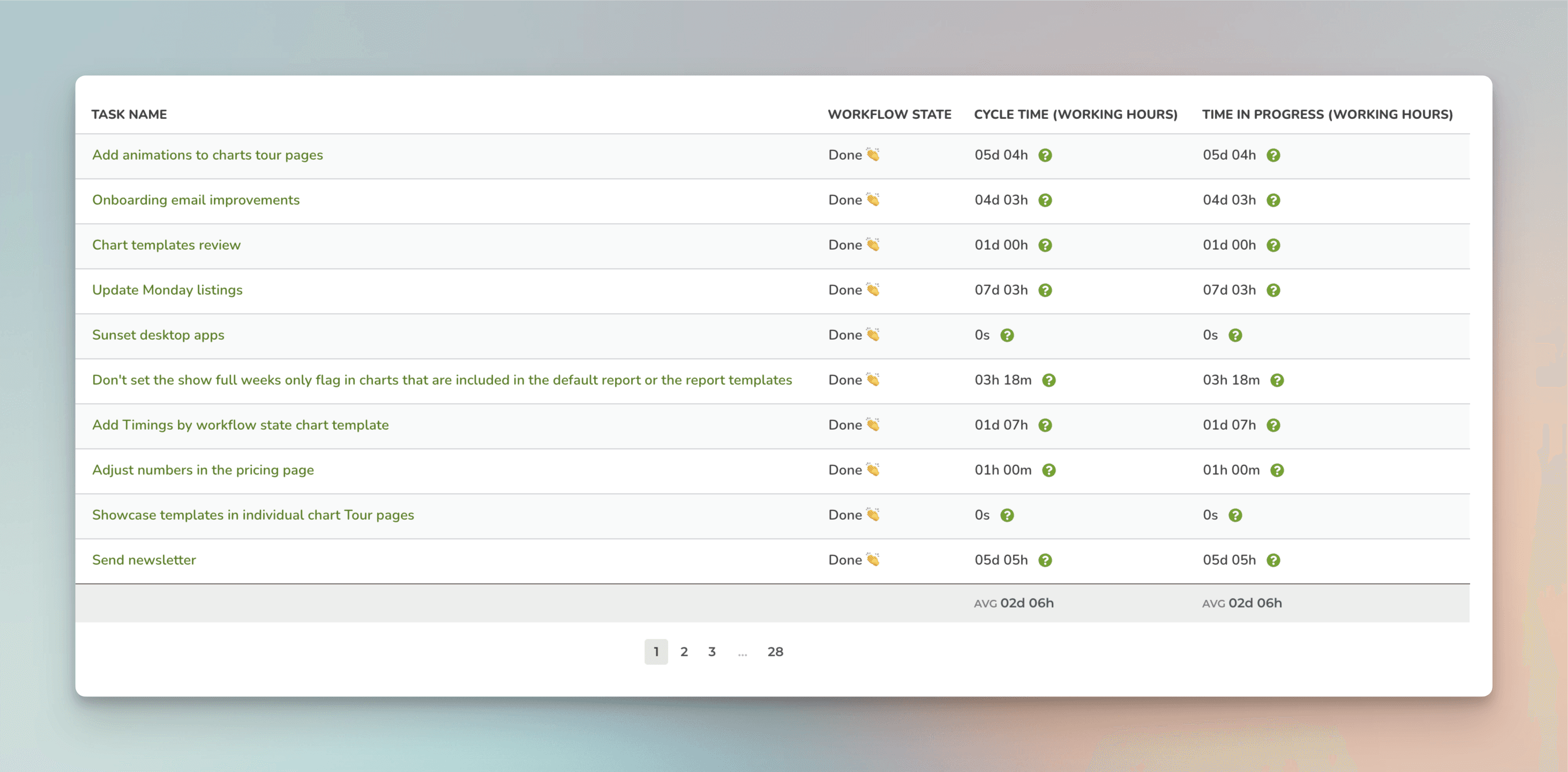
If you have added numerical columns to your reports, such as estimates or story points, or financial data, like budgets and costs, you can use the summary row to display the totals for the selected columns.
The Table chart also comes with a summary row that displays the sum, average, or median for each column. You can configure the summary type in the chart settings:

Here’s an example Table chart with the summary row:

Unlike in the Task list chart, the summary row in the Table chart is fixed, and there is no setting to toggle it on or off. However, you can configure each column separately. if you select None, no summary is displayed for that column.
Adjusting the colors of the chart
Go to the Chart settings and scroll to the bottom of the page. In the Display names section, you’ll see a colored circle next to each metric, displaying the currently selected color for that metric. When you click the circle, a modal window opens, allowing you to pick a color from a palette.

Notice that some charts (such as the stacked bar chart) have auto-generated colors based on the selected grouping, and therefore, the color selection is not available for them.
Switching to the dark mode
If you need to place a chart into a dark background, or you just prefer your UI as dark, we’ve got you covered! In the chart settings, you’ll find the Dark mode slider
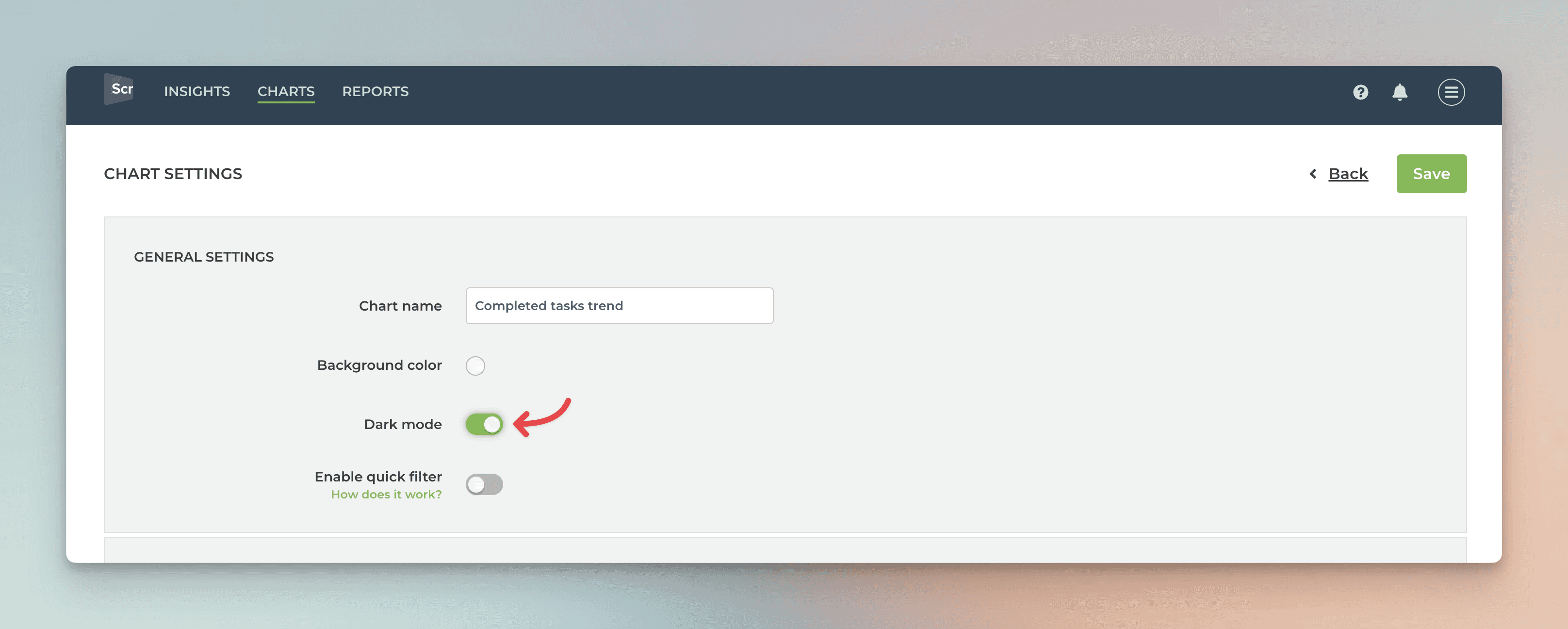
When you click the slider, the chart switches to the dark mode:
Learn more
Screenful MCP server is coming soon
Use your Screenful project data inside your favorite AI tools. Join the waitlist.
FAQ
Common questions
A data source is a GitLab board. The pricing is based on the number of boards you explicitly import to Screenful, not the total number of boards in GitLab. You can compare plans on the pricing page.
You can import data sources from all the tools we support in the same Screenful account. Learn more about managing data sources.
A data source is a GitLab board. The pricing is based on the number of boards you explicitly import to Screenful, not the total number of boards in GitLab. You can compare plans on the pricing page.
You can import data sources from all the tools we support in the same Screenful account. Learn more about managing data sources.
Yes except that you won’t be able to use data from epics or issue weights since those are available only in a paid GitLab plans.
Yes except that you won’t be able to use data from epics or issue weights since those are available only in a paid GitLab plans.
The timings are based on your workflow settings. You can learn more from the Lead Time FAQ.
The timings are based on your workflow settings. You can learn more from the Lead Time FAQ.
Yes, you can filter the data shown so that either issues, merge requests, or both are included in the stats by setting a filter.
Yes, you can filter the data shown so that either issues, merge requests, or both are included in the stats by setting a filter.
Yes, you can track GitLab epics with Screenful. You can use "Epic" as a filter in a chart. For the chart that supports grouping (bar charts, pie chart, stacked area chart), you can group data by epic. You can also filter charts by "Item type"->"Epic". That will include only epics in the chart.
Yes, you can track GitLab epics with Screenful. You can use "Epic" as a filter in a chart. For the chart that supports grouping (bar charts, pie chart, stacked area chart), you can group data by epic. You can also filter charts by "Item type"->"Epic". That will include only epics in the chart.
Yes, you can group and filter data by iterations. You can also create a burndown chart for tracking a Gitlab iteration.
Yes, you can group and filter data by iterations. You can also create a burndown chart for tracking a Gitlab iteration.
Is access to imported GitLab data controlled only by Screenful or does my GitLab permissions also affect what I can see inside Screenful?
GitLab permissions only affect your ability to create data sources. You can create data sources only from the boards you have access to in GitLab.
Screenful visibility settings define which charts and reports you’re able to view within Screenful.
GitLab permissions only affect your ability to create data sources. You can create data sources only from the boards you have access to in GitLab.
Screenful visibility settings define which charts and reports you’re able to view within Screenful.
Yes, you find all our guides at the Screenful knowledge base
Yes, you find all our guides at the Screenful knowledge base
By default, charts and reports are public. You can set them to private in the settings (behind the three dots menu).
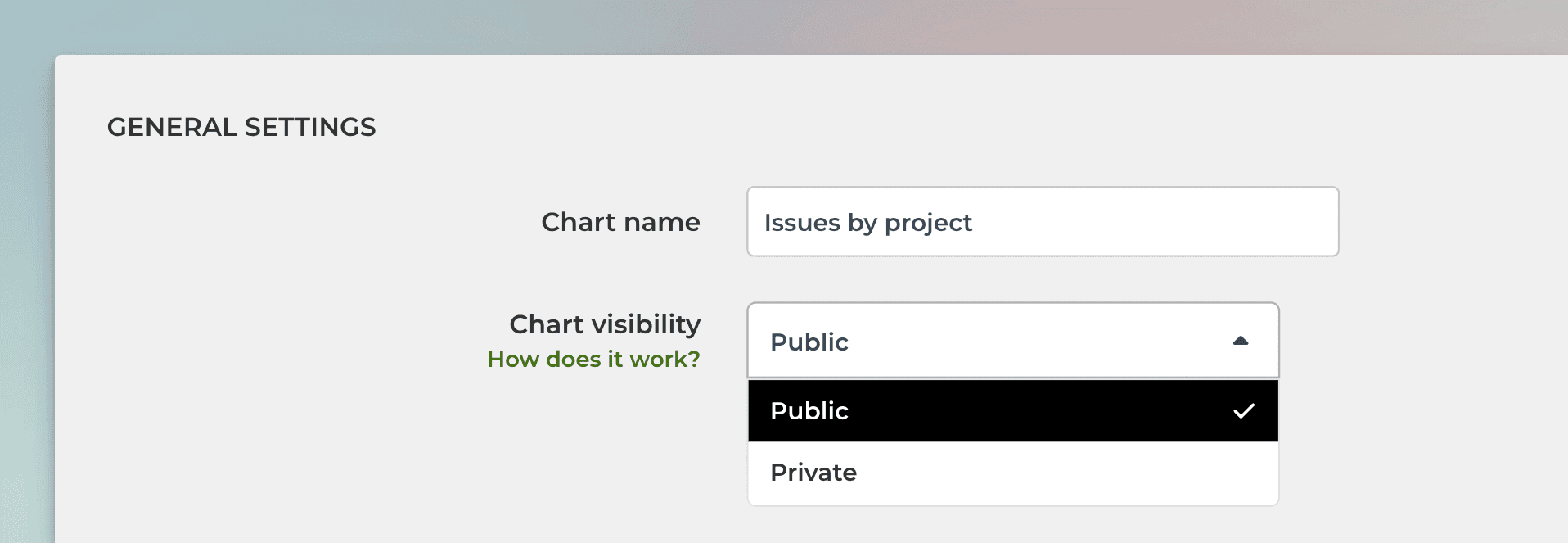
Here's what these settings mean:
If a chart is set to public, it appears in the Charts tab for all users in your account. Anyone in the account can edit the chart or add it to a report.
If a chart is set to private, it appears only to you in the Charts tab. Other users in your account cannot view it. You can still add the chart to a report. When you do, the chart becomes visible to anyone who has access to that report.
If a report is set to public, it is visible under the Reports tab to all users in your account. Anyone in your account can edit or schedule that report.
If a report is set to private, it is visible only to you in the Reports tab. Other people in your account won’t be able to edit or schedule that report. You can still schedule the report to be sent via email or Slack, and when you do so, the recipients can see the PDF version of the report. However, they cannot access the online version of that report since it is private.
By default, charts and reports are public. You can set them to private in the settings (behind the three dots menu).
Here's what these settings mean:
If a chart is set to public, it appears in the Charts tab for all users in your account. Anyone in the account can edit the chart or add it to a report.
If a chart is set to private, it appears only to you in the Charts tab. Other users in your account cannot view it. You can still add the chart to a report. When you do, the chart becomes visible to anyone who has access to that report.
If a report is set to public, it is visible under the Reports tab to all users in your account. Anyone in your account can edit or schedule that report.
If a report is set to private, it is visible only to you in the Reports tab. Other people in your account won’t be able to edit or schedule that report. You can still schedule the report to be sent via email or Slack, and when you do so, the recipients can see the PDF version of the report. However, they cannot access the online version of that report since it is private.
The Screenful AI assistant helps you get answers to your questions. You can use a chat interface to
Ask questions about Screenful features
Create charts
Explain a chart
The AI assistant is available in all Screenful plans.
The Screenful AI assistant helps you get answers to your questions. You can use a chat interface to
Ask questions about Screenful features
Create charts
Explain a chart
The AI assistant is available in all Screenful plans.
What is the difference between these metrics?
Reaction time = time before the work was started
Cycle time = time from start to completion
Lead time = Reaction time + Cycle time
Timing metrics explained: Lead time vs Cycle time
How is the reaction time calculated?
Reaction time starts running when a task is moved into a state that is mapped to the "Not started" in the workflow mapping. The reaction time stops when the task is moved out from that state. If the task is never placed into a state that is mapped to the “Not started” workflow state, then the reaction time is zero.
What if tasks skip lists/columns, or there is no sequential workflow?
The timing information is based on how long items stay in the workflow states that are mapped to "In progress" in the workflow mapping. There is no need for sequential progress, and it is totally fine if tasks skip some of the workflow steps.
What if a task is moved from the “not started” state directly to “done” without going through any of the “in progress” states?
In that case, the cycle time will be zero.
How does the cycle time work if a task is moved into "in progress" and then back to "not started yet"? Similarly, what happens if a card is archived while it's in progress?
Cycle time is calculated only for completed tasks, so in both of those cases, cycle time would be undefined.
If a task is moved from "in progress" to "done", but then back to "in progress" again for additional work would this time be added to the cycle time?
Cycle time is counted only when the task is in progress, so the time spent in the "done" state is not included in the calculation.
When is a task created? Does the clock start when a task is created or when it is put in the "next" state (or equivalent)?
The clock starts when a task is moved to a workflow state that is mapped to the "not started" or "in progress" workflow state.
Are weekends included in the cycle time calculations?
Weekends are included in the calculations by default, but you can change that in the chart settings by selecting 'Exclude non-business hours. See How to set weekend days and office hours
What is the difference between these metrics?
Reaction time = time before the work was started
Cycle time = time from start to completion
Lead time = Reaction time + Cycle time
Timing metrics explained: Lead time vs Cycle time
How is the reaction time calculated?
Reaction time starts running when a task is moved into a state that is mapped to the "Not started" in the workflow mapping. The reaction time stops when the task is moved out from that state. If the task is never placed into a state that is mapped to the “Not started” workflow state, then the reaction time is zero.
What if tasks skip lists/columns, or there is no sequential workflow?
The timing information is based on how long items stay in the workflow states that are mapped to "In progress" in the workflow mapping. There is no need for sequential progress, and it is totally fine if tasks skip some of the workflow steps.
What if a task is moved from the “not started” state directly to “done” without going through any of the “in progress” states?
In that case, the cycle time will be zero.
How does the cycle time work if a task is moved into "in progress" and then back to "not started yet"? Similarly, what happens if a card is archived while it's in progress?
Cycle time is calculated only for completed tasks, so in both of those cases, cycle time would be undefined.
If a task is moved from "in progress" to "done", but then back to "in progress" again for additional work would this time be added to the cycle time?
Cycle time is counted only when the task is in progress, so the time spent in the "done" state is not included in the calculation.
When is a task created? Does the clock start when a task is created or when it is put in the "next" state (or equivalent)?
The clock starts when a task is moved to a workflow state that is mapped to the "not started" or "in progress" workflow state.
Are weekends included in the cycle time calculations?
Weekends are included in the calculations by default, but you can change that in the chart settings by selecting 'Exclude non-business hours. See How to set weekend days and office hours
Yes, you can configure summaries in Task lists and Table charts to display medians.
Yes, you can configure summaries in Task lists and Table charts to display medians.
When displaying data as a line chart, a sliding window is used to smooth away the daily fluctuations so that you can see the trend from the noise.
If you select 1 day rolling window, each point in the horizontal axis displays the number of items (e.g., tasks created or tasks completed) per day. With 7 day rolling window, each point in the horizontal axis displays the sum (or average, depending on what metrics were selected) over the previous seven-day period.
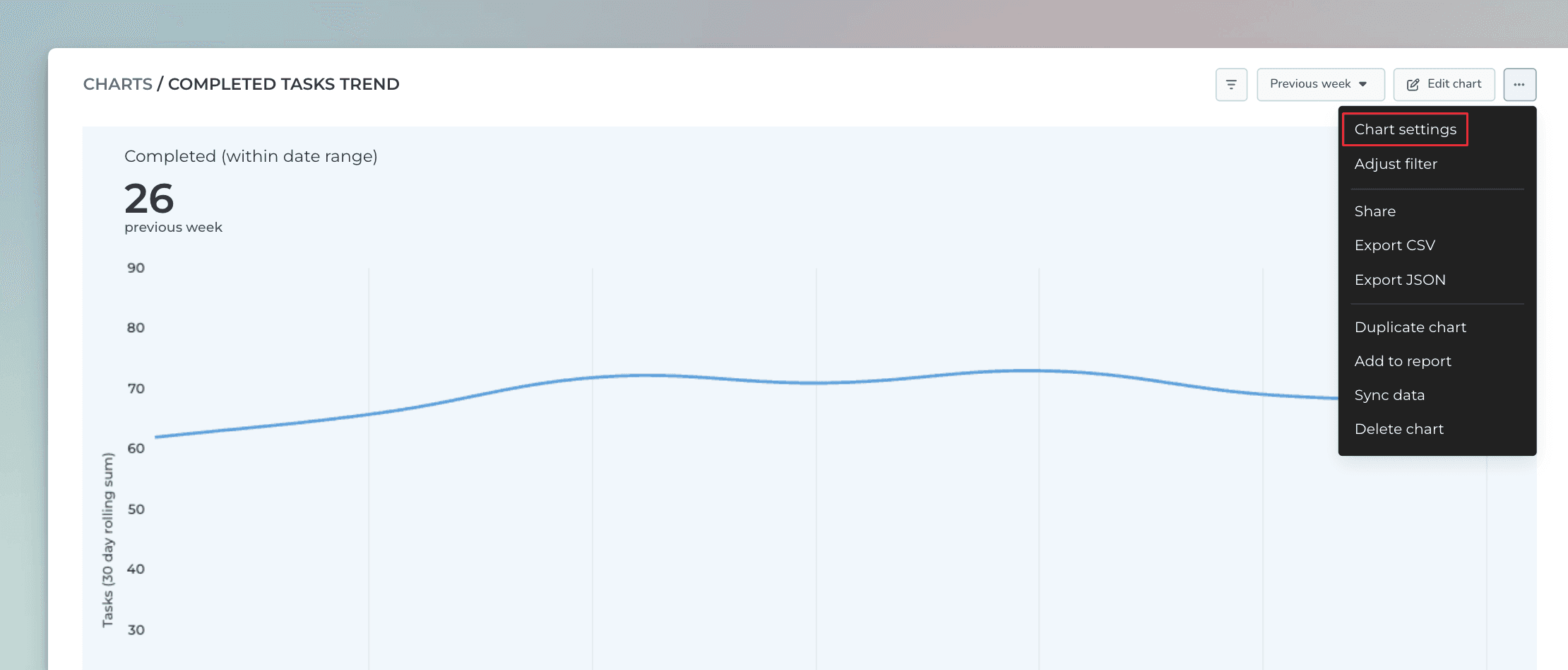
The rolling window size is configurable in the Chart settings. You can access the chart settings from the three dots menu:
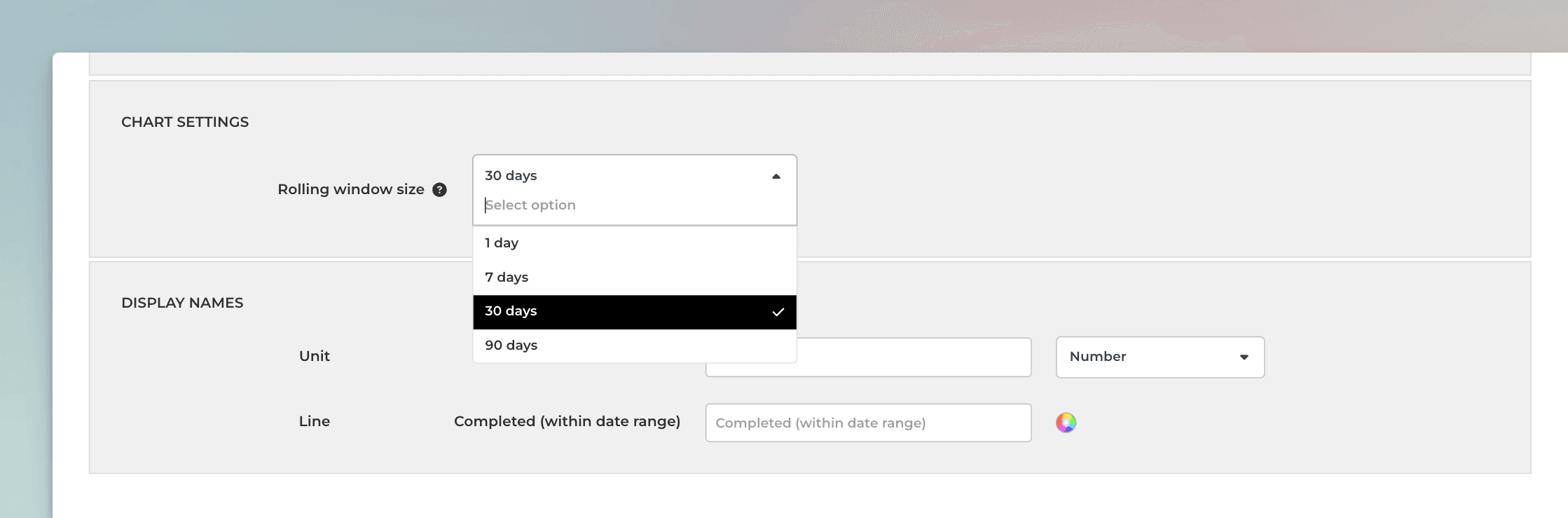
In the chart settings, you can select between 1, 7, 30, or 90 rolling windows:
The longer the rolling window, the less variation there is in values, creating a smoother trend line. With smaller window sizes, you can see more details, but the overall trend may get distorted by the daily fluctuations.
When displaying data as a line chart, a sliding window is used to smooth away the daily fluctuations so that you can see the trend from the noise.
If you select 1 day rolling window, each point in the horizontal axis displays the number of items (e.g., tasks created or tasks completed) per day. With 7 day rolling window, each point in the horizontal axis displays the sum (or average, depending on what metrics were selected) over the previous seven-day period.
The rolling window size is configurable in the Chart settings. You can access the chart settings from the three dots menu:
In the chart settings, you can select between 1, 7, 30, or 90 rolling windows:
The longer the rolling window, the less variation there is in values, creating a smoother trend line. With smaller window sizes, you can see more details, but the overall trend may get distorted by the daily fluctuations.
Yes, you can create charts with a prompt and ask questions about a chart by using the Screenful AI Assistant. The assistant combines the leading LLMs with advanced multidimensional data analytics to help you understand and interpret your data.
Yes, you can create charts with a prompt and ask questions about a chart by using the Screenful AI Assistant. The assistant combines the leading LLMs with advanced multidimensional data analytics to help you understand and interpret your data.
By default yes, but you can specify your working hours and days in the Account Settings.
By default yes, but you can specify your working hours and days in the Account Settings.
We do not make changes to your data. We only read it via the API of your tool. Screenful is only for reporting and analytics. It does not update any data within your tools.
We do not make changes to your data. We only read it via the API of your tool. Screenful is only for reporting and analytics. It does not update any data within your tools.
Yes, there are a few different ways you can filter out outliers from the charts, including
Filtering by item name
Filtering by how long an item has been in progress
Setting a label and filtering out based on that label
You can learn more from this guide: How to remove outliers from data?
Yes, there are a few different ways you can filter out outliers from the charts, including
Filtering by item name
Filtering by how long an item has been in progress
Setting a label and filtering out based on that label
You can learn more from this guide: How to remove outliers from data?
All data sources are synced automatically once per hour. Changing settings or configuration will trigger additional sync so your data is at most one hour old. You can sync data manually at any time in the sync settings:
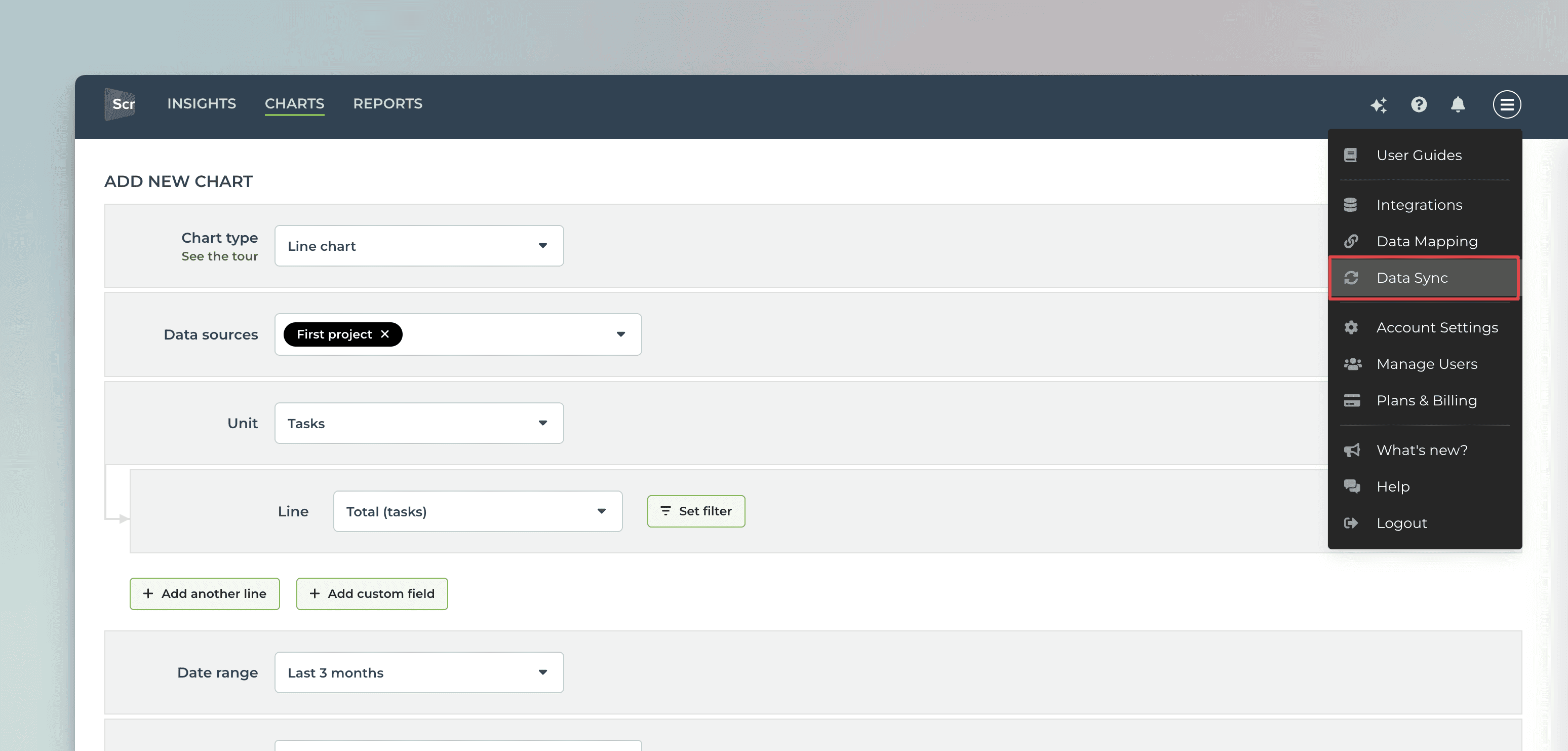
You'll see a list of current integrations, and you can trigger a sync by clicking the sync icon:
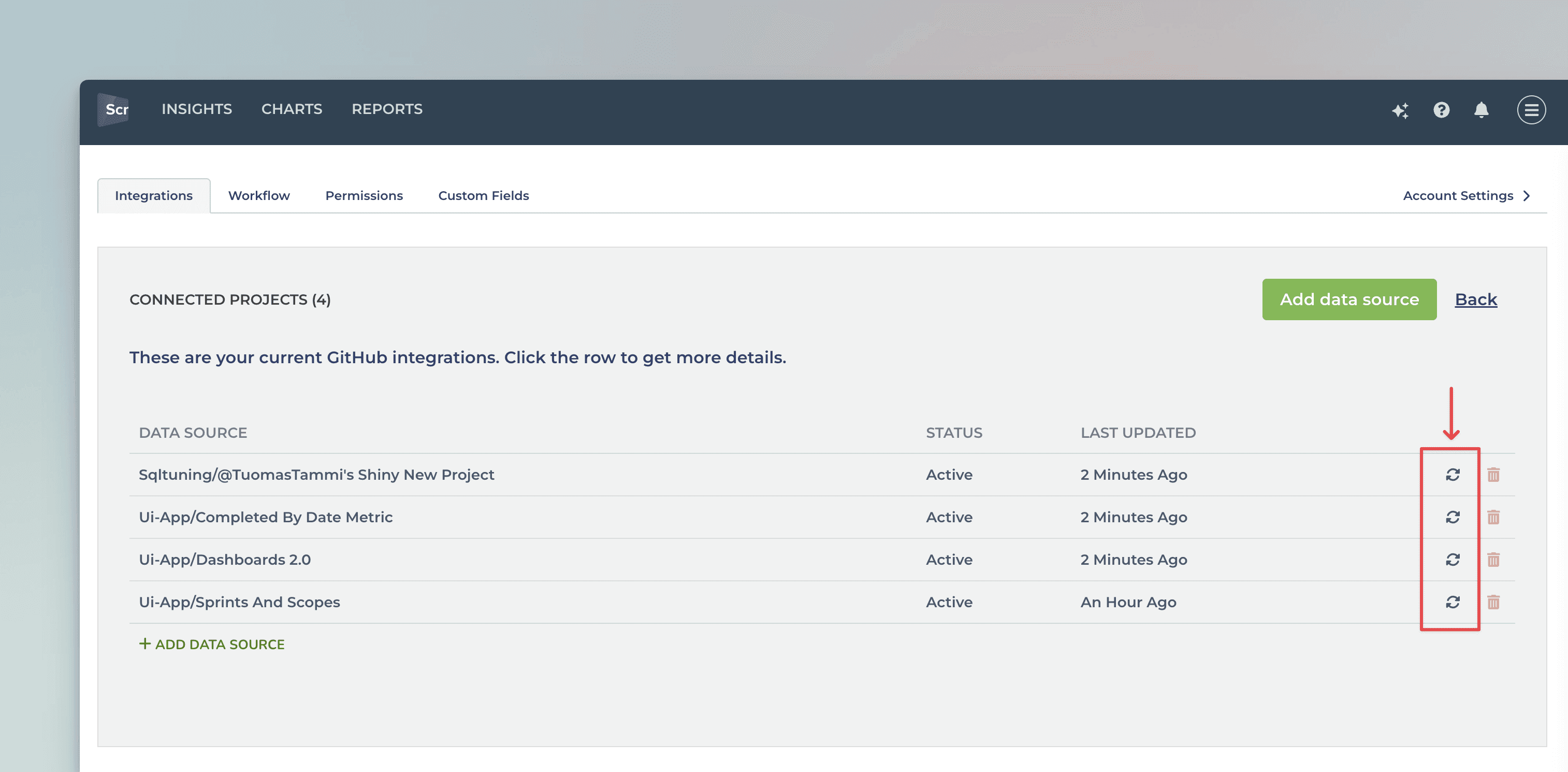
All data sources are synced automatically once per hour. Changing settings or configuration will trigger additional sync so your data is at most one hour old. You can sync data manually at any time in the sync settings:
You'll see a list of current integrations, and you can trigger a sync by clicking the sync icon:
Yes, you can use custom fields as units, or for grouping and filtering data. Learn more from the integration-specific guides:
Yes, you can use custom fields as units, or for grouping and filtering data. Learn more from the integration-specific guides:
Does this support my specific workflow or do I have to use some specific states like "open", "in progress" and "done"?
You are not limited to any specific set of states or a workflow. You can configure your own workflow, if such exists, and you can use that in your reporting. It's also ok if you don't have any workflow in your boards, as can create reports based on any other criteria by setting a filter.
You are not limited to any specific set of states or a workflow. You can configure your own workflow, if such exists, and you can use that in your reporting. It's also ok if you don't have any workflow in your boards, as can create reports based on any other criteria by setting a filter.
You can embed any custom chart or report to any web page using the embed code. Learn more about the sharing feature from the online guide.
You can embed any custom chart or report to any web page using the embed code. Learn more about the sharing feature from the online guide.
Currently, we don't support tracking comments on tasks. Let us know if you'd like to see us supporting them in our analytics.
Currently, we don't support tracking comments on tasks. Let us know if you'd like to see us supporting them in our analytics.
You can manage the subscription in the billing settings. The location of the billing settings depends on the product you are subscribed to. You can learn more by following the instructions in this guide.
You can manage the subscription in the billing settings. The location of the billing settings depends on the product you are subscribed to. You can learn more by following the instructions in this guide.
The Getting Started Guide contains Instructions for setting up Screenful.
See also our Accounts & Pricing FAQ or ask our AI assistant.
Check out our knowledge base and video tutorials, or get in touch by emailing support@screenful.com
The Getting Started Guide contains Instructions for setting up Screenful.
See also our Accounts & Pricing FAQ or ask our AI assistant.
Check out our knowledge base and video tutorials, or get in touch by emailing support@screenful.com
Troubleshooting
Screenful connects to the GitLab board, not a project or group, so the first thing would be to check that the missing issues or pull requests are visible on that board.
Screenful connects to the GitLab board, not a project or group, so the first thing would be to check that the missing issues or pull requests are visible on that board.
While both the public and private channels are shown in the menu, you won’t receive the report to a private channel without explicitly adding the Screenful app to that channel. Learn how to enable sending to a private Slack channel.
There can also be restrictions on who can install apps to your Slack. Learn how to manage app approval in your Slack workspace.
Some browser plugins may interfere with the authorization process. If you see an empty page during the authorization or the list of channels is empty, you should try with another browser (or ask your colleague to do the Slack authorization).
While both the public and private channels are shown in the menu, you won’t receive the report to a private channel without explicitly adding the Screenful app to that channel. Learn how to enable sending to a private Slack channel.
There can also be restrictions on who can install apps to your Slack. Learn how to manage app approval in your Slack workspace.
Some browser plugins may interfere with the authorization process. If you see an empty page during the authorization or the list of channels is empty, you should try with another browser (or ask your colleague to do the Slack authorization).
The short answer is that deleted tasks remain in your stats if they were completed. Once a task is completed, you can move it away from your board but it will stay in the stats (after all, you completed it and that's a fact we want to keep in your stats). If you remove an incomplete task from your board, it won't show up in your stats anymore.
If you want to remove completed tasks that are no longer in your board from your stats, you can reset the data source. It will rebuild the stats based on the tasks currently on your board.
The short answer is that deleted tasks remain in your stats if they were completed. Once a task is completed, you can move it away from your board but it will stay in the stats (after all, you completed it and that's a fact we want to keep in your stats). If you remove an incomplete task from your board, it won't show up in your stats anymore.
If you want to remove completed tasks that are no longer in your board from your stats, you can reset the data source. It will rebuild the stats based on the tasks currently on your board.
Filter options are derived from task data, which means that if you recently added some properties, such as labels, but haven't yet assigned them to any tasks, they won't show up in the filter options. As soon as you assign them to tasks, they will show up in the filter options from then on.
Filter options are derived from task data, which means that if you recently added some properties, such as labels, but haven't yet assigned them to any tasks, they won't show up in the filter options. As soon as you assign them to tasks, they will show up in the filter options from then on.
If the invited person says that they didn't receive the invitation, you can either resend it or copy the invitation link and share it manually.
Select Manage users from the main menu
Select the invited user from the list
Click Copy invitation link
Send the link to your colleague
Learn more from the user invitation guide.
If the invited person says that they didn't receive the invitation, you can either resend it or copy the invitation link and share it manually.
Select Manage users from the main menu
Select the invited user from the list
Click Copy invitation link
Send the link to your colleague
Learn more from the user invitation guide.