Get automated productivity insights from your GitHub data and share it easily
Effortless custom reporting for GitHub
Turn complex data into clear insights without the heavy lifting. Choose from hundreds of ready-made templates and fine-tune your charts to perfection.
Create lists and tables
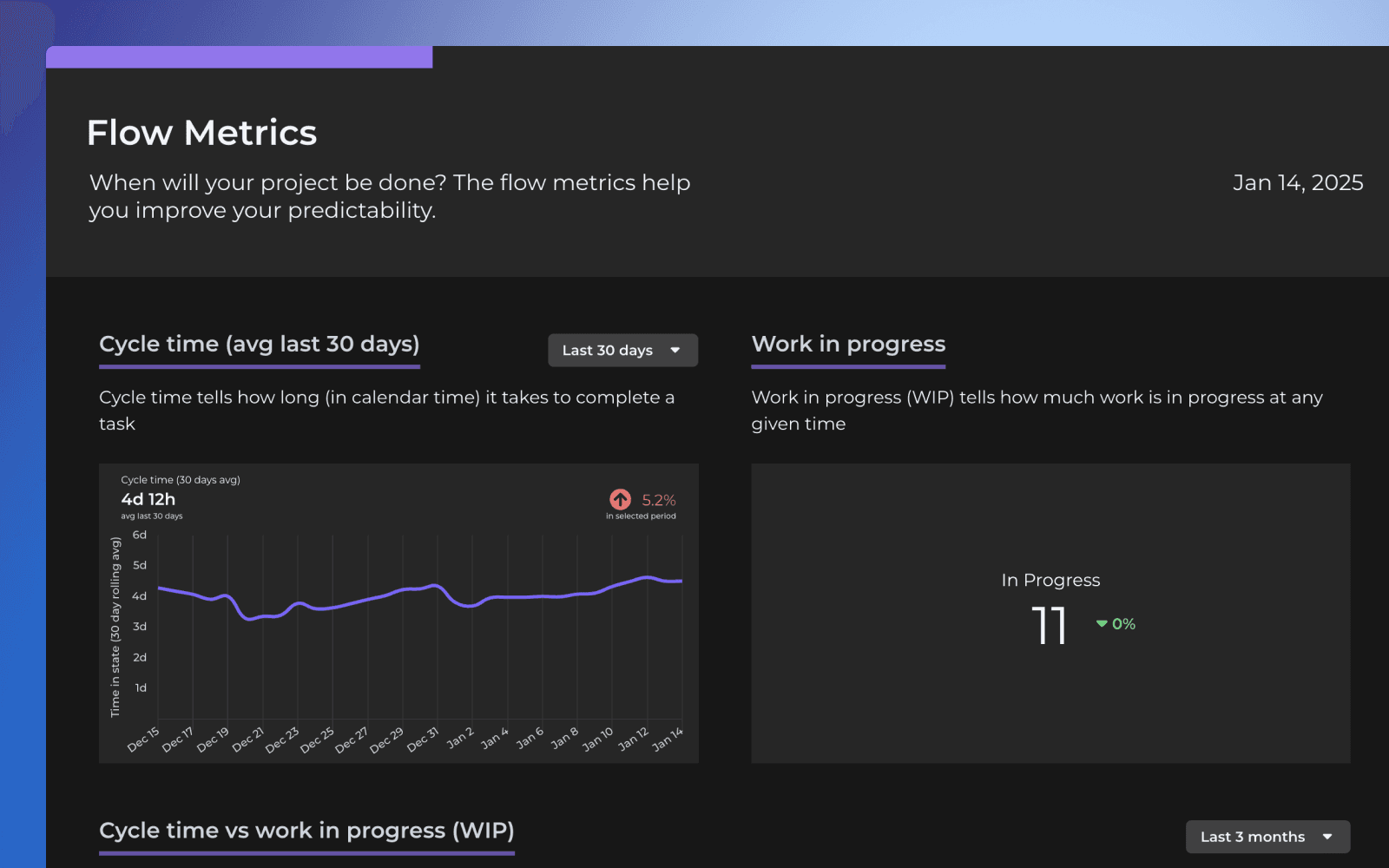
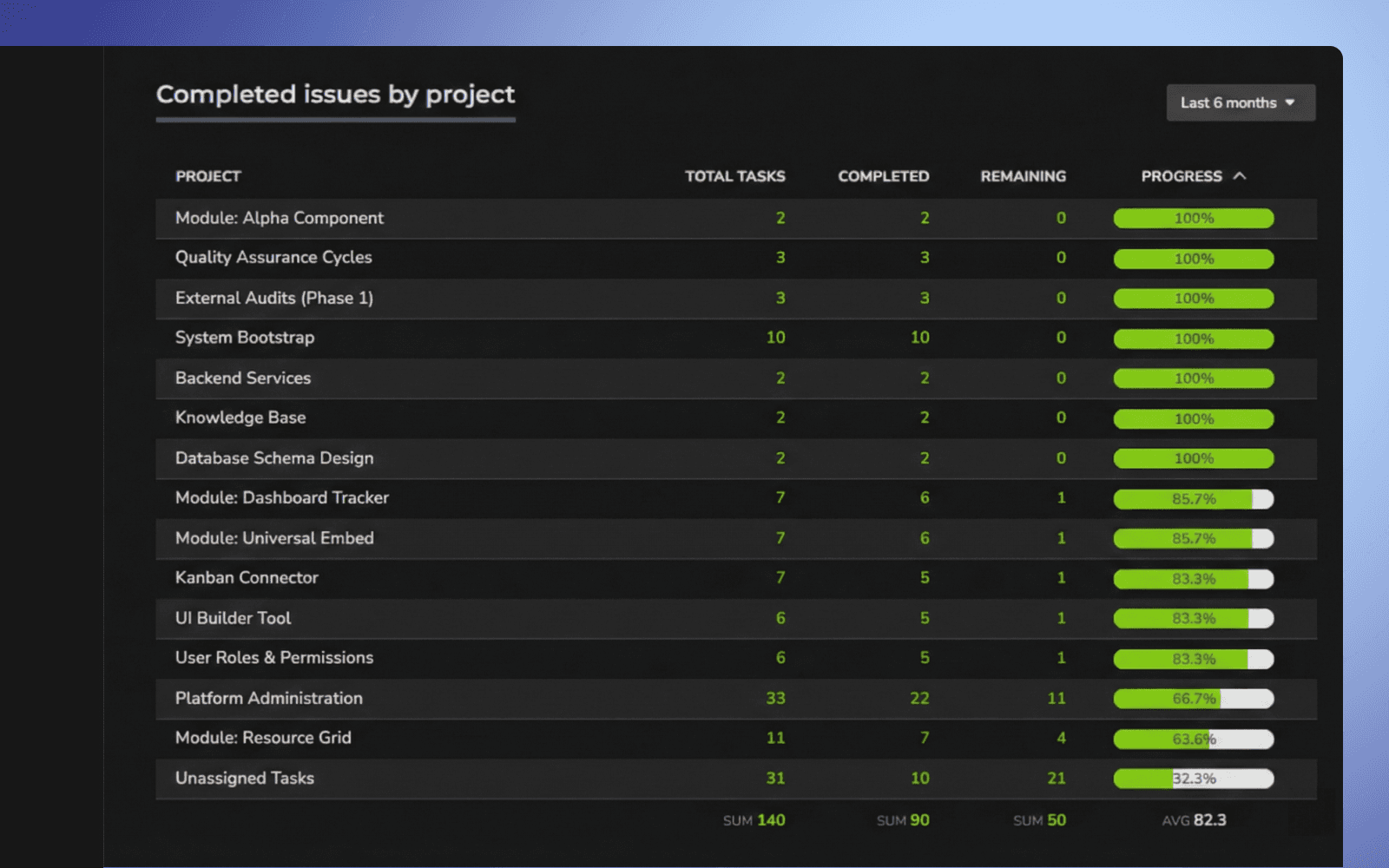
Organize your project data into structured lists and dynamic tables. Track task completion and project health with visual progress bars, and compare cross-functional performance at a glance.

Create lists and tables
Organize your project data into structured lists and dynamic tables. Track task completion and project health with visual progress bars, and compare cross-functional performance at a glance.

Create lists and tables
Organize your project data into structured lists and dynamic tables. Track task completion and project health with visual progress bars, and compare cross-functional performance at a glance.

Visualize data with 15 chart types
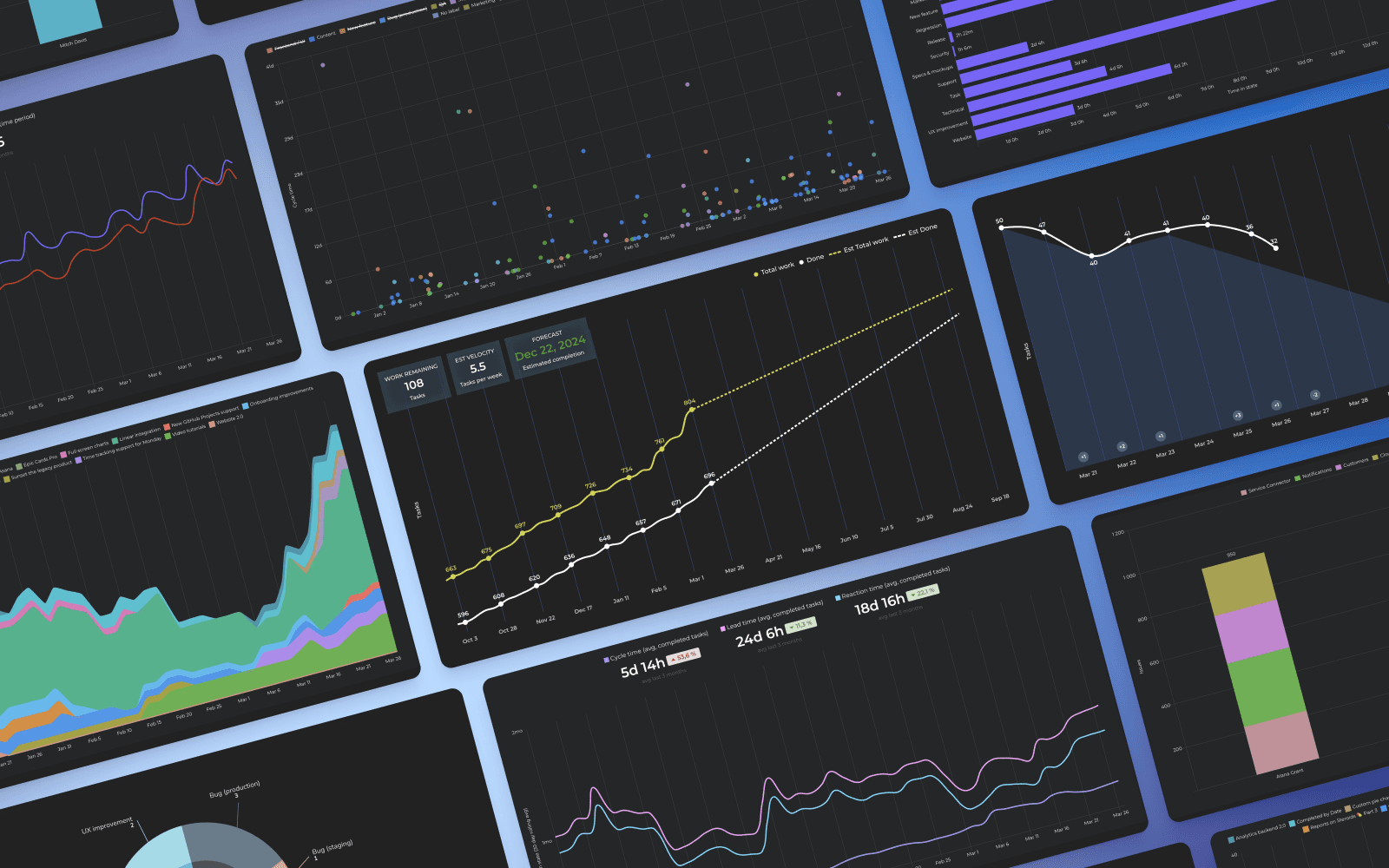
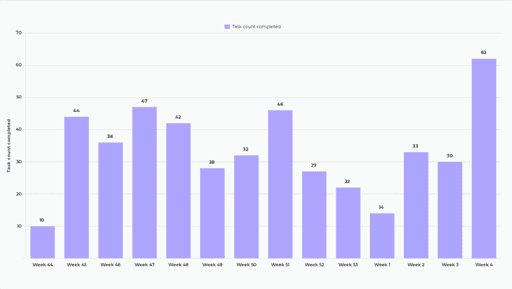
Transform raw project data into actionable insights using 15 versatile chart types. Build custom, high-level visual reports to spot bottlenecks, track team velocity, and analyze critical metrics in real-time.

Visualize data with 15 chart types
Transform raw project data into actionable insights using 15 versatile chart types. Build custom, high-level visual reports to spot bottlenecks, track team velocity, and analyze critical metrics in real-time.

Visualize data with 15 chart types
Transform raw project data into actionable insights using 15 versatile chart types. Build custom, high-level visual reports to spot bottlenecks, track team velocity, and analyze critical metrics in real-time.

Use any of your custom fields
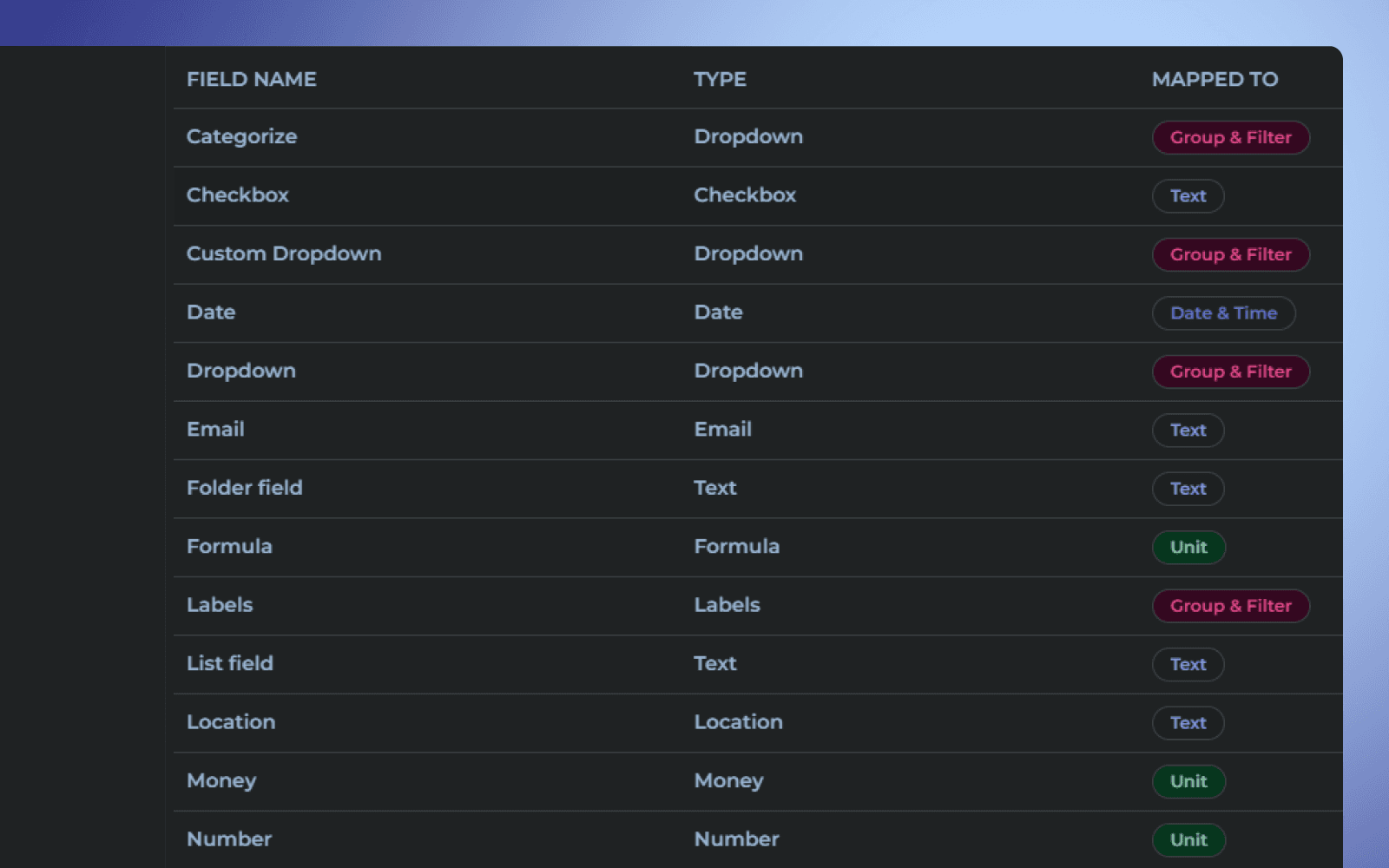
Tailor reports to your unique workflow by seamlessly mapping your custom fields. Whether tracking specific dates, financial data, or dropdowns, integrate your exact data points into every metric.

Use any of your custom fields
Tailor reports to your unique workflow by seamlessly mapping your custom fields. Whether tracking specific dates, financial data, or dropdowns, integrate your exact data points into every metric.

Use any of your custom fields
Tailor reports to your unique workflow by seamlessly mapping your custom fields. Whether tracking specific dates, financial data, or dropdowns, integrate your exact data points into every metric.

Secure share with external stakeholders
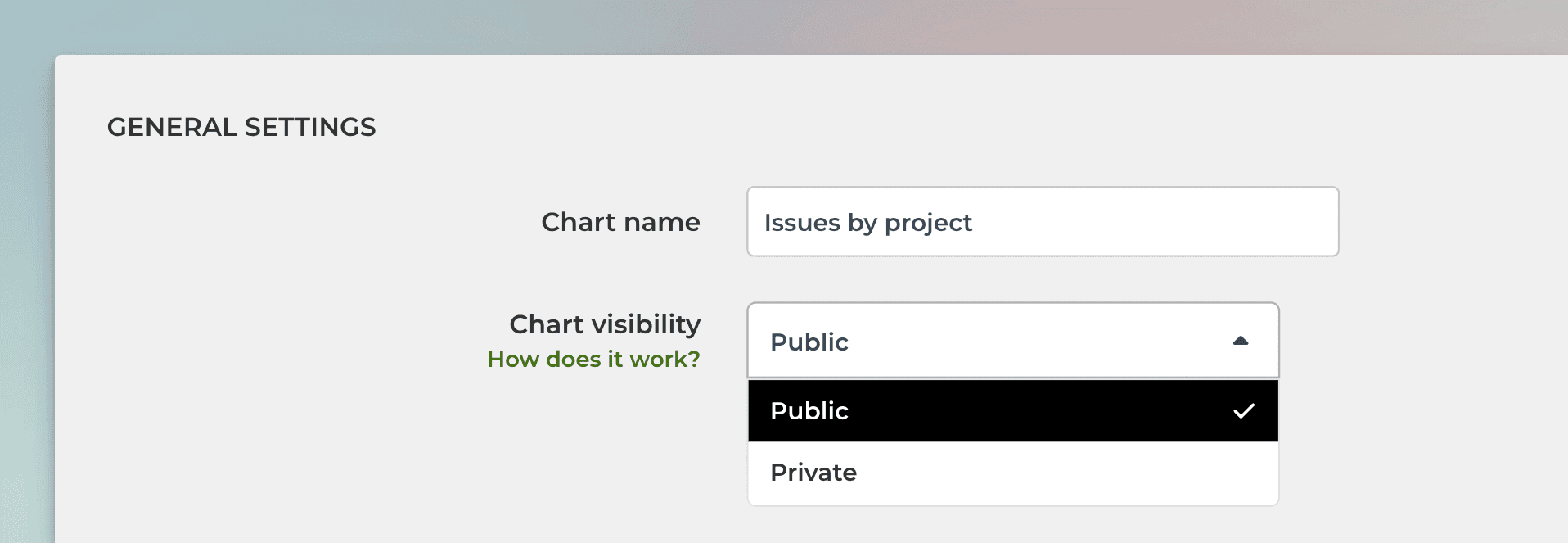
Keep everyone aligned by sharing vital reports via secure links. Easily communicate progress to clients and executives without compromising your internal task tracker's security.

Secure share with external stakeholders
Keep everyone aligned by sharing vital reports via secure links. Easily communicate progress to clients and executives without compromising your internal task tracker's security.

Secure share with external stakeholders
Keep everyone aligned by sharing vital reports via secure links. Easily communicate progress to clients and executives without compromising your internal task tracker's security.

Available on GitHub Marketplace
Analytics & Reports
When you purchase Screenful via the GitHub Marketplace, the cost of Screenful is included in your GitHub bill.
15 chart types
100+ templates
AI Assistant
Scheduled reports
Automated project reporting made easy for everyone

Kit Friend
Business & Technology Innovation Senior Principle, Accenture UK
Accenture is working with Screenful to roll out best practice agile metrics in minutes - allowing our world class delivery teams to be led by data.

Jaxon Klein
CEO & Co-founder at Keyo Inc.
Using visual boards without metrics misses the whole point of improving performance. Screenful is a must have tool for our Kanban.

Andy Wheeldon
Agile coach
Screenful allows me to easily identify where I am spending time so that I can ensure I'm working on the right things. The weekly email is a great summary delivered right to my phone

Fabien Arcellier
CTO & Co-founder at Stackeo
We've been using Screenful for 13 months now and we can't say enough good things about it. The insight we have is invaluable to us and has helped us keep the delivery capacity at a steady temperature.

Tasnia Rehnuma Mahmud
Project Coordinator at Fashion Snoops
I love Screenful for its user-friendly interface and seamless integration to multiple data sources. The customer service is outstanding; they provided exceptional support whenever we needed it!

Jesse Fewell
Agile coach, writer, trainer
Screenful was best in every category. It beautifully and simply highlights key agile metrics for our whole in-office team and any visiting stakeholders.

Akaki Meladze
Director of Engineering at Singular
Outright best reporting tool. We have tried many different ones over the past 2 years, and none of them beats Screenful. The ability to build custom reports provides amazing capabilities for agile teams.

Patrick Ingram
Enterprise Agility Consultant
Screenful is a wonderful visualization tool that I use to illustrate to organizations why they should relentlessly focus on reducing lead time & cycle time, understand cumulative flow and decompose work.

Kit Friend
Business & Technology Innovation Senior Principle, Accenture UK
Accenture is working with Screenful to roll out best practice agile metrics in minutes - allowing our world class delivery teams to be led by data.

Jaxon Klein
CEO & Co-founder at Keyo Inc.
Using visual boards without metrics misses the whole point of improving performance. Screenful is a must have tool for our Kanban.

Andy Wheeldon
Agile coach
Screenful allows me to easily identify where I am spending time so that I can ensure I'm working on the right things. The weekly email is a great summary delivered right to my phone

Fabien Arcellier
CTO & Co-founder at Stackeo
We've been using Screenful for 13 months now and we can't say enough good things about it. The insight we have is invaluable to us and has helped us keep the delivery capacity at a steady temperature.

Tasnia Rehnuma Mahmud
Project Coordinator at Fashion Snoops
I love Screenful for its user-friendly interface and seamless integration to multiple data sources. The customer service is outstanding; they provided exceptional support whenever we needed it!

Kit Friend
Business & Technology Innovation Senior Principle, Accenture UK
Accenture is working with Screenful to roll out best practice agile metrics in minutes - allowing our world class delivery teams to be led by data.

Jaxon Klein
CEO & Co-founder at Keyo Inc.
Using visual boards without metrics misses the whole point of improving performance. Screenful is a must have tool for our Kanban.

Andy Wheeldon
Agile coach
Screenful allows me to easily identify where I am spending time so that I can ensure I'm working on the right things. The weekly email is a great summary delivered right to my phone

Fabien Arcellier
CTO & Co-founder at Stackeo
We've been using Screenful for 13 months now and we can't say enough good things about it. The insight we have is invaluable to us and has helped us keep the delivery capacity at a steady temperature.

Tasnia Rehnuma Mahmud
Project Coordinator at Fashion Snoops
I love Screenful for its user-friendly interface and seamless integration to multiple data sources. The customer service is outstanding; they provided exceptional support whenever we needed it!

Jesse Fewell
Agile coach, writer, trainer
Screenful was best in every category. It beautifully and simply highlights key agile metrics for our whole in-office team and any visiting stakeholders.

Akaki Meladze
Director of Engineering at Singular
Outright best reporting tool. We have tried many different ones over the past 2 years, and none of them beats Screenful. The ability to build custom reports provides amazing capabilities for agile teams.

Patrick Ingram
Enterprise Agility Consultant
Screenful is a wonderful visualization tool that I use to illustrate to organizations why they should relentlessly focus on reducing lead time & cycle time, understand cumulative flow and decompose work.
trusted by the world’s most innovative businesses

trusted by the world’s most innovative businesses

trusted by the world’s most innovative businesses

"Really good looking views and easy setup. Ideal for providing open visibility for the progress across the company."

Supercharge your GitHub reporting
Track all your GitHub metrics and KPIs
Get started in minutes with Templates
Get started quickly with ready-made templates. Pick a template, then tailor the report and every chart exactly how you want.
FAQ
Common questions
It depends on whether you're importing GitHub repositories or GitHub Projects.
When you import GitHub repositories, one data source can contain multiple repositories. You can select the repositories to include in the data source by selecting them at the time of import.
When you import GitHub Projects, a data source is one GitHub Project.
The difference between these is that when importing a GitHub Project, you can use project metadata, such as statuses, iterations, and custom fields, in your reports, which are not available when importing repositories.
You can import data sources from all the tools we support in the same Screenful account. Learn more about managing data sources.
It depends on whether you're importing GitHub repositories or GitHub Projects.
When you import GitHub repositories, one data source can contain multiple repositories. You can select the repositories to include in the data source by selecting them at the time of import.
When you import GitHub Projects, a data source is one GitHub Project.
The difference between these is that when importing a GitHub Project, you can use project metadata, such as statuses, iterations, and custom fields, in your reports, which are not available when importing repositories.
You can import data sources from all the tools we support in the same Screenful account. Learn more about managing data sources.
Yes, we support both user-owned and organization-wide project boards as well as repository project boards. You can import both classic and new projects.
When you import a data source, all data is imported and made available for reporting. You can narrow the data to any subset by setting a filter. For example, you can filter out issues or pull request by using 'Type' filter.
You can track pull request review times by adding Pull request review time as a column in a Task list. The summary on the bottom shows the sum, average, or median time to review a pull request. You can learn more from this guide.
The Analytics & Reports GitHub App requires read-only access to issues, members, metadata, organization administration, organization projects, pull requests, and repository projects.
The Analytics & Reports OAuth app requires these OAuth scopes:
"read:org"
"repo" or "public_repo" (depending on whether user selects "authorise public repos only" or "authorize public and private repos”
An OAuth token will share the permissions of the user that authorized the application. That means, if your account authorizes the application and has 'write' permission to a repository, the token will also have 'write' permission to that repository. This is how OAuth tokens work in the GitHub platform.
From a security point of view, we recommend using the GitHub app instead of the OAuth app.
The Analytics & Reports OAuth app requires these OAuth scopes:
"read:org"
"repo" or "public_repo" (depending on whether user selects "authorise public repos only" or "authorize public and private repos”
An OAuth token will share the permissions of the user that authorized the application. That means, if your account authorizes the application and has 'write' permission to a repository, the token will also have 'write' permission to that repository. This is how OAuth tokens work in the GitHub platform.
From a security point of view, we recommend using the GitHub app instead of the OAuth app.
You can’t switch an existing Screenful account from OAuth to GitHub App. To use the GitHub App, you need to create a new Screenful account.
When importing project boards, you can specify your workflow based on the columns on the board which you can configure in the workflow settings. You can learn more from the Lead Time FAQ.
When importing repositories, the timing metrics are calculated as follows:
Lead time starts when an issue is created
Cycle time starts when the issue is assigned to a person, or when pull request is opened
Lead & cycle time is stopped when the issue is closed, or the pull request merged
When importing project boards, you can specify your workflow based on the columns on the board which you can configure in the workflow settings. You can learn more from the Lead Time FAQ.
When importing repositories, the timing metrics are calculated as follows:
Lead time starts when an issue is created
Cycle time starts when the issue is assigned to a person, or when pull request is opened
Lead & cycle time is stopped when the issue is closed, or the pull request merged
You can manage the subscription in the billing settings. The location of the billing settings depends on the product you are subscribed to. You can learn more by following the instructions in this guide.
We do not make changes to your data. We only read it via the API of your tool. Screenful is only for reporting and analytics. It does not update any data within your tools.
All data sources are synced automatically once per hour. Changing settings or configuration will trigger additional sync so your data is at most one hour old. You can sync data manually at any time in the sync settings.
Yes, you can create charts with a prompt and ask questions about a chart by using the Screenful AI Assistant. The assistant combines the leading LLMs with advanced multidimensional data analytics to help you understand and interpret your data.
What is the difference between these metrics?
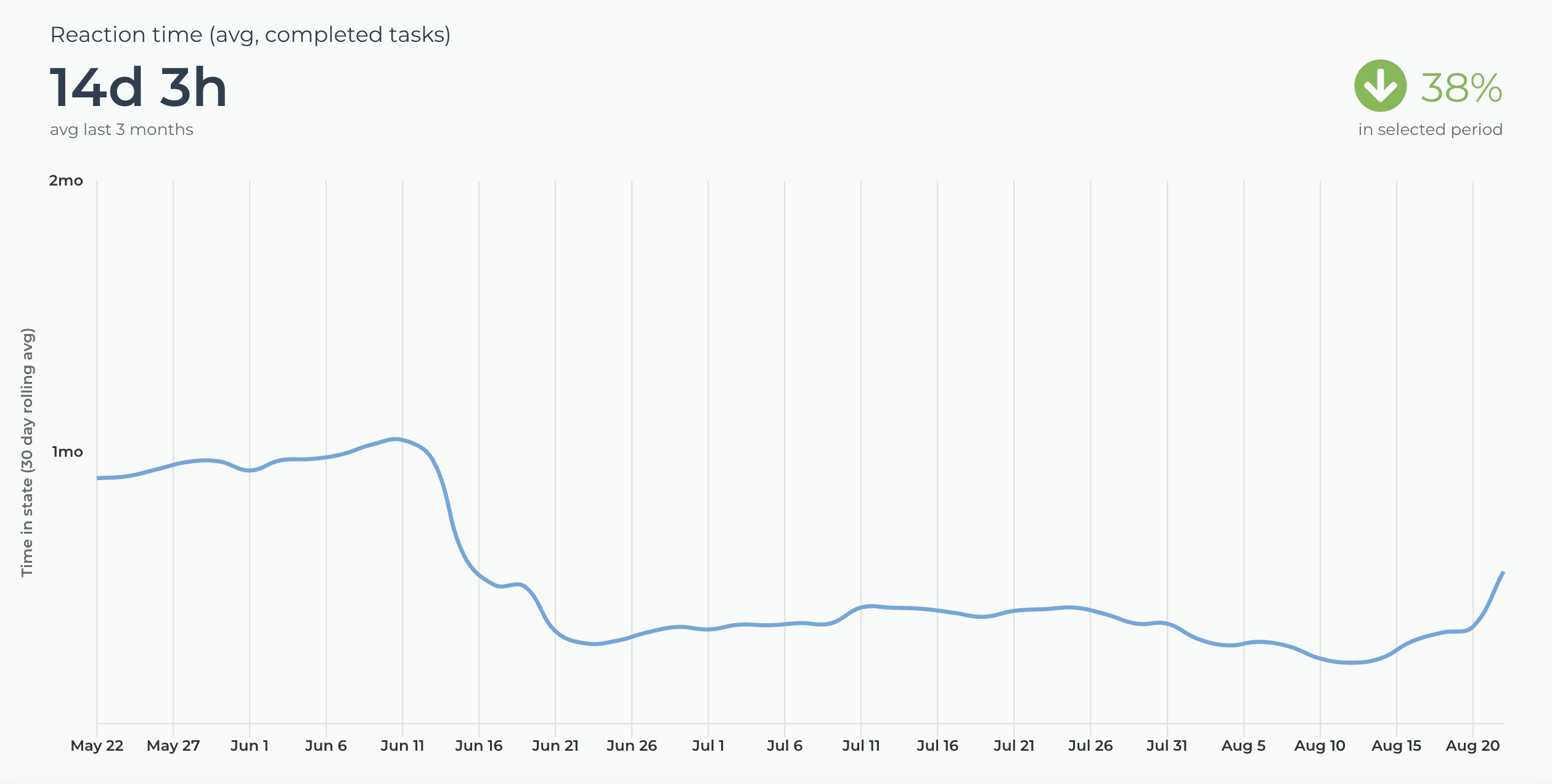
Reaction time = time before the work was started
Cycle time = time from start to completion
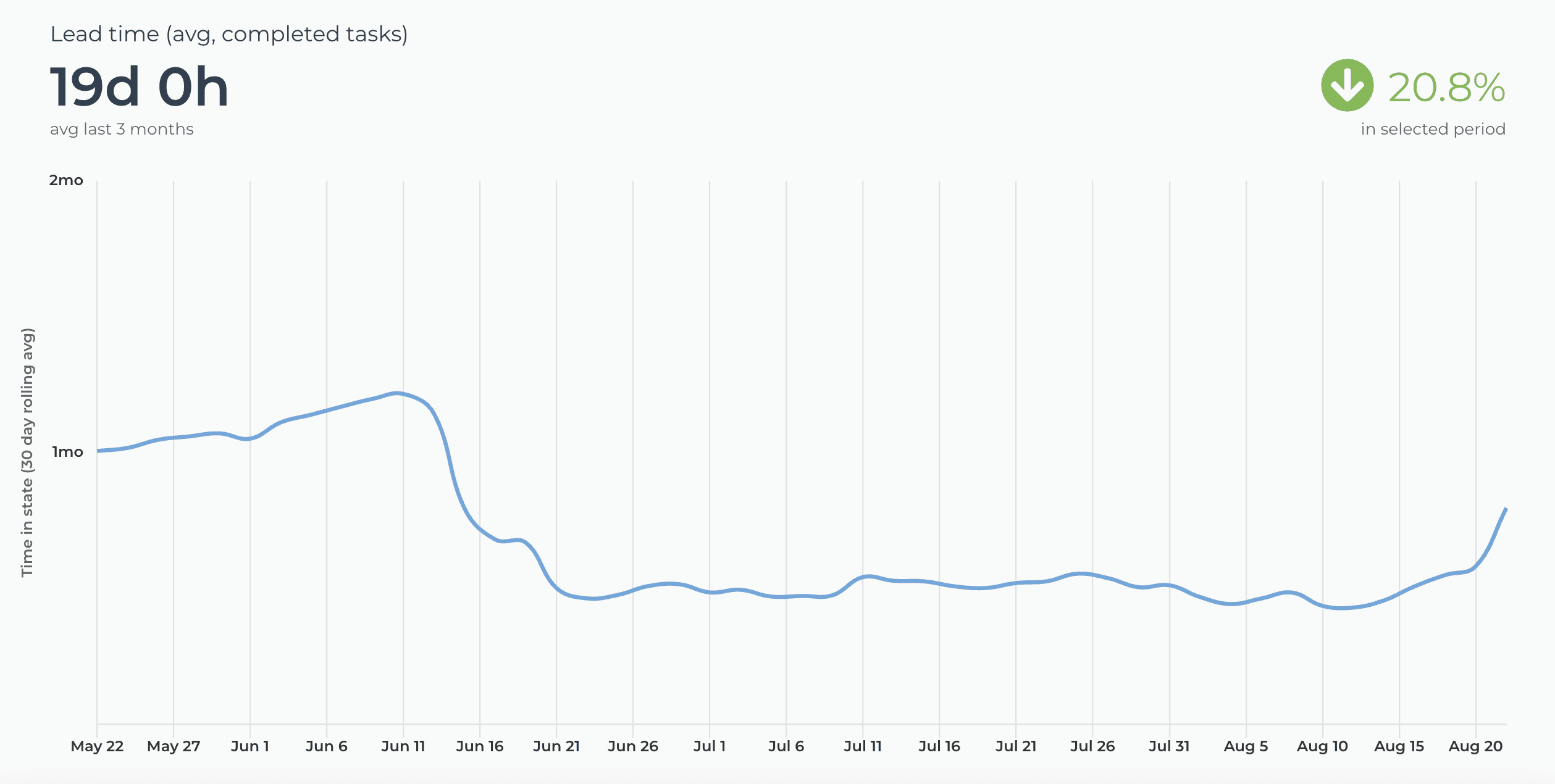
Lead time = Reaction time + Cycle time
Timing metrics explained: Lead time vs Cycle time
How is the reaction time calculated?
Reaction time starts running when a task is moved into a state that is mapped to the "Not started" in the workflow mapping. The reaction time stops when the task is moved out from that state. If the task is never placed into a state that is mapped to the “Not started” workflow state, then the reaction time is zero.
What if tasks skip lists/columns, or there is no sequential workflow?
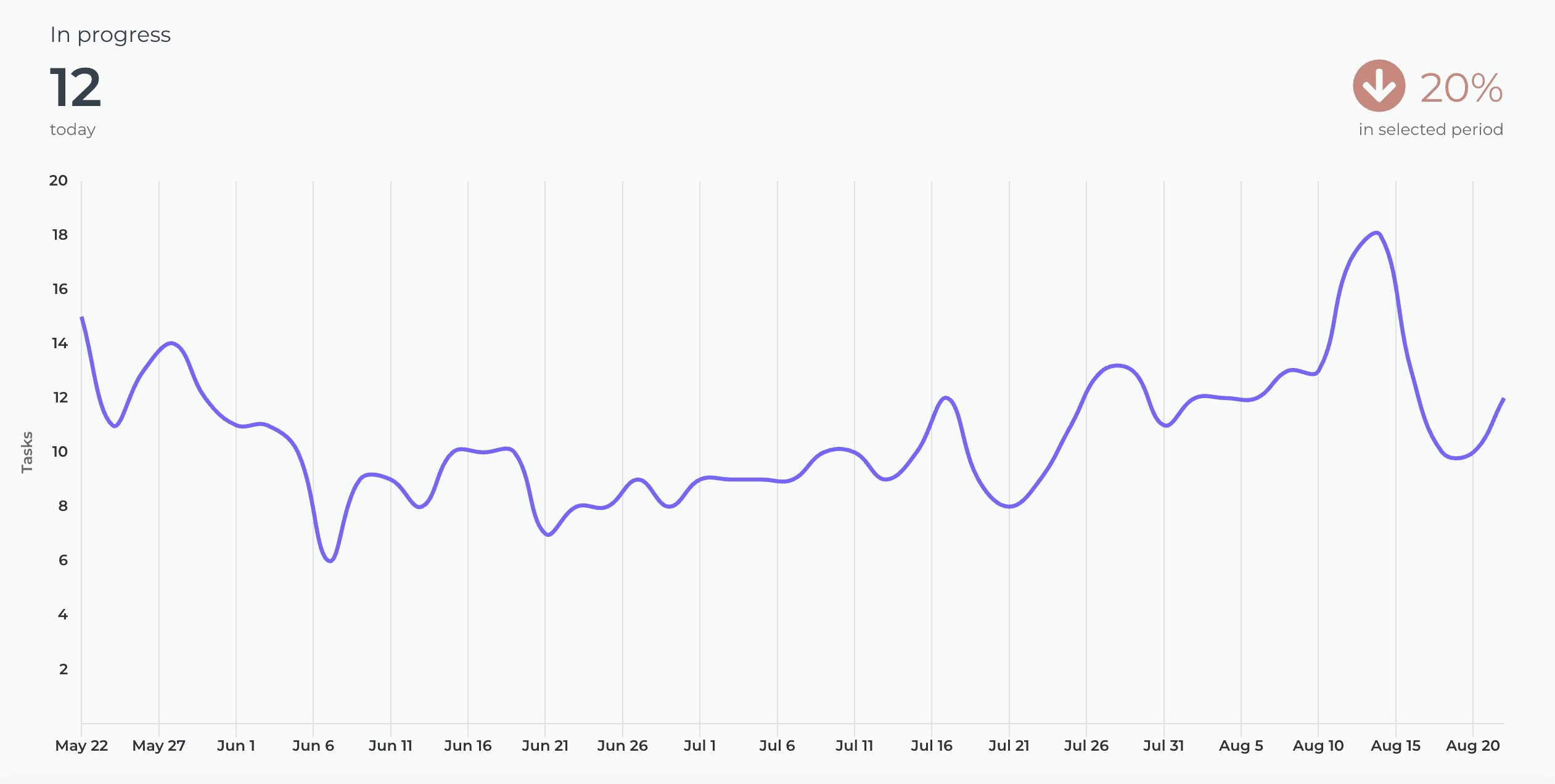
The timing information is based on how long items stay in the workflow states that are mapped to "In progress" in the workflow mapping. There is no need for sequential progress, and it is totally fine if tasks skip some of the workflow steps.
What if a task is moved from the “not started” state directly to “done” without going through any of the “in progress” states?
In that case, the cycle time will be zero.
How does the cycle time work if a task is moved into "in progress" and then back to "not started yet"? Similarly, what happens if a card is archived while it's in progress?
Cycle time is calculated only for completed tasks, so in both of those cases, cycle time would be undefined.
If a task is moved from "in progress" to "done", but then back to "in progress" again for additional work would this time be added to the cycle time?
Cycle time is counted only when the task is in progress, so the time spent in the "done" state is not included in the calculation.
When is a task created? Does the clock start when a task is created or when it is put in the "next" state (or equivalent)?
The clock starts when a task is moved to a workflow state that is mapped to the "not started" or "in progress" workflow state.
Are weekends included in the cycle time calculations?
Weekends are included in the calculations by default, but you can change that in the chart settings by selecting 'Exclude non-business hours. See How to set weekend days and office hours
What is the difference between these metrics?
Reaction time = time before the work was started
Cycle time = time from start to completion
Lead time = Reaction time + Cycle time
Timing metrics explained: Lead time vs Cycle time
How is the reaction time calculated?
Reaction time starts running when a task is moved into a state that is mapped to the "Not started" in the workflow mapping. The reaction time stops when the task is moved out from that state. If the task is never placed into a state that is mapped to the “Not started” workflow state, then the reaction time is zero.
What if tasks skip lists/columns, or there is no sequential workflow?
The timing information is based on how long items stay in the workflow states that are mapped to "In progress" in the workflow mapping. There is no need for sequential progress, and it is totally fine if tasks skip some of the workflow steps.
What if a task is moved from the “not started” state directly to “done” without going through any of the “in progress” states?
In that case, the cycle time will be zero.
How does the cycle time work if a task is moved into "in progress" and then back to "not started yet"? Similarly, what happens if a card is archived while it's in progress?
Cycle time is calculated only for completed tasks, so in both of those cases, cycle time would be undefined.
If a task is moved from "in progress" to "done", but then back to "in progress" again for additional work would this time be added to the cycle time?
Cycle time is counted only when the task is in progress, so the time spent in the "done" state is not included in the calculation.
When is a task created? Does the clock start when a task is created or when it is put in the "next" state (or equivalent)?
The clock starts when a task is moved to a workflow state that is mapped to the "not started" or "in progress" workflow state.
Are weekends included in the cycle time calculations?
Weekends are included in the calculations by default, but you can change that in the chart settings by selecting 'Exclude non-business hours. See How to set weekend days and office hours
By default yes, but you can specify your working hours and days in the Account Settings.
Yes, there are a few different ways you can filter out outliers from the charts, including
Filtering by item name
Filtering by how long an item has been in progress
Setting a label and filtering out based on that label
You can learn more from this guide: How to remove outliers from data?
Yes, there are a few different ways you can filter out outliers from the charts, including
Filtering by item name
Filtering by how long an item has been in progress
Setting a label and filtering out based on that label
You can learn more from this guide: How to remove outliers from data?
Does this support my specific workflow or do I have to use some specific states like "open", "in progress" and "done"?
You are not limited to any specific set of states or a workflow. You can configure your own workflow, if such exists, and you can use that in your reporting. It's also ok if you don't have any workflow in your boards, as can create reports based on any other criteria by setting a filter.
You can embed any custom chart or report to any web page using the embed code. Learn more about the sharing feature from the online guide.
The Getting Started Guide contains Instructions for setting up Screenful.
See also our Accounts & Pricing FAQ.
Check out our knowledge base and video tutorials, or get in touch by emailing support@screenful.com
The Getting Started Guide contains Instructions for setting up Screenful.
See also our Accounts & Pricing FAQ.
Check out our knowledge base and video tutorials, or get in touch by emailing support@screenful.com
FAQ
Common questions
It depends on whether you're importing GitHub repositories or GitHub Projects.
When you import GitHub repositories, one data source can contain multiple repositories. You can select the repositories to include in the data source by selecting them at the time of import.
When you import GitHub Projects, a data source is one GitHub Project.
The difference between these is that when importing a GitHub Project, you can use project metadata, such as statuses, iterations, and custom fields, in your reports, which are not available when importing repositories.
You can import data sources from all the tools we support in the same Screenful account. Learn more about managing data sources.
It depends on whether you're importing GitHub repositories or GitHub Projects.
When you import GitHub repositories, one data source can contain multiple repositories. You can select the repositories to include in the data source by selecting them at the time of import.
When you import GitHub Projects, a data source is one GitHub Project.
The difference between these is that when importing a GitHub Project, you can use project metadata, such as statuses, iterations, and custom fields, in your reports, which are not available when importing repositories.
You can import data sources from all the tools we support in the same Screenful account. Learn more about managing data sources.
Yes, we support both user-owned and organization-wide project boards as well as repository project boards. You can import both classic and new projects.
When you import a data source, all data is imported and made available for reporting. You can narrow the data to any subset by setting a filter. For example, you can filter out issues or pull request by using 'Type' filter.
You can track pull request review times by adding Pull request review time as a column in a Task list. The summary on the bottom shows the sum, average, or median time to review a pull request. You can learn more from this guide.
The Analytics & Reports GitHub App requires read-only access to issues, members, metadata, organization administration, organization projects, pull requests, and repository projects.
The Analytics & Reports OAuth app requires these OAuth scopes:
"read:org"
"repo" or "public_repo" (depending on whether user selects "authorise public repos only" or "authorize public and private repos”
An OAuth token will share the permissions of the user that authorized the application. That means, if your account authorizes the application and has 'write' permission to a repository, the token will also have 'write' permission to that repository. This is how OAuth tokens work in the GitHub platform.
From a security point of view, we recommend using the GitHub app instead of the OAuth app.
The Analytics & Reports OAuth app requires these OAuth scopes:
"read:org"
"repo" or "public_repo" (depending on whether user selects "authorise public repos only" or "authorize public and private repos”
An OAuth token will share the permissions of the user that authorized the application. That means, if your account authorizes the application and has 'write' permission to a repository, the token will also have 'write' permission to that repository. This is how OAuth tokens work in the GitHub platform.
From a security point of view, we recommend using the GitHub app instead of the OAuth app.
You can’t switch an existing Screenful account from OAuth to GitHub App. To use the GitHub App, you need to create a new Screenful account.
When importing project boards, you can specify your workflow based on the columns on the board which you can configure in the workflow settings. You can learn more from the Lead Time FAQ.
When importing repositories, the timing metrics are calculated as follows:
Lead time starts when an issue is created
Cycle time starts when the issue is assigned to a person, or when pull request is opened
Lead & cycle time is stopped when the issue is closed, or the pull request merged
When importing project boards, you can specify your workflow based on the columns on the board which you can configure in the workflow settings. You can learn more from the Lead Time FAQ.
When importing repositories, the timing metrics are calculated as follows:
Lead time starts when an issue is created
Cycle time starts when the issue is assigned to a person, or when pull request is opened
Lead & cycle time is stopped when the issue is closed, or the pull request merged
You can manage the subscription in the billing settings. The location of the billing settings depends on the product you are subscribed to. You can learn more by following the instructions in this guide.
We do not make changes to your data. We only read it via the API of your tool. Screenful is only for reporting and analytics. It does not update any data within your tools.
All data sources are synced automatically once per hour. Changing settings or configuration will trigger additional sync so your data is at most one hour old. You can sync data manually at any time in the sync settings.
Yes, you can create charts with a prompt and ask questions about a chart by using the Screenful AI Assistant. The assistant combines the leading LLMs with advanced multidimensional data analytics to help you understand and interpret your data.
What is the difference between these metrics?
Reaction time = time before the work was started
Cycle time = time from start to completion
Lead time = Reaction time + Cycle time
Timing metrics explained: Lead time vs Cycle time
How is the reaction time calculated?
Reaction time starts running when a task is moved into a state that is mapped to the "Not started" in the workflow mapping. The reaction time stops when the task is moved out from that state. If the task is never placed into a state that is mapped to the “Not started” workflow state, then the reaction time is zero.
What if tasks skip lists/columns, or there is no sequential workflow?
The timing information is based on how long items stay in the workflow states that are mapped to "In progress" in the workflow mapping. There is no need for sequential progress, and it is totally fine if tasks skip some of the workflow steps.
What if a task is moved from the “not started” state directly to “done” without going through any of the “in progress” states?
In that case, the cycle time will be zero.
How does the cycle time work if a task is moved into "in progress" and then back to "not started yet"? Similarly, what happens if a card is archived while it's in progress?
Cycle time is calculated only for completed tasks, so in both of those cases, cycle time would be undefined.
If a task is moved from "in progress" to "done", but then back to "in progress" again for additional work would this time be added to the cycle time?
Cycle time is counted only when the task is in progress, so the time spent in the "done" state is not included in the calculation.
When is a task created? Does the clock start when a task is created or when it is put in the "next" state (or equivalent)?
The clock starts when a task is moved to a workflow state that is mapped to the "not started" or "in progress" workflow state.
Are weekends included in the cycle time calculations?
Weekends are included in the calculations by default, but you can change that in the chart settings by selecting 'Exclude non-business hours. See How to set weekend days and office hours
What is the difference between these metrics?
Reaction time = time before the work was started
Cycle time = time from start to completion
Lead time = Reaction time + Cycle time
Timing metrics explained: Lead time vs Cycle time
How is the reaction time calculated?
Reaction time starts running when a task is moved into a state that is mapped to the "Not started" in the workflow mapping. The reaction time stops when the task is moved out from that state. If the task is never placed into a state that is mapped to the “Not started” workflow state, then the reaction time is zero.
What if tasks skip lists/columns, or there is no sequential workflow?
The timing information is based on how long items stay in the workflow states that are mapped to "In progress" in the workflow mapping. There is no need for sequential progress, and it is totally fine if tasks skip some of the workflow steps.
What if a task is moved from the “not started” state directly to “done” without going through any of the “in progress” states?
In that case, the cycle time will be zero.
How does the cycle time work if a task is moved into "in progress" and then back to "not started yet"? Similarly, what happens if a card is archived while it's in progress?
Cycle time is calculated only for completed tasks, so in both of those cases, cycle time would be undefined.
If a task is moved from "in progress" to "done", but then back to "in progress" again for additional work would this time be added to the cycle time?
Cycle time is counted only when the task is in progress, so the time spent in the "done" state is not included in the calculation.
When is a task created? Does the clock start when a task is created or when it is put in the "next" state (or equivalent)?
The clock starts when a task is moved to a workflow state that is mapped to the "not started" or "in progress" workflow state.
Are weekends included in the cycle time calculations?
Weekends are included in the calculations by default, but you can change that in the chart settings by selecting 'Exclude non-business hours. See How to set weekend days and office hours
By default yes, but you can specify your working hours and days in the Account Settings.
Yes, there are a few different ways you can filter out outliers from the charts, including
Filtering by item name
Filtering by how long an item has been in progress
Setting a label and filtering out based on that label
You can learn more from this guide: How to remove outliers from data?
Yes, there are a few different ways you can filter out outliers from the charts, including
Filtering by item name
Filtering by how long an item has been in progress
Setting a label and filtering out based on that label
You can learn more from this guide: How to remove outliers from data?
Does this support my specific workflow or do I have to use some specific states like "open", "in progress" and "done"?
You are not limited to any specific set of states or a workflow. You can configure your own workflow, if such exists, and you can use that in your reporting. It's also ok if you don't have any workflow in your boards, as can create reports based on any other criteria by setting a filter.
You can embed any custom chart or report to any web page using the embed code. Learn more about the sharing feature from the online guide.
The Getting Started Guide contains Instructions for setting up Screenful.
See also our Accounts & Pricing FAQ.
Check out our knowledge base and video tutorials, or get in touch by emailing support@screenful.com
The Getting Started Guide contains Instructions for setting up Screenful.
See also our Accounts & Pricing FAQ.
Check out our knowledge base and video tutorials, or get in touch by emailing support@screenful.com
FAQ
Common questions
It depends on whether you're importing GitHub repositories or GitHub Projects.
When you import GitHub repositories, one data source can contain multiple repositories. You can select the repositories to include in the data source by selecting them at the time of import.
When you import GitHub Projects, a data source is one GitHub Project.
The difference between these is that when importing a GitHub Project, you can use project metadata, such as statuses, iterations, and custom fields, in your reports, which are not available when importing repositories.
You can import data sources from all the tools we support in the same Screenful account. Learn more about managing data sources.
It depends on whether you're importing GitHub repositories or GitHub Projects.
When you import GitHub repositories, one data source can contain multiple repositories. You can select the repositories to include in the data source by selecting them at the time of import.
When you import GitHub Projects, a data source is one GitHub Project.
The difference between these is that when importing a GitHub Project, you can use project metadata, such as statuses, iterations, and custom fields, in your reports, which are not available when importing repositories.
You can import data sources from all the tools we support in the same Screenful account. Learn more about managing data sources.
Yes, we support both user-owned and organization-wide project boards as well as repository project boards. You can import both classic and new projects.
When you import a data source, all data is imported and made available for reporting. You can narrow the data to any subset by setting a filter. For example, you can filter out issues or pull request by using 'Type' filter.
You can track pull request review times by adding Pull request review time as a column in a Task list. The summary on the bottom shows the sum, average, or median time to review a pull request. You can learn more from this guide.
The Analytics & Reports GitHub App requires read-only access to issues, members, metadata, organization administration, organization projects, pull requests, and repository projects.
The Analytics & Reports OAuth app requires these OAuth scopes:
"read:org"
"repo" or "public_repo" (depending on whether user selects "authorise public repos only" or "authorize public and private repos”
An OAuth token will share the permissions of the user that authorized the application. That means, if your account authorizes the application and has 'write' permission to a repository, the token will also have 'write' permission to that repository. This is how OAuth tokens work in the GitHub platform.
From a security point of view, we recommend using the GitHub app instead of the OAuth app.
The Analytics & Reports OAuth app requires these OAuth scopes:
"read:org"
"repo" or "public_repo" (depending on whether user selects "authorise public repos only" or "authorize public and private repos”
An OAuth token will share the permissions of the user that authorized the application. That means, if your account authorizes the application and has 'write' permission to a repository, the token will also have 'write' permission to that repository. This is how OAuth tokens work in the GitHub platform.
From a security point of view, we recommend using the GitHub app instead of the OAuth app.
You can’t switch an existing Screenful account from OAuth to GitHub App. To use the GitHub App, you need to create a new Screenful account.
When importing project boards, you can specify your workflow based on the columns on the board which you can configure in the workflow settings. You can learn more from the Lead Time FAQ.
When importing repositories, the timing metrics are calculated as follows:
Lead time starts when an issue is created
Cycle time starts when the issue is assigned to a person, or when pull request is opened
Lead & cycle time is stopped when the issue is closed, or the pull request merged
When importing project boards, you can specify your workflow based on the columns on the board which you can configure in the workflow settings. You can learn more from the Lead Time FAQ.
When importing repositories, the timing metrics are calculated as follows:
Lead time starts when an issue is created
Cycle time starts when the issue is assigned to a person, or when pull request is opened
Lead & cycle time is stopped when the issue is closed, or the pull request merged
You can manage the subscription in the billing settings. The location of the billing settings depends on the product you are subscribed to. You can learn more by following the instructions in this guide.
We do not make changes to your data. We only read it via the API of your tool. Screenful is only for reporting and analytics. It does not update any data within your tools.
All data sources are synced automatically once per hour. Changing settings or configuration will trigger additional sync so your data is at most one hour old. You can sync data manually at any time in the sync settings.
Yes, you can create charts with a prompt and ask questions about a chart by using the Screenful AI Assistant. The assistant combines the leading LLMs with advanced multidimensional data analytics to help you understand and interpret your data.
What is the difference between these metrics?
Reaction time = time before the work was started
Cycle time = time from start to completion
Lead time = Reaction time + Cycle time
Timing metrics explained: Lead time vs Cycle time
How is the reaction time calculated?
Reaction time starts running when a task is moved into a state that is mapped to the "Not started" in the workflow mapping. The reaction time stops when the task is moved out from that state. If the task is never placed into a state that is mapped to the “Not started” workflow state, then the reaction time is zero.
What if tasks skip lists/columns, or there is no sequential workflow?
The timing information is based on how long items stay in the workflow states that are mapped to "In progress" in the workflow mapping. There is no need for sequential progress, and it is totally fine if tasks skip some of the workflow steps.
What if a task is moved from the “not started” state directly to “done” without going through any of the “in progress” states?
In that case, the cycle time will be zero.
How does the cycle time work if a task is moved into "in progress" and then back to "not started yet"? Similarly, what happens if a card is archived while it's in progress?
Cycle time is calculated only for completed tasks, so in both of those cases, cycle time would be undefined.
If a task is moved from "in progress" to "done", but then back to "in progress" again for additional work would this time be added to the cycle time?
Cycle time is counted only when the task is in progress, so the time spent in the "done" state is not included in the calculation.
When is a task created? Does the clock start when a task is created or when it is put in the "next" state (or equivalent)?
The clock starts when a task is moved to a workflow state that is mapped to the "not started" or "in progress" workflow state.
Are weekends included in the cycle time calculations?
Weekends are included in the calculations by default, but you can change that in the chart settings by selecting 'Exclude non-business hours. See How to set weekend days and office hours
What is the difference between these metrics?
Reaction time = time before the work was started
Cycle time = time from start to completion
Lead time = Reaction time + Cycle time
Timing metrics explained: Lead time vs Cycle time
How is the reaction time calculated?
Reaction time starts running when a task is moved into a state that is mapped to the "Not started" in the workflow mapping. The reaction time stops when the task is moved out from that state. If the task is never placed into a state that is mapped to the “Not started” workflow state, then the reaction time is zero.
What if tasks skip lists/columns, or there is no sequential workflow?
The timing information is based on how long items stay in the workflow states that are mapped to "In progress" in the workflow mapping. There is no need for sequential progress, and it is totally fine if tasks skip some of the workflow steps.
What if a task is moved from the “not started” state directly to “done” without going through any of the “in progress” states?
In that case, the cycle time will be zero.
How does the cycle time work if a task is moved into "in progress" and then back to "not started yet"? Similarly, what happens if a card is archived while it's in progress?
Cycle time is calculated only for completed tasks, so in both of those cases, cycle time would be undefined.
If a task is moved from "in progress" to "done", but then back to "in progress" again for additional work would this time be added to the cycle time?
Cycle time is counted only when the task is in progress, so the time spent in the "done" state is not included in the calculation.
When is a task created? Does the clock start when a task is created or when it is put in the "next" state (or equivalent)?
The clock starts when a task is moved to a workflow state that is mapped to the "not started" or "in progress" workflow state.
Are weekends included in the cycle time calculations?
Weekends are included in the calculations by default, but you can change that in the chart settings by selecting 'Exclude non-business hours. See How to set weekend days and office hours
By default yes, but you can specify your working hours and days in the Account Settings.
Yes, there are a few different ways you can filter out outliers from the charts, including
Filtering by item name
Filtering by how long an item has been in progress
Setting a label and filtering out based on that label
You can learn more from this guide: How to remove outliers from data?
Yes, there are a few different ways you can filter out outliers from the charts, including
Filtering by item name
Filtering by how long an item has been in progress
Setting a label and filtering out based on that label
You can learn more from this guide: How to remove outliers from data?
Does this support my specific workflow or do I have to use some specific states like "open", "in progress" and "done"?
You are not limited to any specific set of states or a workflow. You can configure your own workflow, if such exists, and you can use that in your reporting. It's also ok if you don't have any workflow in your boards, as can create reports based on any other criteria by setting a filter.
You can embed any custom chart or report to any web page using the embed code. Learn more about the sharing feature from the online guide.
The Getting Started Guide contains Instructions for setting up Screenful.
See also our Accounts & Pricing FAQ.
Check out our knowledge base and video tutorials, or get in touch by emailing support@screenful.com
The Getting Started Guide contains Instructions for setting up Screenful.
See also our Accounts & Pricing FAQ.
Check out our knowledge base and video tutorials, or get in touch by emailing support@screenful.com
Troubleshooting
You can pull metrics from repositories that you own or that are in your organisation. If your organisation has applied special restrictions on 3rd party access you need to grant access to the Screenful app first.
When you create a new Organization within GitHub it may not automatically appear within Screenful. You may need to enable access to the new organizaion within the GItHub UI.
Notice also that the OAuth integration is managed per user account rather than per organization. The integration will see all the organizations for that GitHub user.
To add your new GitHub organization, you will need to add access to Screenful for this new organization:
Navigate to Account(top right) > Settings > Applications > Authorized OAuth Apps
Click on Screenful
Find your Organization(s) and click on Grant.
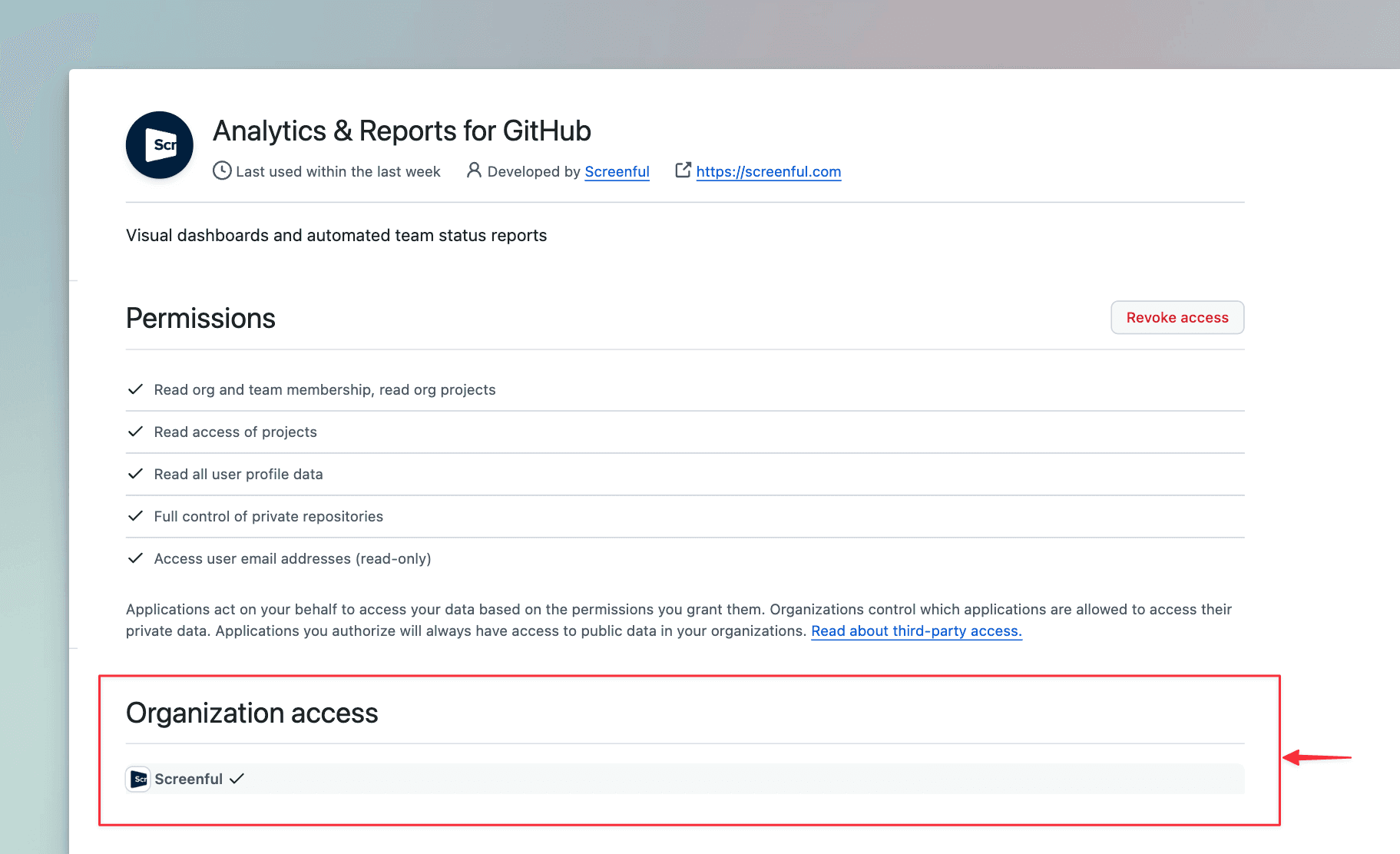
You should now be able to import repositories and projects from this organization!
When you create a new Organization within GitHub it may not automatically appear within Screenful. You may need to enable access to the new organizaion within the GItHub UI.
Notice also that the OAuth integration is managed per user account rather than per organization. The integration will see all the organizations for that GitHub user.
To add your new GitHub organization, you will need to add access to Screenful for this new organization:
Navigate to Account(top right) > Settings > Applications > Authorized OAuth Apps
Click on Screenful
Find your Organization(s) and click on Grant.

You should now be able to import repositories and projects from this organization!
Go to the Applications settings in GitHub and remove Screenful from the authorised OAuth applications. After that, you can import projects or repositories using a different GitHub account.
The pull request review time can be zero in the following cases:
Pull request hasn't been merged
Review took place after the pull request was merged
Review was never requested (in which case the review time is zero because the counting starts from the moment the pull review was requested)
The pull request review time can be zero in the following cases:
Pull request hasn't been merged
Review took place after the pull request was merged
Review was never requested (in which case the review time is zero because the counting starts from the moment the pull review was requested)
While both the public and private channels are shown in the menu, you won’t receive the report to a private channel without explicitly adding the Screenful app to that channel. Learn how to enable sending to a private Slack channel.
There can also be restrictions on who can install apps to your Slack. Learn how to manage app approval in your Slack workspace.
Some browser plugins may interfere with the authorization process. If you see an empty page during the authorization or the list of channels is empty, you should try with another browser (or ask your colleague to do the Slack authorization).
While both the public and private channels are shown in the menu, you won’t receive the report to a private channel without explicitly adding the Screenful app to that channel. Learn how to enable sending to a private Slack channel.
There can also be restrictions on who can install apps to your Slack. Learn how to manage app approval in your Slack workspace.
Some browser plugins may interfere with the authorization process. If you see an empty page during the authorization or the list of channels is empty, you should try with another browser (or ask your colleague to do the Slack authorization).
Filter options are derived from task data, which means that if you recently added some properties, such as labels, but haven't yet assigned them to any tasks, they won't show up in the filter options. As soon as you assign them to tasks, they will show up in the filter options from then on.
If you or your colleague didn't receive the user invitation email, you can go to the user settings and click the Copy invitation link button to copy the link to the clipboard. After that, you can share the link via any channel (email, Slack, Teams, etc). You can learn more from the user invitation guide.
Troubleshooting
You can pull metrics from repositories that you own or that are in your organisation. If your organisation has applied special restrictions on 3rd party access you need to grant access to the Screenful app first.
When you create a new Organization within GitHub it may not automatically appear within Screenful. You may need to enable access to the new organizaion within the GItHub UI.
Notice also that the OAuth integration is managed per user account rather than per organization. The integration will see all the organizations for that GitHub user.
To add your new GitHub organization, you will need to add access to Screenful for this new organization:
Navigate to Account(top right) > Settings > Applications > Authorized OAuth Apps
Click on Screenful
Find your Organization(s) and click on Grant.

You should now be able to import repositories and projects from this organization!
When you create a new Organization within GitHub it may not automatically appear within Screenful. You may need to enable access to the new organizaion within the GItHub UI.
Notice also that the OAuth integration is managed per user account rather than per organization. The integration will see all the organizations for that GitHub user.
To add your new GitHub organization, you will need to add access to Screenful for this new organization:
Navigate to Account(top right) > Settings > Applications > Authorized OAuth Apps
Click on Screenful
Find your Organization(s) and click on Grant.

You should now be able to import repositories and projects from this organization!
Go to the Applications settings in GitHub and remove Screenful from the authorised OAuth applications. After that, you can import projects or repositories using a different GitHub account.
The pull request review time can be zero in the following cases:
Pull request hasn't been merged
Review took place after the pull request was merged
Review was never requested (in which case the review time is zero because the counting starts from the moment the pull review was requested)
The pull request review time can be zero in the following cases:
Pull request hasn't been merged
Review took place after the pull request was merged
Review was never requested (in which case the review time is zero because the counting starts from the moment the pull review was requested)
While both the public and private channels are shown in the menu, you won’t receive the report to a private channel without explicitly adding the Screenful app to that channel. Learn how to enable sending to a private Slack channel.
There can also be restrictions on who can install apps to your Slack. Learn how to manage app approval in your Slack workspace.
Some browser plugins may interfere with the authorization process. If you see an empty page during the authorization or the list of channels is empty, you should try with another browser (or ask your colleague to do the Slack authorization).
While both the public and private channels are shown in the menu, you won’t receive the report to a private channel without explicitly adding the Screenful app to that channel. Learn how to enable sending to a private Slack channel.
There can also be restrictions on who can install apps to your Slack. Learn how to manage app approval in your Slack workspace.
Some browser plugins may interfere with the authorization process. If you see an empty page during the authorization or the list of channels is empty, you should try with another browser (or ask your colleague to do the Slack authorization).
Filter options are derived from task data, which means that if you recently added some properties, such as labels, but haven't yet assigned them to any tasks, they won't show up in the filter options. As soon as you assign them to tasks, they will show up in the filter options from then on.
If you or your colleague didn't receive the user invitation email, you can go to the user settings and click the Copy invitation link button to copy the link to the clipboard. After that, you can share the link via any channel (email, Slack, Teams, etc). You can learn more from the user invitation guide.
Troubleshooting
You can pull metrics from repositories that you own or that are in your organisation. If your organisation has applied special restrictions on 3rd party access you need to grant access to the Screenful app first.
When you create a new Organization within GitHub it may not automatically appear within Screenful. You may need to enable access to the new organizaion within the GItHub UI.
Notice also that the OAuth integration is managed per user account rather than per organization. The integration will see all the organizations for that GitHub user.
To add your new GitHub organization, you will need to add access to Screenful for this new organization:
Navigate to Account(top right) > Settings > Applications > Authorized OAuth Apps
Click on Screenful
Find your Organization(s) and click on Grant.

You should now be able to import repositories and projects from this organization!
When you create a new Organization within GitHub it may not automatically appear within Screenful. You may need to enable access to the new organizaion within the GItHub UI.
Notice also that the OAuth integration is managed per user account rather than per organization. The integration will see all the organizations for that GitHub user.
To add your new GitHub organization, you will need to add access to Screenful for this new organization:
Navigate to Account(top right) > Settings > Applications > Authorized OAuth Apps
Click on Screenful
Find your Organization(s) and click on Grant.

You should now be able to import repositories and projects from this organization!
Go to the Applications settings in GitHub and remove Screenful from the authorised OAuth applications. After that, you can import projects or repositories using a different GitHub account.
The pull request review time can be zero in the following cases:
Pull request hasn't been merged
Review took place after the pull request was merged
Review was never requested (in which case the review time is zero because the counting starts from the moment the pull review was requested)
The pull request review time can be zero in the following cases:
Pull request hasn't been merged
Review took place after the pull request was merged
Review was never requested (in which case the review time is zero because the counting starts from the moment the pull review was requested)
While both the public and private channels are shown in the menu, you won’t receive the report to a private channel without explicitly adding the Screenful app to that channel. Learn how to enable sending to a private Slack channel.
There can also be restrictions on who can install apps to your Slack. Learn how to manage app approval in your Slack workspace.
Some browser plugins may interfere with the authorization process. If you see an empty page during the authorization or the list of channels is empty, you should try with another browser (or ask your colleague to do the Slack authorization).
While both the public and private channels are shown in the menu, you won’t receive the report to a private channel without explicitly adding the Screenful app to that channel. Learn how to enable sending to a private Slack channel.
There can also be restrictions on who can install apps to your Slack. Learn how to manage app approval in your Slack workspace.
Some browser plugins may interfere with the authorization process. If you see an empty page during the authorization or the list of channels is empty, you should try with another browser (or ask your colleague to do the Slack authorization).
Filter options are derived from task data, which means that if you recently added some properties, such as labels, but haven't yet assigned them to any tasks, they won't show up in the filter options. As soon as you assign them to tasks, they will show up in the filter options from then on.
If you or your colleague didn't receive the user invitation email, you can go to the user settings and click the Copy invitation link button to copy the link to the clipboard. After that, you can share the link via any channel (email, Slack, Teams, etc). You can learn more from the user invitation guide.